Tag Archives: webdesign

Stop Coding This Right Now, part 6: Intrusive Page Alerts

I personally find it very annoying when I first land on a webpage, only to be greeted with the following pop-up announcement, called a “page alert.” They appear right when you load the page and look something like the following images:

newsletter

offers

chat

4thmessage

contentfail

omgjustread

Okay, all kidding aside, these page alerts can get mighty annoying for people trying to use websites. They feel like a needless grab for attention, and they can even drive away visitors who would otherwise have stayed on your page to get information.

Why are Page Alerts Annoying?

These days, we all surf the Internet generally looking for information, as quickly as possible. But page alerts slow browsing down–they are a visual shock to the user, because it’s not something most websites do. Shocking websites can be fun, but in this case, the shock is unpleasant.

Not only is this alert disconcerting, but it’s also an inconvenience. Usually, page alerts dim the page behind them and make everything else unclickable until you do something with the alert box itself, either clicking the Close button, filling out the offered form, or clicking “yes/no.” When you put this kind of alert on your website, you’re essentially blocking the user’s ability to access your site until they do what you tell them to. A little bossy and controlling, methinks?

How to Get Your User’s Attention Without Being Annoying

  • Use social media updates. Whatever you have to announce, post it to your Facebook page, tweet about it, etc.–make sure you use all the social media channels you can to get your announcement out there. And put something about it on the main page of your site, too, preferably with differently-formatted text or a small eye-catching graphic.
  • Put short updates as near to the top of the page as possible. Keeping your updates succinct and as visible as possible makes it more likely that people will read them and get the information they need from them.

Simply put, you don’t have to resort to annoying “OMG-look-at-me!!!” tactics to get your visitors’ attention. Actually, the best thing you can do is to provide information clearly, in an easy-to-read format, and make that information accessible in as many ways as possible. Your users will thank you!

Stop Coding This Right Now, part 5: Informal Fonts for Business Sites

Choosing which font to use for your website’s graphics seems like such a small concern, especially in the light of all the other parts of building a website. For business websites, the font concern can seem even less important–there are so many other choices to make, like hosting, bandwidth, site colors, etc., that seem much more pressing. But even if your content is wonderful, your images superb, and your networking beyond compare, your site will still suffer if its font choices look less than professional.

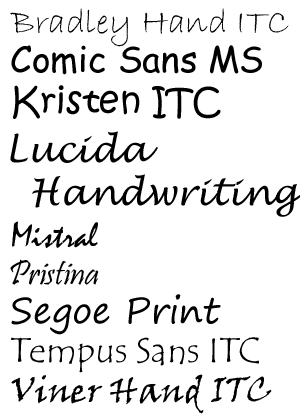
What do I mean by “less than professional” font choices? Anything that looks informal, more like printing or cursive handwriting than typed text–like the following:

informalfonts_example Comic Sans has gotten most of the bad press for being a rather overused and ill-advised font, but there are other fonts out there that are not good choices for business sites.

I’m not saying that these fonts are all-around bad–not at all! Tempus Sans ITC is one of my favorite fonts to use, for instance. But I use it for personal design and web projects only. It and other “handwriting” fonts give the right touch of personality and humanity to small personal sites; for a business website, however, it makes the business’ Web presence seem less polished and “finished”.

It’s like getting dressed for a job interview. If I went to an interview wearing my best blouse, but paired it with torn jeans, I wouldn’t be likely to get the job–torn jeans are more appropriate for casual events. The same goes for fonts; handwriting fonts are more appropriate for casual or personal webpages.

Look at the following example, using Kristen ITC for the top font and Palatino Linotype for the bottom font. With both fonts in similar sizes, styled with the same color and drop shadow, which font looks more professional and polished? Which site would you instinctively trust more to give you accurate information in a timely manner?
whichisprofessional

Fonts silently tell your visitors more about your content and your businesslike personality–for better or for worse. When you’re designing a page for a business, you want to make sure your website is putting its best foot forward, and fonts are a surprisingly important part of that. (This is one reason I’m looking at redesigning Crooked Glasses’ own look soon–I want to make sure I’m following my own advice!)

Stop Coding This Right Now, part 4: “Click Here!” Link Descriptions

The first 3 installments of this series have been about bad user interface design, namely nonsense navigation, horizontal scrollbars, and autoplaying music. But today, I’ll discuss another Internet annoyance: nondescriptive links, also known as “click here!” links.

Why “Click Here!” is Useless (and Downright Dangerous) Link Text

It’s deceptively easy to just write “Click here!” in our text links, or in the alt text of our image links. It requires no thought, and it seems like good attention-getting text. That should be a good thing, right?

Let me give you an example. If both of the following links went to a Paypal donation page, which of these would you be more likely to click on, as a user?

If you’re like most users, you might be attracted toward the flashing “click here!!!!” link, but you’d be more likely to click on the “donate” link.

“Click here!” harms our website’s concept, in two ways:

  • It does not describe what the user is about to click on, at all
  • It looks suspiciously like ad text, or even spyware-generated text

It’s important that our websites be easy to use and made of genuine content. But nondescriptive link text works against both those goals. Not only does the user have to guess what to click on to find desired information, but he or she doesn’t even know whether the link is real content or just a hook for an ad. Too many times, ad companies (and ads that download spyware) use “Click Here!!!” to get attention. Modern users are wise to that trick, and will avoid such links like the plague.

The Ideal: Short but Descriptive Link Text

As with most content, you do want to keep link text brief, so that users can simply skim your site to see whether you’ve got the information they want and need. But brief text can still be descriptive, like the examples below:

  • “About” instead of “About This Site” or “About Me”
  • “Follow” as the alt text for your Twitter image, instead of “Please follow me on Twitter”
  • “[Name of a site]” instead of “Visit http://wwww.[name of a site].com”
  • The Web-classic “FAQ” instead of “Frequently Asked Questions”

It’s all about shortening the description to a couple of words, but using words that still make it clear what the page is about. That’s all your user wants–and, if you think about it, that’s all we want out of websites when we use the Internet ourselves!

Stop Coding This Right Now, part 3: Horizontal Scrolling

We all want to design unique and memorable websites; it’s a worthy aspiration for any web developer/designer. But you don’t need to stoop to horizontal page scrolling to make your website stand out from the rest. In fact, it’s much better for your visitors if you stay as far away from horizontal scrolling as possible!

Horizontal Scrolling, Defined

When the scrollbar that should be on the right side of the browser window appears at the bottom of the window instead, that is horizontal scrolling. The content expands out to the right or left instead of flowing down the page like most webpages do today. See the following examples I made:


Looks like a normal webpage…except that the scrollbar is below the content!


The content scrolls to the right, rather awkwardly; it’s almost like the site didn’t display correctly. Very confusing for information reading, too!

Why This is So Annoying to Users

The reason horizontal scrolling is a designing no-no: it’s not how most websites operate. Most content runs vertically down the page. Thus, your users are momentarily confused about how to navigate your site, and if they get fed up enough, they’ll most likely leave. It’s simply not worth it, from a user’s standpoint, to try navigating around a weird site that doesn’t even have its scrollbar in the “right” place.

This is Tempting, but Don’t Do It

I know we all want our content to be easily seen “above the fold,” where the user doesn’t have to scroll at all. But trust me, having a little vertical scrolling is infinitely better than trying to implement strange horizontal scrolling. Not only does it look weird, it’s more work for the designer to code, and it’s more confusion for the user to try to adapt their browsing style.

Bottom line: We as designers should not force the user to work harder just because we want to be “different” and “trendy!”

Try This Instead: Content Modules

Instead of having your content stretch horizontally forever and ever, try a 2- or 3-column content design with several boxes of content arranged in a grid pattern, like the following samples:


This is an example of a two-column grid layout…

…and this is an example of a three-column grid layout.

You don’t have to go completely Pinterest-esque, but at least this would get more of your content up above the “fold.” Just make sure to keep that page free of horizontal scrollbars!

Stop Coding This Right Now, part 2: Nonsense Navigation

It used to be all the rage–it used to be part of every webmaster’s toolbox. To have an uncluttered, sleek-looking layout, we all used to make our layouts look something like this:


Looks pretty cool, right? It’s easy on the eyes, if a little amateurish (because this was one of my first attempts at doing a design like this).

But there’s a big problem with this layout, and it’s staring us in the face.


There are no descriptive words in the navigation. None at all. It’s just Roman numerals. Tidy and clean it may be, but it makes no sense to the user upon first landing on the page. What do you click on to get to the page you want? There are no hints.

Why Sensible Navigation Matters

More and more, our sites are being used for informational purposes rather than just places to display our skill at Photoshop and coding. To meet that need, we as designers and developers need to make our site as easy and quick to use as possible.

The problem? When we’re busily designing and coding a layout, we might not think that having to hover over an image-mapped navigation (like the example above) to find out what you’re about to click on is a pain. But to our users, it’s one more obstacle in getting to the information they need.

Think about how we ourselves use websites. We don’t like it when a site doesn’t “make sense” logically or doesn’t make content clear and available. So why should we inflict that on our users just for the sake of making our navigation “pretty” or “uncluttered?”

Making Navigation Both Logical and Tidy

Here are two ways to make navigation look good AND easy to understand:

  • Choose explanatory icons where possible; there are many great symbol/icon fonts out there that can make wordless navigation still understandable. My current favorites are Socialico and Modern Pictograms.
  • Simplify and shorten the text of your navigation links as much as possible without losing the meaning. For instance, instead of labeling a link as “back to home page”, just simply label it “home”.

You can even combine icons with a simple text label underneath them if you so choose–that can look just as clean as the icon by itself. Whatever style of simple and elegant navigation you choose, you’ll definitely have happier users!

Stop Coding This Right Now, part 1: Autoplaying Music

When you’re first building a website, you usually want to make it an experience for your user. You want it to be awe-inspiring, enveloping, amazing. You want the user to browse your site for hours, enjoying every moment.

How do you achieve that encompassing web experience, you ask?

Definitely NOT by having music autoplay as soon as the user loads your page, the same song looping forever, un-mute-able, un-pause-able.

Why is This an Issue?

Autoplaying music might be a great addition to webpages, except for the following three truths about Internet users.

Users generally…

  • Have their own music going while they surf
  • Have more than one tab open at any given time
  • Want to be able to customize their web experience, i.e., with pause buttons, links to change font size, etc.

Autoplaying music, with no pause/stop buttons visible anywhere on the page, thus offends users on three levels. Not only is there mysterious music playing, usually at an ungodly volume, clashing with the music you’ve got going, but you’ve got to hunt through all your tabs to find and eradicate the source of the annoying sound. And when you finally find the maddening site, you can’t pause the music, stop it, or even lower the volume–it’s just THERE.

The only cure for autoplaying music is to leave the site entirely, and most users will be all too happy to click that Close button. Thus, autoplaying music loses your visitors almost as soon as they hit your page–not what you want, as a designer and developer!

Are There Any Ways to Gently Incorporate Music into Your Webpage?

There is a trusted way to make music on a webpage infinitely more bearable–make sure you have a visible audio player (complete with pause, volume, and stop buttons), and make sure the music doesn’t autostart when the user loads the page.

Draw attention to this little audio module with special formatting, and leave it at that. Your users will find it and use it if they so choose–all you have to do is leave the choice up to them. That, my friends, will make your visitors so much happier than an uncontrollable loop of tinny music drilling its way into their brains.

Break Out of Web Design Cliches

We’ve all fallen victim to them, as web designers. After a while, a certain style or structure of site layout becomes second nature, and you just begin to design every site the same way regardless of content. Either because it’s easier or because it’s familiar, we can all fall into the “web design cliche” trap…but we don’t have to be trapped by it forever!

Common Webdesign Cliches, Illustrated


Full-size screenshot

While the above image I’ve made is rather tongue-in-cheek, this fairly well describes several of the design cliches I’ve seen in the last few years. (Sadly, some of these are the same ones I find myself relying on, so I’m kind of preaching to myself today, too. :P)

For instance:

900-Pixel Two-Column Layout with Floated Divided Layers

As you see in the above screenshot, the old faithful 900px two-column layout looks sharp and clean, but somehow…a little bland and overly confined, too. In this age of mobile screens and bigger screen resolutions, should we be confined by this limited-width design anymore?

I will admit it’s an easy design to make and it’s very familiar…I almost want to say “if it ain’t broke, don’t fix it.” But then again, it might BE a little broken for our tablet and smartphone age, when it can’t shrink and grow with our various screen sizes.

Blue, Gray, or Black Layout Colors…but Mostly Blue

Don’t get me wrong, I absolutely love blue, and I love using it in layout designs. It’s just that about 70 million other designers apparently love blue, too, and think that it’s a great color for their websites as well.

Along with gray and black, blue is generally overused on the Internet because it’s a “safe” color, a “sleek”-looking color. There are definitely instances where blue, gray, or black may be called for in design, but these days a “safe” color choice can make an otherwise awesomely-structured layout look less than original.

Huge Header Image


I’m as guilty of this as anybody–making a wide, occasionally awesome header image for the top of many of my layouts. I got used to doing this in webdesign about six years ago, and it’s been just plain hard for me to imagine a site which doesn’t use a header image of some sort.

But when you have this much visual space at the top of a layout, even if you’ve got a fairly eye-catching image, you’re not really drawing any attention to your content. Nor is it giving your site a good first impression, graphically speaking. (This has been a very hard lesson to learn for me, but it’s a necessary one from a user’s standpoint.)

Huge, Empty Footer


Footers are great little page-enders. They give your users ways to navigate your page without scrolling all the way back up to the top, as well as including extra links and info that don’t need to be front and center on your page.

Yet many of us web designers have gone a wee bit overboard when it comes to footers, trying to make everything BIG and important-looking, and usually ending up with the above result: a very spacey, empty-looking end to a page. If you’ve got a small site and don’t really have a lot of info that needs to be in a footer, it can even look like an unintended space at the bottom.

Gradient Background Image

Ah, gradients! I love them, so much…and yet they, too, can look generic. We designers have often used gradients to give a slightly dimensional effect to our websites, but they can very easily become a design crutch, too. We can begin to depend on them for backgrounds, when perhaps another kind of background effect might look better.

Simpler is better, most of the time, but in this case, it’s almost too simple–it doesn’t brand your site or add much visual interest. And, in the case of mobile browsers, it might never even be seen, not in the way you intended; spacing issues can throw off a gradient background image and make it render strangely behind the text.

Left-Aligned, Spaced Out Navigation

This style of navigation began life, most likely, as an “ease of use” design choice. It still is very easy to use and easy to look at, especially when you have a lot of links in your main navigation, but you still need your navigation area to look organized.

But what about sites that might not have that much navigation, like this example? For smaller sites, the left-aligned navigation adds almost too much white space, and takes away from the space that the content could expand into as well. You end up with a large dead space in the middle of the layout, if you’re not careful.

Moving Away from These Cliches

Making different design choices doesn’t mean you have to completely rethink everything about the cliches I’ve mentioned. Instead, you can make small or medium-sized changes to the cliches themselves, like the ones I describe below:

Instead of A Two-Column Layout…

…Think about a three-column layout (two sidebars, either flanking the content or both out to one side of your content), or even a one-column layout with all your regular sidebar stuff in the footer or across the top. A three-column layout could work well for a big, media/content-driven site; a one-column layout would likely work best for a small personal site.

Instead of Left-Aligned, Spaced-Out Navigation…

…You could try a series of icons for navigation on the right side of the page, or text navigation strung across the top of the page. Maybe even try a navigation bar that scrolls along with the user as they move down the page, especially if you have long pages. You still want to make sure your navigation is very easy to find and use, but making it neater and more tightly-organized can only help the process.

Instead of Blue, Gray, or Black Layout Colors…

…Try other colors, possibly used alongside blue, gray, or black to make it a little less jarring. A dark burgundy could give subtle punch to an otherwise gray layout; a bright splash of pale yellow or green could liven up a black layout.

And if you really want to break out of the color cliche, try “strange” color combinations; recently on my main domain and its subsites, I’ve tried combinations like navy and peach, deep red and bright periwinkle blue, pale green and deep purple, etc., with success. (It all hinges on how much or how little you use each color; using a bright or vibrant color is great for drawing attention to new or featured content, for instance, but it’s not great for dousing the whole layout.)

Instead of a Huge Empty Header or Footer…

…Make your header or footer retractable (with jQuery or a similar language), where the user can “fold” it up out of the way with a click when they don’t need to view it. Or you can use your header as an advertising space for your most accessed/favorited content, and your footer as ad space for other webmasters’ sites. Anything that uses that space as a content holder rather than dead space!

Instead of a Gradient Background Image…

…Check out what kinds of subtle, site-branding patterns you can use instead. You don’t have to have an animated GIF background image (God forbid!); you can try a small tiling symbol that represents your site, done in subtle shades that blend nicely with your overall layout’s colors. (For instance, for my main domain, I could use the stylized sun icon as a small tiling image in a slightly deeper or lighter shade of burgundy than the background color, adding a little design texture but not too much.)

Summary

Safe and familiar designs don’t have to trap us, as designers; sometimes, we just have to be willing to step outside our design “box,” just a little, changing the cliche just enough. Even the tiniest of changes can get our design Muses going again!

How to Deal with Comments (Both Good and Bad)

More and more, webdesigners and developers are running sites that allow users to comment on articles (such as this blog). This provides a miniature forum experience for the users, and a valuable form of feedback for the content author.

…Well, at least it CAN be valuable, if you know how to extract useful information from those comments. But the process of dealing with comments, even if they are positive and encouraging, can be overwhelming for content authors who are new to the process.

Thus, I have a few tips for handling comments of all sorts, mainly garnered from my own experience as a content author over the last nine years.

Positive/Supportive Commentary: Do’s and Don’t’s

Do:

  • Thank the commenter for their input
  • Visit the commenter’s website, if they have one, and leave a positive/supportive comment on one of their articles, or in a guestbook

Don’t:

  • Ignore or fail to acknowledge the positive comment at all

With positive commentary, it’s pretty easy to handle; we all like getting virtual “pats on the back” for our efforts. Most times, thanking the person and returning the comment favor on their site can be enough. (And who knows, you might find that you and the positive commenter can affiliate or link-exchange, helping to give each other a little traffic.)

Critical/Politely Disagreeing Commentary: Do’s and Don’t’s

Do:

  • Thank the commenter for participating in the discussion
  • Try to answer the points which are being disputed/criticized, in a polite and brief manner
  • Keep the tone of your responding comment positive rather than negative

Don’t:

  • Immediately leap into personal attacks on the critical commenter
  • Delete the critical comment or block its author
  • Bad-mouth the commenter on other websites

Despite our best intentions as content authors, when we write opinion pieces, there are always going to be people whose opinions differ from ours. Differing opinions are okay, as long as all involved parties keep it civil and stick to expanding and fleshing out the topic at hand.

When someone has taken the time to politely disagree with you, and has explained why they have a different opinion, it’s important to answer them as thoroughly as you can, and to thank them for providing a different perspective. Remember, other readers of your blog can be enriched by a balanced group of perspectives, so the critical commenter might actually be doing you a favor!

Abusive/Inflammatory Commentary: Do’s and Don’t’s

Do:

  • Ask the abusive commenter politely to stop what they’re doing
  • Delete their commentary, especially if it is bothering other users
  • Block their IP address from accessing your site, if nothing else works

Don’t:

  • Argue with the abusive commenter back and forth for too long
  • Reduce yourself to their level by making abusive comments back to them
  • Recruit other people to harass them, either on your site or elsewhere on the Internet

Unfortunately, there are some people in this world who thrive on a good debate…except that they define debate as “ticking off everybody on the Internet and having a good laugh at the results.” Rather than being a source for a balanced perspective or polite dissent, the abusive commenter lives to make conflict, spam hateful messages, and incite anger wherever they can.

Deal with them as politely as you can at first; do not mistake a critical commenter for an abusive one, whatever you do. But if the comments the person leaves are taking the focus completely away from the topic, or if they are just hateful spam, then you as the content author (and website owner) need to take action to ensure that everyone who visits your site has a positive overall experience. (Blocking their IP address is a drastic step, but it may be best for everyone involved.)

Summary

Writing for the web means that you’ll be getting commentary of all sorts from others. Learning how to respond to each type of commentary (supportive, critical, and abusive) can help you maintain a better relationship with your users and a better atmosphere for your site.

Songs to Write Code By

Often, I use music when I am webdesigning, either to encourage myself while writing code or inspire myself to create beautiful layouts. So, this week, I thought I’d kick off “Song Week” by creating a playlist of songs for all of us designers and developers to enjoy. Check ’em out, and get your webdesign groove on!

Songs about the Webdesigner’s Life (well, kinda)


White and Nerdy – Weird Al Yankovic

No webdesigning playlist would be complete without it, ’cause we’ve probably all made homepages for our dogs at this point. (Or at least Facebook Like pages. LOL)


World – Five for Fighting

Because when you’re coding and designing, you are literally making a “world” to display on your screen. 🙂


Under Pressure – Queen & David Bowie

For when you need to fix that bug in your design ASAP and you’re on a time crunch. XD


Fix You – Coldplay

The song you sing to your webpage when it’s not working and you’re trying to fix it…


One Step at a Time – Jordin Sparks

Because webpages are built one tag at a time; this is a nice reassuring song to play when you’re frustrated with a design. 😀


Nothin’ Better to Do – LeAnn Rimes

Because we actually have nothing better to do than to design and develop web pages–what could be better than affecting the internet with our talents?

Songs for the Design Process

For when you need a good groove to code to. 🙂


Invasion of the Gabber Robots – The Laziest Men on Mars


Rods and Cones – Blue Man Group


Straight Ahead – Tube and Berger


Popcorn (1969) – Hot Butter


Derezzed – Daft Punk


The Percolator – Cajmere

The Dumbest Thing I Have EVER Done in Webdesign

I’ve been prone to a few boneheaded design/development decisions since I began teaching myself HTML in the fall of 2003. We all have those moments, as webdesigners and as human beings–we all have huge foul-ups that we look back on later and laugh.

But this one, as you’ll see, takes the cake for “dumbest design ever;” it was July 2005, a scant year and a half after I had begun webdesign, and I attempted something I’d never done before (and haven’t done since).

The Infamous “Pink Layout”


This was my fourth layout for my domain, WithinMyWorld.org. Yes, yes, I know, you’re probably recoiling from your screen in horror right now. xD

Why might I consider this the “dumbest” design choice I’ve ever made? There are actually a few reasons:

  1. This layout used a color I absolutely abhor. I have hated pink, especially this Barbie shade, since I was a little girl, and I think my hatred for the color bled into the layout.
  2. I put in several images on this layout, but they were used in strange places (even underneath the content), which ultimately distracted user attention from the important bits of the site and made content difficult to read.
  3. I flung the navigation far to the left in this layout, as if it was in “Time-Out” or something. Users ended up having to hunt for the navigation instead of easily being able to click around my site.
  4. The largest text on the screen (specifically, “Within My World” and “Navigation”) used Scriptina, which is a gorgeous font. Unfortunately, I made it very difficult to read, especially the way I have it formatted with drop shadows and the like. Combined with the images and eye-searing color choices, the layout became just too “much.”

Basically, I went overboard with this layout in every way–I tried to stretch my designing wings and ended up about knocking the nest out of the tree, it seems. xD

How Can We Learn from This?

Acknowledging a foul-up is the first step to learning from it. Now that I’ve used this as a negative example, how can we learn better design from this?

Choose colors carefully.

When trying to choose a thematic color for your site, make sure the color fits your site and doesn’t detract from your content. In my case, the pink of this layout was not only an unfavorite color, but was also an overpowering color, taking away the attention that my content deserved.

It also didn’t fit the purpose of my site–this color belongs more on a fashion and beauty site/blog, or a breast-cancer awareness site. Color does more than just sit on a page; it symbolizes your content in ways you may not even be aware of. Making the most of those color associations can help your users categorize and enjoy your site more.

Use layout images to highlight content.

In this layout, I put images everywhere but where they needed to be. Nothing draws the user’s eye to the content–instead, your eye roams all over the place, not finding anywhere to really settle.

Instead, place detailed, eye-catching images within your content to further explain it, or place a few symbolic images in your header to make your site’s purpose clear without being distracting.

Put navigation in a highly-visible spot.

Don’t do what I did and push your site navigation out to the middle of nowhere. Navigation, like content, needs to be readily available so that users can actually USE your site. I kinda forgot about that when I was designing this page, and my site suffered as a result.

Ensure that your fonts are readable (even the decorative ones).

Beautiful fonts are awesome, but only when wisely used and formatted. Like I described earlier, Scriptina looks lovely, but I didn’t format it and use it to the best of its potential. What could have been graceful and light ended up chunky and almost illegible in parts.

When you’re choosing fonts for your site, whether it’s part of a decorative header or part of your page’s font selection, make sure your users can read them and that they won’t detract from the words those fonts are printing on screen. Those fonts are meant to communicate, not just look pretty!