Tag Archives: webdesign

Make SURE You Test Your Site in All Browsers! A Cautionary Tale

As a self-taught designer, I’ve learned the hard way that sometimes our best-designed layouts don’t always look right in all browsers. I’ve gotten used to testing everything I build in at least IE, Firefox, and Chrome, and occasionally I’ll even use sites like BrowserShots to help me test in many, many other browsers/versions of browsers as well.

However, this point newly hit home with me just this week, as I shopped online for a new bra from LaneBryant.com.

The Problem: A Missing “Add To Cart” Button

I browsed and quickly found what I was looking for–the rest of the site was designed very well. Then I went directly to the merchandise page…but for love or money I could not find the “Add to Shopping Cart” button. I must have hunted for about 10 minutes, going over the page in what felt like pixel-by-pixel increments. “Either I’m just ignorant, or the button ain’t here,” I found myself thinking after a while.

bra-page-firefox
I knew by looking at this part of the page (and being a webdesigner myself) that the button should be right below the sizing chart. But, as you see in this screenshot, it was nowhere to be found. Below this lay only the footer of the site, nothing else.

Finally I went to the brand’s Facebook page and asked about it; the person running the Facebook page got back to me very quickly and courteously, and suggested either clearing my browser cache or switching browsers. I cleared the cache with no luck, so reluctantly I switched from my beloved Firefox (newly updated to v.19) over to Google Chrome.

bra-page-chrome
Sound the triumphant fanfare! There the button was, right where I thought it would be, just below the sizing chart! In moments, what I thought was a digital impasse was resolved, simply by switching my browser. I completed my order and was happy.

…But, if I had been an ordinary user unused to “browser display issues” like this one, I would have just thought you couldn’t order anything from the site, and closed the window. Therein lies the danger for sites that don’t display right in certain browsers–they can lock out crucial functions of your site without you knowing until someone reports them!

Moral of the Story: REALLY Check Your Site in All Browsers

Seriously. Don’t just do a cursory layout check to make sure the layout displays right–make sure all your scripts and functions work the same in all browsers, too. This is important; otherwise, our sites won’t work for everyone, and we can easily lose viewers and business!

Mobile-Friendly Designs, part 2: Separate Mobile Site or Responsive Design?

Last week, we discussed the pros and cons of building a mobile app for your site. But what if you’re not interested in building an app? Are there still viable options for making your regular site mobile-friendly?

In fact, there are two options we webdesigners have for this issue. We can make a whole separate site for mobile devices only, or make our desktop site “responsive” to the types of devices that are accessing it. As we’ll soon see, there are pros and cons to both approaches.

Mobile-Friendly Design #1: A Separate Mobile Site

Pros:

  • Is designed specifically for mobile browsers, so no extra layout junk is needed
  • Usually pares down content to just what mobile users will want and need
  • Keeps you from having to make a layout that is everything to every browser–often cheaper

Cons:

  • Have to make sure pertinent content is cross-posted between your regular site and your mobile site
  • No reliable way to know what content mobile users will want to access and what they won’t
  • It’s one more site to maintain

Making a separate mobile site can be a less time- and money-intensive way, at least at the outset, to build mobile functionality into your site. You build one separate layout that looks good for any mobile user, then put it onto a separate site that only has the content your mobile users want to see. If people end up wanting to see something that only appears on the full site, they can then click a handy “Go to full site” link, as Jakob Nielsen suggests on nngroup.com. All of that, and no more zooming in to read text or zooming out to find navigation! Sounds great, right?

However, building a separate site brings with it its own set of issues. As handy as it is in the beginning to cross-link and cross-post between two sites, it can easily become an updating/maintenance nightmare, since you have to remember to keep updating two sites instead of one. Plus, you won’t really know until after the fact whether you’re providing all the content to mobile users that they want–you’ll probably get a few emails saying “Wait a minute, where can I find this page on the mobile site?” Nielsen suggests making a lot of inter-linkage between the two sites, but some mobile users (i.e., me) can be very turned off by having to click more times to get to content than is really necessary.

Mobile-Friendly Design #2: Responsive Design

Pros:

  • Layout design looks consistent and functions similarly on all devices, so there’s no “re-learning” that users have to do to use your site
  • All content is readily accessible through any device
  • Your web address stays consistent across all devices (no “m.yourdomain.com” or anything)

Cons:

  • Often difficult to automatically detect what type of device a user is accessing your site through, so some mobile users might get shown your desktop layout, or vice-versa
  • Some responsive code may not be handled well by certain mobile devices–could render an awful product on some devices and not on others
  • Navigation may get misplaced way off-screen and render the site unusable on mobile or on desktop

Making a site that responds to whatever device is accessing it is what “responsive design” is all about, as Bruce Lawson at SmashingMagazine notes. Whether somebody’s looking at your site using a laptop, a smartphone, a tablet, or a giant TV screen functioning as a monitor (hey, it happens), a responsive design will ideally look great to everyone and be equally usable. Plus, no worries about interlinking content–it’s all contained on the same site, so when you update your content once, it’s done for all browsers and all devices. Lastly, you don’t have to worry about your web address looking different and possibly confusing users about what site they are visiting.

However, responsive design does require a little bit more work on the backend–it requires that you make a layout that can shrink and grow with the screen size, and a navigation design that functions well whether the screen is itty-bitty or huge. This is a design challenge and a half, let me tell you. It’s like us ladies asking for a man that is tough AND sensitive AND burly AND refined…it’s a tall order to fill. (LOL!) Plus, responsive code may not respond correctly to every browser or device which accesses it, which could lead to a lot of zooming in and out again to read text (something you definitely want to avoid).

My Verdict? It Depends

Unlike either of these referenced articles’ authors, I do not believe that either approach is the definitive answer to designing for the mobile user. I think that your choice really depends on what kind of site you have.

Responsive Design: For Content-Driven Sites

If you have a site with a ton of content, like a high-volume blog or a fansite, I think a responsive design is best. Like I said earlier, you never really know what kind of content your mobile user will want to access, and if you’ve got a lot of content to choose from and it’s your primary site focus, you really need to make sure your user can quickly get to their desired page.

Thus, a site design with as few link hoops to jump through as possible works better–a responsive design that simply serves up the content, no cross-links or cross-posts necessary. Plus, it’s less to update and maintain later, even if there’s more work up-front.

The one concern I have with this is that the responsive design may not “respond” accurately for all devices right at first. But as long as you stay updated on what kinds of browsers and devices need to be catered to, it seems to me that the responsive design still works better for big content-driven sites. (A few of the resources I’ve linked to below will help you toward making a responsive design function better.)

Separate Mobile Site: For Service-Driven Sites

If you have a site that exists mainly to provide a service, like e-commerce or social networking, I believe a separate mobile site is best. When you have a service-driven site, it’s probably already pretty stripped down in terms of content, so there won’t be a lot of excess updating/maintenance issues between your full site and your mobile site.

Thus, a separate mobile site would make it simpler for mobile users to use your service without having to worry about loading the full site’s layout or any extraneous content. (It would almost be like an app in that regard.)

A Final Word

The bottom line? Identify what kind of site you have (content-driven or service-driven), and then design accordingly. I’ve tried to give a good guideline of which to choose in this post, but it’s really up to your discretion as a designer/developer which type of mobile design you use.

But, whichever type you choose, make it the best you can. Don’t rush a half-hearted, ill-thought-out mobile design just to have one–remember that mobile browsing is fast becoming the only way some of us access the Web at all. You want your site to have the best mobile first impression it can!

Resources for Further Reading and Development

Responsive Design

Make Your Site Mobile-Ready Without Creating a Mobile Site
Why We Shouldn’t Make Separate Mobile Websites

Separate Mobile Site

How to Make a Mobile Website: 6 Easy Tips
Mobile Site vs. Full Site

Comparing the Two

32 Examples of Usable Mobile Website Layouts
Separate Mobile Site vs. Responsive Website: Presidential Smackdown

General Mobile Design Advice and Help

How to Create a Mobile Version of Your Website
Mobile Guidelines
Onbile.com (make mobile version of your site easily)

Mobile-Friendly Designs, part 1: Do You Need an App?

With much of our personal websurfing now being done through mobile devices (hey, it’s something to do while waiting in line!), many websites have created apps to make navigating to their sites that much easier. In a way, apps have become like bookmarks or favorites for our mobile devices.

But, as webdesigners ourselves, do we need to take the time and trouble to make an app for our own sites just yet? Well, as I discovered while thinking and researching for this article, it depends.

Biggest Reasons to Build an App for Your Site

  • Your site has a HUGE readership and lots of web traffic per day
  • More complete control over how content displays on all mobile devices
  • Offers a simpler way for users to access your site

If you have a blog that already gets a lot of attention, or a website that many people use, an app may be just the ticket to help boost your popularity and usage to the next level. Also, if you’ve studied your website statistics and have seen that a large percentage of your visitors are using mobile browsers to visit your site, making an app could be a great idea. Lastly, if you don’t want to build a separate mobile version of your site, an app can be a simpler, sleeker “mobile portal” of sorts for your content. (Case in point: I use the Beautylish app from Beautylish.com every day to read their articles without loading all the layout graphics and extraneous stuff from their desktop site.)

As a personal example, I’ve considered building an app for this blog to help with my mobile readership, since I update every day and get a fair following on Twitter–people might appreciate a simpler link to my blog. I’ve also noticed how I have to zoom in when I read my own blog on my iPhone, and have thought how great it would be to have a simpler layout and better social media functionality all wrapped up in an app.

Biggest Reasons NOT to Build an App for Your Site

  • It’s something else for readers/viewers to download and store on their devices, rather than just visiting a mobile-friendly site
  • Have to keep updating the app to stay current with mobile platforms
  • Can bring unforeseen complications, like app crashes, bugs, etc., which interfere with usage

If you’ve just got a small personal site, or a site you mainly build and maintain for hobby purposes, creating an app for your site is likely not going to be very helpful for you. An app is one more thing to keep updating, and could introduce more programming issues than you really want to handle, especially for those of us who don’t get into much web programming beyond HTML and CSS. (Even the apps that are “made for you” can have bugs, and they’ll still need updating, too.) And if your app doesn’t offer much more functionality than just visiting your site through a mobile browser, viewers might not opt for downloading it anyway. (Case in point: I downloaded the Google app, but found it to be so slow that I switched back to using Google in a mobile browser.)

Making an app for my main domain, withinmyworld.org, for instance, would be quite frankly a waste of time and effort at this point, since my domain is mainly a personal site and portal to all my other sites. It would be little more than a gimmick at best, since I know I probably wouldn’t update the app all that much (not much to update!).

Bottom Line: Site Size, Topic, and Popularity Matter, But…

If you want to put the time and effort into building an app yourself, or creating one using an online service, make sure you’ve done your homework beforehand. Having an app can be a great asset, or it can be little more than a superfluous gimmick. To me, frequently-updated blogs or sites with very helpful, often-accessed content would benefit most from having an app, and personal sites or hobby sites are better off not worrying about it.

BUT! If you really want an app and think it could rocket your little site into popularity, that is your choice to make. Who knows–if you’ve got a lot of people visiting your site via mobile devices, the app could just make their visits easier, and word-of-mouth advertising would spread it further!

App Creation Tips and Services

If you’re interested in creating an app but don’t necessarily have all the programming skills to do it yourself, here are some sites to check out:

How to Make a Blog or Site into a Mobile App without Programming Knowledge, @ Lifehacker

App-Making Sites

AppMakr (iPhone; Android beta)
AppsGeyser.com (Android)
Conduit (iPhone, Android, HTML5; Windows Phone coming soon)
Genwi.com (Helps you build one app in the “cloud,” and then they make it workable for iPad, Android, iPhone, etc.)
Phonegap (more hands-on app making with HTML/CSS/Javascript; supports iPhone, Android, Windows Phone, BlackBerry, and some others I don’t even know)

Why Do You Want Your Own Site, Anyway?

These days, it’s very fashionable to have your own website–seems like everyone and their brother has one, like a status symbol. Whether you code it all yourself or use a site-building service, whether you buy your own domain name or have it hosted on someone else’s domain, it’s a goal for many if not all of us to have a place where we can share our thoughts, advertise ourselves, and make a name for ourselves on the Internet.

But in this flurry of “buy it, code it, design it, advertise it,” sometimes we forget the purpose behind our sites. Why DO we want a website for ourselves, anyway? A pointless website is one visitors won’t return to and we’ll have trouble maintaining, after all. So, it’s important to determine the site’s purpose before you even start thinking what domain name you want.

Site Purpose is More Important than Anything

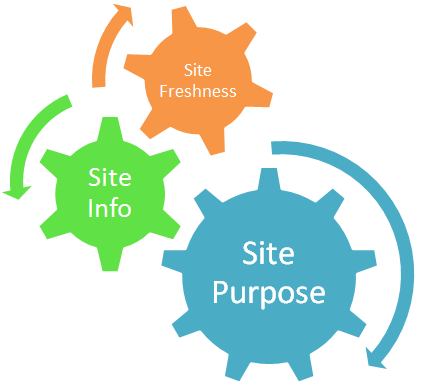
sitepurposeinfofreshness
In this small graphic, I show how site purpose is the largest gear that drives webdesign. Your site’s topic and its relative updated-ness will all hinge on its purpose.

For instance, my blog’s purpose is to showcase articles I write about all manner of things that interest me; to that end, I chose six topics I could consistently write about without getting bored or exhausting myself, and I chose to update each topic weekly. Without first knowing that purpose, I would never have known how or what to write about. Indeed, I never did know what to write about on my old blogs, but that was before I determined a strong purpose for one. 🙂

So, how do you determine what your site’s purpose is? Simply answer two questions:

  • Is this site about me/one or more of my projects? Yes/No
  • Is this site about one or more of my interests? Yes/No

A Site about You/Your Projects: A Self-Promoting Website

Whether you’re a writer, software developer, athlete, musician, business owner, etc., a site about you or any of your projects/products/services is a self-promoting website. That is its core purpose. Navigation should be simple and direct, since all the content comes from you, and your outbound links can include friends and colleagues as well as your social networking links.

A self-promoting site is not a bad thing–in fact, it can be a major driver of business and interest. Just make sure that you’re not including content areas that do not come from you (i.e., copy-pasted from other sites), or content that you don’t really want or care about. For one, people will be turned off by copy-pasted material, and for two, your lack of care for certain content areas will show through in your writing. Think quality of pages over quantity of pages.

A Site about Your Interests: A Fansite

When a site is not really about you, but about an interest of yours, you’re running a fansite, and the purpose is to help other Internet users know about something that you enjoy. In this case, navigation will probably be a little more complicated, since you will be covering several aspects of your topic, and outbound links should include sites that cover the same topic, as well as “official” information sources.

A fansite can be done more as a hobby than as a money-maker, but if people enjoy your opinions enough and you get enough web traffic, they may want to buy ad space on your site. As with self-promoting sites, just make sure that your site doesn’t have any stolen or copy-pasted content. Also, include something unique and original based on your topic, something that makes your site stand out from other fansites, such as humorous content, opinion essays, photo edits, and the like.

Summary: Knowing Your Purpose Makes a Better Site

It really shows when someone has made a site that is focused and purposeful. It reads better, it feels easy to browse, and it’s fun to look through and gain information. Without direction and purpose, a site is likely to sit there un-updated for a long time; with purpose, both you and your audience will enjoy browsing and using your site. Start off on the right foot with your website, and determine your own purpose for your site today!

Easy-to-Code Navigation that Scrolls With You: It’s Possible!

These days, navigation that follows a user down the page is a very attractive and user-friendly design. When a user doesn’t have to scroll all the way back to the top of the page to get to the navigation, and doesn’t even have to fool with clicking a “back to top” link, it’s a wonderful thing.

But it’s a little challenging for us web designers to get it done, as I discovered while researching for this blog post; there are plenty of designers looking for ways to make this happen in their own layouts, and there are just as many solutions in various programming languages.

Eventually, I just opened my trusty Notepad++ and started knocking together some code myself–and I accidentally found a very, very simple CSS solution.

Robin’s Sticky Nav Bar: The (Code) Recipe

stickynavbar

Click to see my simple “sticky nav bar” demo! (opens in new window)

To make the above page navigation work, it took about an hour of experimenting with HTML and CSS, creating a dummy layout and the like. But finally, on a whim, I stuck the following bits of code into my navbar div:

#navbar {width: 900px; height: 40px; padding: 0px; position: fixed; top: 0px; background-color: #0f00a1; box-shadow: 2px 5px #000555;}

The code in bold above is the important bit to see here; this was the magic wand that transformed my plain ol’ horizontal navbar. Once you style your own navbar the way you want it, all it takes is two code bits–“position: fixed;” and “top: 0px;”–to make it stick to the top of the page.

And, to make it centered like the rest of my layout, I made sure to put my navbar div within a container div called “wrap,” styled like so:

#wrap {width: 900px; margin: 0px auto; padding: 0px;}

The following HTML code is what I mean by “putting the ‘navbar’ div within the ‘wrap’ div:”

<div id=”wrap”>
<div id=”navbar”>
<span id=”sitename”>my dummy site name</span> <a href=”#”>about</a><a href=”#”>faq</a><a href=”#”>products</a><a href=”#”>services</a><a href=”#”>support</a><a href=”#”>home</a>
</div>
<div id=”sidebar”>
more code here, etc…
</div> (this ends the “wrap” div)

That’s really all the magic there is to it! (This design works in Firefox, IE, and Chrome; I have not tested it in any other browsers, but it seems that these three handle it identically, so I have hope that it works with all browsers similarly. If you find that this code doesn’t work in a browser I haven’t tested, let me know!)

One Small Caveat:

Fixing your navbar to the top of the page with “position: fixed” works great–but only if you don’t mind your navbar being the very topmost thing to display on your layout. If your ideal navbar is located beneath your header image to begin with, but then sticks to the top of the page when your user scrolls down, then just using “position: fixed” with a different pixel value in “top:” won’t make that happen. (Believe me, I tried–it was fail. I ended up with a navbar just stuck randomly in the middle of the page blocking the content. :/)

So, what to do if you want a navbar that will stick to the top of the page, even if it’s not at the tip-top of the layout to begin with? Well, from what I found in my research, you’re likely going to have to use Javascript/jQuery to make this more complex navbar. Here are two forum/discussion sites which explain these methods much better than I ever could.

jQuery and Javascript Methods for Sticky Nav Bars

Summary

“Sticky” nav bars are sleek, clean, user-friendly–and fairly easy to achieve with these three methods presented here. I hope at least one of these helps you with your next layout!

Commenting Your Code: A Helpful Habit to Start

“Wait, what? You can put things in your code that are not read by the browser? Why would anybody want to do that?”

When I first started learning how to design web pages, I thought the same thing about using comments, until I started going back through my old layouts to rework and revamp old code for new designs. Boy, had I written myself some head-scratchers. “What in the world is THIS div even doing in the code? It doesn’t have anything in it!” “Huh? What’s this weird padding and margin thing?”

At the time I drafted the older bits of code, I knew exactly what I was doing with the code–I knew exactly what purpose each div, margin, spacer image, and line break was for. But going back to that old code after three or four years? Let’s just say I spent a lot longer than I should have trying to decipher my past self’s reasoning. LOL!

So, to avoid this kind of bafflement every time I go back to an old design, I have resolved to start using comments in my HTML, CSS, PHP, and Javascript codes.

Why Use Comments in Your Code?

As I’ve already said, comments are a great way to remind yourself of why you coded a particular section the way you did. (For instance, reminding yourself that a certain div or code hack is only in place to make IE behave itself. There are plenty of instances of that! LOL!)

But comments aren’t just useful for leaving yourself reminders about code–they’re also good ways to section your code, so that you don’t have to hunt through thousands of lines just to find the one thing you want to fix.

For example, an HTML page sectioned out might look like this:


<!–NAVIGATION–>
<div id=”nav”>

</div>
<!–CONTENT–>
<div id=”content”>

</div>

And a comment-sectioned CSS file might look like this:

/* BODY STYLES */
body {color: #FFFFFF;
background-color: #000000;
…}

/* LINK STYLES */
a:link {color: #FF0000; text-decoration: none;}

Both usages are sanity-preserving (and as web developers, we all know that sanity sometimes is in short supply, LOL). Comments make it possible for you to leave reminders, section headers, and even silly little in-progress notes to yourself to make your job a little more fun.

How to Code a Comment, in Four Different Web Languages

Each Web programming language has its own comment tag style, a way to include things that are only for the web developer to see.

HTML Comments

When you want to start an HTML comment, you place “” after. Like the following:

<!–Woo this is a comment–>

Comments in HTML can be placed anywhere within the <body> tag; the browser will just ignore them.

CSS Comments

When you want to comment in your CSS code, just put a “/*” before you start the comment, and put a “*/” at the end, like this:

/* Yay I have some CSS styles, woot */

You can place CSS comments anywhere in your CSS, whether your CSS is in a separate file or in the <head> section of your page.

PHP Comments

There are two kinds of PHP comment styles–one for comments that only take up a single line in your PHP document, and another for comments that take up multiple lines in the document. (In PHP, lines REALLY matter, so if you’re not sure if your comment will only take up one line of code, best to use the multi-line comment.

Single-Line Comment
To put in a single-line comment, just put “//” or “#” before you begin your comment. Everything to the right of those double slashes or hash symbol will be commented out as long as it’s on the same line as the slashes or hash symbol. Like so:

<?php echo “Whee!”; // a simple little echo statement
# why did I just write Whee? xD
?>

Multi-Line Comment
If your comment is going to go for multiple lines, you’ll instead put in “/*” before you begin your comment, and “*/” after you’ve finished your comment. (Looks identical to CSS!) Here’s an example:

<?php echo “Whee!”;
/* Seriously, why did I just write Whee?  I have no idea.
Possibly because it’s 2 AM and I’ve been staring at this code for hours? LOL */
?>

Javascript Comments

Like PHP, Javascript has two different styles of commenting, depending on if the comment is on a single line or multiple lines.

Single-Line Comment
Doing a single-line comment in Javascript is identical to doing it in PHP–you use “//” before your comment, and everything out to the right of those two slashes will be commented out. Example:

<script type=”text/javascript”>
<!–
document.write(“Hello!”);
//I need to add some more stuff here!
//–>
</script>

Multi-Line Comment
Again, identical to PHP (and CSS), Javascript uses “/* at the beginning and “*/” at the end of its multi-line comments. Makes it pretty simple to remember if you code in multiple languages!

<script type=”text/javascript”>
<!–
document.write(“Hello!”);
/* Here I’ll put in a few more document.write things, as well as some preloaders, but I need to be careful! */
//–>
</script>

References and Further Reading

Here are the sites I used to research this article; they are both great sites to help you learn more about web development of all sorts.

HTML Comments @ W3Schools.com
CSS Comments @ W3Schools.com
PHP Comments @ Tizag.com
Javascript Comments @ Tizag.com

A Crash Course on Modal Windows

Up until I read the book on webdesign I reviewed a couple of weeks ago, I had no idea what to call those new pop-up windows that dim the screen behind them so you have to deal with them before you can get back to browsing. Through that book, I learned that they are called “modal windows,” and I was intrigued. I did some research on them, and I found that they are kind of all the rage these days in webdesign.

But what constitutes a modal window, and when should you use them? And, most importantly, when shouldn’t you use them?

Modal Windows: Basically, The Internet Version of a Dialog Box

According to the Wikipedia entry on modal windows, a modal window is any small pop-up box (or “child window”) that a user must interact with before they can carry on with their normal browsing of a website.

You have likely seen these kinds of windows on modern websites before. They can be used to alert users to something they need to fix on a form, allow users to sign up or log in, or to display a gallery of videos or images in larger format. (Most often, I’ve seen them used to report updates to a site, or to advertise a site’s newsletter, social media links, etc.)

How to Make Modal Windows

There are two main ways to create a modal window for your website; WebDesignerDepot shows the HTML5 and CSS3 method, while Queness.com shows the jQuery method. Both are perfectly valid, though the Queness example requires more detailed Javascript/jQuery code knowledge, and the WDD example is on the bleeding edge of code standards at the moment.

Alternatively, you can have a modal window coded for you; here’s a DHTML modal window script/plugin from DynamicDrive, and here’s the TinyBox Javascript modal window script.

When Should You Implement Modal Windows In Your Designs?

According to Smashing Magazine’s article on modal windows, a modal window is great for signup and login forms, as well as site alerts (such as a form being improperly filled out), and enlarged display of images or videos. All of these site functions don’t necessarily need a separate webpage, as this article’s author points out, and so putting the information on an appearing and disappearing window can declutter your page. (Additionally, using modal windows for search functionality is presented as an idea.)

I would add that modal windows could be used quite effectively as part of an online teaching system, i.e., making a one-question-per-window question & answer test, which requires the user to type in an answer and submit it before moving on to the next question, without leaving the screen you’re on. Also, modal windows could be helpful with visual or auditory assistance settings on a webpage, such as increasing font size, adjusting visual contrast, translating the text to another language, or allowing the text to be read aloud.

When Should You Choose Not to Use Modal Windows?

As both the referenced Wikipedia article and the Smashing Magazine article point out, modal windows have faced a good bit of criticism for blocking regular browsing. I know I find it annoying when I’m just surfing along, minding my own business, and then the page suddenly goes dark except for a little window in the middle of the screen that begs for my attention. (That’s one reason I drafted the post about intrusive page alerts.)

The general consensus seems to be that unless your information is absolutely critical to the user, there should not be an unexpected pop-up on your page. (Those of us who came of age in the “drive-by spyware download” age of popups are especially trained to hit the “X” button on any popup they see, so restricting the amount of popups on your page is a good thing.) Thus, modal windows would best be used in user-generated events, such as a user clicking on a “signup/login” link, or a user clicking to “Enlarge Image” or “View Video”, etc.

I would add also that if you’re building a mobile version of your site, you’ll probably want to avoid modal windows on the mobile version. When I’m browsing the Internet on my iPhone, I notice that modal windows either don’t open properly or don’t dismiss properly. (It might be just my big fat fingertips, but I’d wager I’m not the only Internet user with that problem! LOL!)

Summary

While not as annoying as the traditional “popup window,” modal windows should still be used with care; it’s easy to go overboard and risk your users avoiding your site because of all the screen-darkening dialog boxes. However, when properly implemented, they can make site processes easier on you, the designer, as well as sleeker and quicker for the user–a win-win!

Awesome Blog Alert: GeekyPosh.com

geekyposh_side Interested in beauty products? How about home decor? Geeky products and articles more your speed, or do you like to read about pets? How about the occasional post on the Christian life?

If any or all of these subjects strike your fancy, then I recommend GeekyPosh.com as a blog you’ll want to add to your reading list. Run and written by the awesome Jenny, GeekyPosh is like a website version of a super-cool older sister, who is always on the cutting edge of both style and functionality.

Not only that, but Jenny also has written some pretty cool life posts as well; I enjoy her posts about her cats and about her faith, because they make her blog feel more personal and heartfelt. And with just about every article, she includes lots of pictures, making her writing at once more informative and more attractive to the casual viewer. (I could learn quite a lot from that strategy… :D)

I promise Jenny hasn’t paid me to say any of this–I just admire her work and thought more people should know about her blog, since she’s a fellow freelance webdesigner and developer. Go visit! 🙂

Design Manual Review: “The Web Designer’s 101 Most Important Decisions”

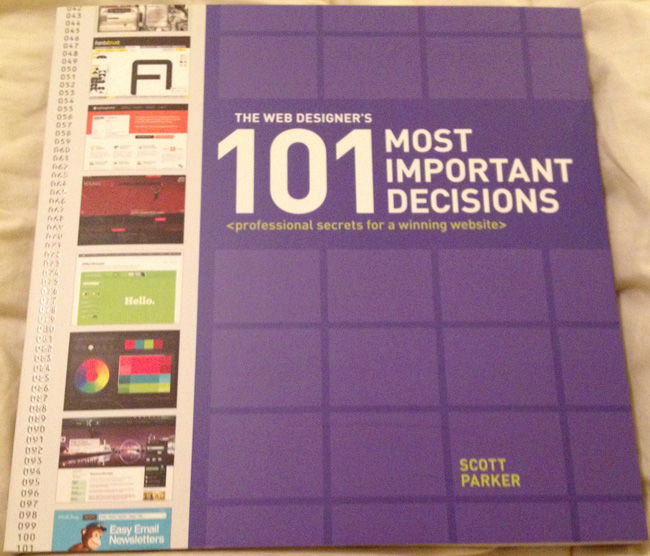
101decisionsbook
The Web Designer’s 101 Most Important Decisions, by Scott Parker.

While browsing at the bookstore the other day, I came across this little gem hidden behind other books in the Web Programming and Web Graphics section. I ended up buying it, and after reading it through I can safely recommend it as a great all-around introductory web design manual.

It’s not just a book about layouts and graphics, though it covers that. It’s also not just about programming and coding, though it discusses both those topics as well. This book literally covers every part of the webdesign process, from planning and programming your site to launching and promoting it. Here’s a very small sample of topics which Parker offers pointers on:

  • planning before developing a website
  • what kind of programming languages are available
  • keeping content both brief and informative
  • the great “vertical navigation vs. horizontal navigation” debate
  • modal windows, the new and slightly less annoying pop-up window (this was news to me)
  • giving clear site error messages
  • making stylesheets that are disabled-friendly and mobile-friendly
  • effectively connecting with users via blogs, forums, and social media pages
  • promoting your website with business cards and flyers (sound old-fashioned? It ain’t!)

…and there is a TON more stuff that I haven’t even mentioned. Seriously, this is only the tip of the iceberg.

The book is organized into 11 chapters, of which each topic covered takes up a page or two, and each page is graphically organized to be easy to browse through and scan. It’s also fairly easy to find pages again if you need to look something up, so it’s not just a book you read once and give away–it’s a book you keep around for quick reference.

Though this is definitely not a step-by-step manual on how to code an HTML page, how to set up a Facebook page for your site, or how to create a layout in Photoshop, it does introduce you to all these concepts and more, as well as giving you keywords to aid in your search for further information. Kinda wish I’d had a book like this when I started web design back in ’03! 😀