Tag Archives: webdesign

How Webdesigning is Like Writing and Music

Since I both write music and literature outside of doing webdesign, I’ve found that the three activities are more similar than one might think otherwise. After all, they all activate my creativity, just in different ways; I play and design with pixels just like I do with notes and words.

So, here’s a little tongue-in-cheek webdesign philosophy for your Monday morning:

How is Webdesigning Like Writing?

  • Choosing just the right word for a description is like aligning each image pixel-perfectly on the screen.
  • In both writing and webdesign, the creator believes he or she has complete control over the final product, especially if working independently.
  • Both writers and webdesigners have the tendency to obsess over little details that nobody will actually notice.
  • Finding a missed typo in your writing is like finding a missed ending tag in your code–very annoying!

How is Webdesigning Like Music?

  • Little mistakes, whether in a browser or in performance, are rarely noticed by the audience.
  • Every musical performance is different, just like every Web browser renders a webpage a little differently.
  • What a listener gets out of a piece of music depends on his or her perspective and outlook on life; what a user gets out of a webpage depends on what browser and screen resolution he or she is using.
  • In both music and webdesign, no matter how many parts/harmony lines go into making it, it all renders as one beautiful whole to the audience.

Can you think of other ways that webdesign is like these art forms? What about other art forms (dance, visual art, etc.)? Leave me your thoughts in the comments! 😀

Tumblr: A Different Blogging Style

Have you always wanted to blog, but never known what to blog about? Have you put aside the whole idea because of not knowing how to design or code webpages? If these apply to you, let me tell you about Tumblr.

What Is Tumblr?


Tumblr is a relatively new kind of blogging platform, revolving around the concept of “reblogging.”

Reblog, verb: “to repost an item of interest from another blog to your own, with proper sources and credits already applied for you by the blogging platform.”

In short, reblogging on Tumblr is like retweeting on Twitter, or repinning on Pinterest–you only need to click a button, add comments if you wish, and voila, the reposted content is viewable to your followers (people who receive updates from your blog), with links to the source already included. This is not plagiarism; indeed, it is meant to help original content have a much wider reach and audience. If you like something enough, you can reblog it, and Tumblr will automatically give credit back to the person who originally posted it through Tumblr’s platform.

Of course, you can also create content of your own and post it through Tumblr as well; in fact, many small fansites are now run through Tumblr because of the ease of posting original content. It is an easily accessible platform to blog on–you just sign up, select a username for your Tumblr, and in mere moments, you’ll have a “yourusername.tumblr.com” address for your own blog!

More than a Blogging Platform–a Community

But reblogging is not the only thing that sets Tumblr apart from other platforms. More than on any other blogging platform I’ve tried, there is a strong sense of community between bloggers.

Much like Twitter and Pinterest, Tumblr uses the concept of “followers;” also like them, Tumblr has a sort of “news feed” of all the recent posts from blogs you follow, called a “dashboard” for short. What the Dashboard does differently is to allow commentary between bloggers that has no maximum character limit–very different from Twitter and Pinterest.

Not only that, but you can very easily find other bloggers who share your interests, and build a community with them through reblogging and messaging. I’ve only been on Tumblr since mid-July, and usually just get on at night due to dialup access, yet I’ve already experienced some of that supportive, open community. It just seems so much easier to reach out to other Tumblr users than it was to connect with other Livejournal users or other WordPress.com users.

Using Tumblr: A Crash Course


The Tumblr Dashboard, partly seen here, appears once you have logged in. It allows you to see recent posts from the blogs you follow, as well as post content yourself. The seven different-colored icons stretched across the page are your “content-posting” icons, and below them will appear a feed of the latest posts from the blogs you follow.


Each post you see on your Dashboard will have a top line that reads something like this. Usernames are quoted as “so-and-so reblogged so-and-so” or “so-and-so posted this,” as you see in the image. The number 9.054 on this image stands for the number of Tumblr users who have either liked or reblogged this particular post; the double-arrow symbol to the right is what you click to reblog, and the heart is what you click to like the post.


In this image, you can see that the heart is now red, signaling that I chose to “like” this post. The number 9,054 is now 9,055 in accordance with that.


Tumblr also provides you a quick way to see individual blogs from within the Dashboard. Hovering over the top right corner of any post on the Dash will “fold” the corner; you can then click that corner and Tumblr will open a new window with just that blog visible.


If you choose to reblog a post, this is an example of what you’ll see–content at top left, a place to comment on said content at bottom left, and places to schedule and add tags to your post. At the bottom, you can click to reblog, preview the post, or cancel if you so choose.


To look for posts about a favorite topic of yours, just type in the topic in the “Search Tags” box, and Tumblr will pull up a reverse-chronological list of posts with that tag. (This is also a great way to find new blogs to follow based on that topic choice!

Here, you can see my personal sidebar, off to the right of the posts on my Tumblr Dash. Yours will look a little different, but the basics are here–mostly links to help you run your blog more efficiently. Through the sidebar, you can view all the posts you’ve personally made, a list of all the blogs you follow (and all who follow you), what posts you’ve Liked, etc.

The section I’ve marked in red on this image shows my “tracked” tags. If you want to be notified every time someone on Tumblr posts something with a specific tag, all you have to do is search for that tag, then click the listing for that tag as it sits on your sidebar. Then, every time you log in, you can click that listing again to look at all recent posts with that tag. (Tracking tags is a good way to keep tabs on whatever topic you happen to be a fan of at the moment, as you can see from my personal list. LOL)

Finding Community on Tumblr

The most tried-and-true way to build community on Tumblr is to search for various content through the Tag system, as described above. If you browse through various tags and find that you like the posts by a particular Tumblr author, then all you need to do is click their username, go to their blog, and click “Follow” in the top right corner. This is pretty much how I started following most of the blogs I follow!

From there, building community with other users can be as simple as reblogging what they’ve made and messaging them if you wish. Tumblr, like Twitter and Pinterest, lets users know when others have reblogged their content, and from there they can choose to follow you back if they want to.

You do have to be fairly active and social to find that community for yourself, but I’ve found that Tumblr is a much easier community to involve yourself in–it doesn’t feel quite so insular as other blogging platforms have felt to me. Actually, I feel freer to speak my mind than I do anywhere else online, because Tumblr seems to attract free spirits like myself. 😀

Try Tumblr for Yourself!

It’s as easy as visiting Tumblr.com and clicking “Sign Up!” 🙂

Cleaning Up Layout Clutter

Just as I seem to be a severe pack rat in real life, I’m also a hoarder online…but I’m not the only one out there. There are many examples of cluttered layouts floating about on the internet these days (mine are likely prime examples).

What do I mean by “cluttered” layouts? Any site design that makes it hard for users to find what they need could be classified as cluttered. After all, in a cluttered room it’s difficult to find the items you need (as I know from laughable personal experience).

Today, I’ll share with you the four major ways we webdesigners and developers accidentally clutter up our layouts, and how to declutter them.

Extremely Busy Background Images

Background images are just that–they are meant to create a fitting backdrop for the main attraction, our websites’ content. But it’s very easy to overdo a background image and make it a dizzying sight. For example:


This doesn’t look too busy when it’s on a page by itself…


…but when it’s tiled and used as a page background, it looks more like one of those 3D images than a webpage background.

This kind of background image can make browsing your site difficult to do–your text-based content can be hard to read, or even impossible to read, and any images you’ve posted won’t attract the same kind of positive attention.

How to Fix This

You don’t have to sacrifice interesting design to make your backgrounds easier to take. These design strategies can help:

  • Use colors that are closer together in shade so patterns are subtler.
  • Try a soft gradient just along the top or sides of the page.
  • Use a larger, low-contrast pattern instead of a small, high-contrast pattern (sounds counter-intuitive, but works!).

Content, Content, Everywhere!

I’ll admit it–I cram my pages full of content. *cough* sidebar *cough* I’m a content hoarder, and I almost need an intervention. 😛

Content is wonderful; it’s the reason we all make webpages in the first place. But when we overload our users with tons of content crowded onto one page, whether it’s images, links, text, or anything else, we make our pages about ten times more cluttered.

Just like a cluttered room with too many items to look at, a page cluttered with content makes it hard for users to know where to focus first. If there are sidebar links, footer paragraphs, dozens of images, etc., all on one page, how can a user easily find what he or she is specifically searching for?

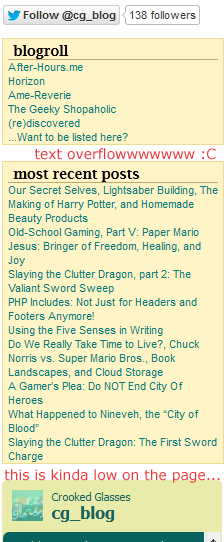
You could argue that this shot of my own sidebar on this blog is a bit cluttered–and I would agree with you.

For one thing, the text of each content box is really small; for another, the small headings don’t attract the eye as well as they might. Thirdly, the one social media link looks a bit lost, even at the top of the page.

Though at first I thought this design looked very tidy, now I see that the text looks a little haphazard and it’s hard to determine what to look at. And, as I’ve noted on the image itself, the Twitter feed is very low on the page, and the “most recent posts” box is overflowing with the titles of each blog entry. My inner pack rat strikes again! LOL

How to Fix This

Thankfully, you don’t need to take all the content off your page to declutter it. These tips can help:

  • If your sidebar is overflowing with content, try moving a section or two to its own page, and simply link to the new page on your sidebar.
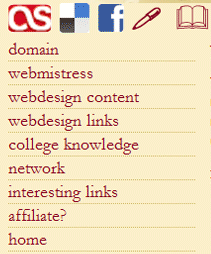
  • Use icons instead of text links (where possible) on your header, sidebar, and footer.
  • Shorten text link descriptions to as few words as possible.
  • Halve the number of content items displayed per page (i.e., if you have 20 content items per page now, try 10 and see how that changes the page look).
  • Enlarge the font size of your remaining content items/sections. (Again, sounds counter-intuitive, but larger text will command more attention and not look quite so messy.)

Unnecessary Information On Your Main Page

On your index page, do your users need to have the full-text version of your site’s history in the sidebar? Or do they need to see every single image you have in your site’s archives? It’s important to think about the purpose of your site, and what information the users are visiting your site for.

I’ve made the “unnecessary information” mistake dozens of times over, especially when I’m first crafting a site. I always start thinking, “But wait, I’ve got to put [this random piece of information] over here, and what about [this other bit of randomness]? I’ve got to find places for them all on the main page!”

To snap myself out of this mindset, I had to think about what was most important to my users–and this self-check could work for you, too. Think about what your user really needs to see when he or she first hits your page. What is most important to them? What do they need to click on or view first?

These items, whether they’re welcome/mission statements, Twitter updates, your most recent post, etc., need to be the only things to view on your landing page. Anything else needs to be put on a separate page, or hidden in some way unless the user clicks on it to open a section up.

How to Fix This

Your landing page doesn’t have to be bare, but a little information goes a long way–try these changes:

  • Determine the 3 most important things your user needs to see/interact with when they first come to your site. These 3 things need to be showcased; other information can be put on other pages or relegated to less prominent locations on your landing page.
  • Use clear text headings on your landing page so it’s easier for users to find information they need.
  • Divide up the information visually (images or CSS formatting) to make visual searching of your page easier.

Scattered Social Media Icons

It is important, if you’re making any kind of website, to make sure your users can interact with you and your site on social networks–you don’t want to skimp on that. But it’s equally as important to make sure those social network links don’t take over the rest of your page.

I found this out when I designed my 11th layout for WithinMyWorld.org–I carried over some social media icons from Version 10 and put them on the main page. Little did I know that unlike Version 10, Version 11 did not really have a good place to display icons. What looked crisp and clean on Version 10 looked like misplaced clutter on Version 11; it looked so bad, in fact, that I took the icons down within hours of changing over the layout.


This screenshot from Version 10 shows a nice, neat place for icons to live, right above the navigation.

Version 11, however, has no real place for icons to live on the page, because it creates a bad contrast with the background image.

How to Fix This

These all-important icons don’t have to be banished from your page altogether; some of these hints may help you figure out where they belong.

  • Think about where you’d like your social media icons to be BEFORE you design your layout. Design around them rather than sticking them on as an afterthought. (This really helps–trust me!)
  • Make the icons larger rather than smaller. This helps them stand out more on your page, so they’ll look less like clutter and more like a vital part of your site (which they are).
  • If the original icons’ colors clash with your layout, you can always make icons to match your layout, with a font like Socialico. Either include it as a custom font in your CSS, or make them into images–both ways work!

Summary

Making the extra effort to declutter our pages can make a huge difference to our users–it can positively affect the way your user views your content, and could even ensure return visits or new visitors via word-of-mouth. Thus, a tidier site can make for happier viewers and a happier webmaster, too! 🙂

PHP Includes: Not Just for Headers and Footers Anymore!

Many of us likely use PHP includes to build and maintain our sites these days. But I would guess that most of us just use the following includes and nothing else:

<?php include(‘header.php’); ?>
<?php include(‘footer.php’); ?>

Headers and footers are very easily managed through the PHP include method. But thankfully, includes are not restricted to just headers and footers–in fact, you can manage a whole site with includes!

Example: My Joined Fanlisting Page

Back before I really mastered PHP includes, I had a joined fanlisting page–literally, it was a PAGE, because it was one single HTML file. Everything–style info, links, image sources–all were crammed into this one file. Uploading new layouts for it didn’t take a long time, but it sure was time-consuming to edit the file in any way. God forbid I would actually have to change a link or an image source!

For a long time, I didn’t know how else to do it; I just kept scrolling up and down in the same huge HTML file, spending countless minutes hunting for the small portion of code I wanted to edit.

And then, I discovered the beauty of including more than just header and footer.

The Solution: Make Each Section into a Different File!

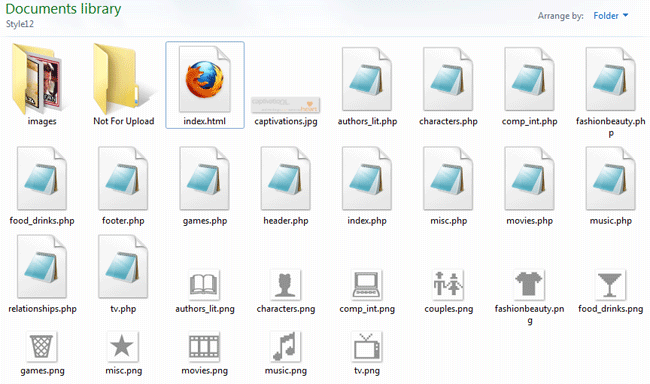
When you visit my joined fanlistings site, it may not look any different to the user, but it’s vastly different on the back-end. Each section of fanlistings is separated out into its own files, as seen below:


As you can see, I have a file for every subject matter: fashion and beauty, food and drinks, movies, characters, etc. This makes it much easier to locate and edit links when needed. All I have to do is look for the general topic of my fanlisting, open the file that corresponds to it, and start editing, no frantic searching required!


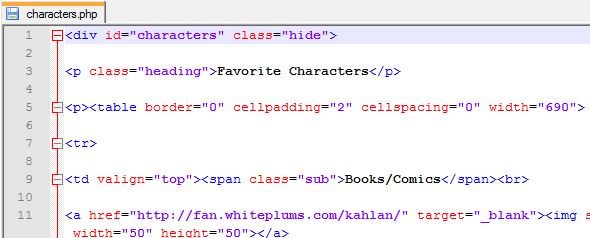
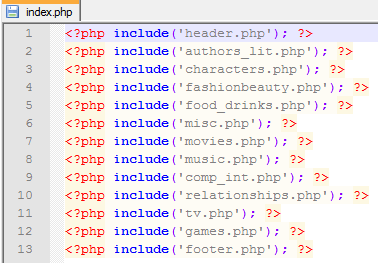
This is what each separate file’s code looks like. Each section has its own special divided layer, and all of its code is self-contained so that it all fits within the larger “puzzle” of the index.php file.

Notice that I don’t have to put includes for the header and footer in each of these files–each file is simply a piece of index.php, not a page in its own right like most other PHP-driven sites.


Therefore, index.php is just a list of included files and nothing else, which makes it easy to add or delete a section from the viewable site as needed.

Why Bother Doing This?

I can think of three reasons you’d possibly want to break up your site into small files and including them with PHP:

  • You’ve gotten lost in the code while trying to edit your file
  • Editing your file has become so tedious that you put off doing it
  • The individual file loads more slowly than you’d like

In any of these three cases, breaking your data into chunks with separate files, and then reassembling those pieces with PHP includes, will help with editing time and loading time.

How to Make PHP-Included Files for Your Site

#1: Determine what defines a “section” for your site.

Look at your code, and look at the content you have. How does it divide up into sections? For me, I could divide my content, my joined fanlistings, by what general topic they could be filed under (Movies, Music, etc.).

#2: Copy-paste each section into its own file.

To divide up your file, you’ll need to carefully copy and paste each little section into a new file, and save it as a PHP file.

Warning: Make sure you carry over any formatting or structure that is specific to each section! I initially forgot to copy-paste the Fashion/Beauty section’s opening divided layer tag when I was creating my new joined fanlistings page, and major havoc resulted when I tested the page. xD

#3: Make your index.php file, with code that includes all your new files.

Once you have all your new little files, it’s time to include them! Wrap them all in a big group hug with code like the following:

<?php include(‘header.php’); ?>
<?php include(‘firstsection.php’); ?>
<?php include(‘secondsection.php’); ?>
<?php include(‘sidebar.php’); ?>
<?php include(‘footer.php’); ?>

Save this as “index.php”, then upload and test it. Result: you should have a perfect, much more manageable site! It shouldn’t look any different to your users, but it’ll be much less of a headache for you. 🙂

How Do You Make a Resizing Icon Bar for Your Website?

Today, instead of an informative article, I have a question for my readers. How do you make an animated, resizing icon bar?

Example Images of What I’d Like to Create


This is a smaller example of how I’d like the icon bar to look when a user loads the main page; larger icons, easy to click on.


This is a smaller example of how I’d like the icon bar to minimize when a user clicks an icon and goes into one of the content areas of the site; smaller icons, but still visible.

Usage and Placement of the Icon Bar

Ideally, I’d like the icon bar to run horizontally along the very top of the page, so that the navigation for the site is not too obtrusive for reading. It would also be awesome if the user could expand the icon bar out again by hovering over this bar.

Is This Even Possible?

I have found a few tutorials that kinda sorta do this, but don’t really get the exact same functionality.

The jQuery “Sliding Panel” Code

w3schools.com has these tutorials and examples for building a sliding panel or animated panel. This could possibly work for opening and closing a menu, and perhaps even a navigation bar like I wish for.

However, I’m not sure how to make the icons display bigger when users first visit the site. I think I’d probably have to stay with the same icon sizes so that the rest of the layout wouldn’t be thrown off with bigger images.

The JavaScript Hide/Show Menu Code

CSSCreator.com shows a way to hide and show specific divided layers with a Javascript in your header and some special classes created in your CSS.

This type of solution can produce a menu that is very easy to hide away when not needed, but it wouldn’t be automatically opened when the user first loads the page–it could end up being confusing rather than helpful to users.

What’s Your Answer?

Do you know of a way that I could create this resizing icon bar? Let me know in the comments! (If we can figure this out together, I may be able to debut this new trick on the upcoming Version 13 of WithinMyWorld.org!

Making a “Good” Layout Better

Web design is not always a simple matter of knocking something together in Notepad, putting pretty pics with it, and uploading it. Sometimes, as we well know, layouts just end up looking…blah on the page.

Take the following layout, which I was trying to craft for my upcoming webdesign tutorials page.


(click for larger size image)

This, in terms of a layout’s pure functionality, works. It displays what it’s supposed to; nothing’s out of place, misspelled, or obviously buggy. And yet it just looks…blah. The icons look too small, being dwarfed by the text and the header image. Not to mention there’s a lot of open, unfilled green space. It’s just…empty.


(click for larger size image)

This was my first attempt at fixing the emptiness and too-small icons of the first layout. I resized the icons and tried to reposition them where they wouldn’t just be hanging out in the middle of nowhere…and yet, again, I ended up with a problem. This time, the issue is that the layout looks cluttered–there is nowhere for the visitor’s eye to rest, because the icons stick out like sore thumbs and the header image looks off-center. And again, the layout has a bunch of empty space, especially on the left side. Sigh…


(click for larger size image)

Third time is the charm, I believe! This time, I centered the header image over the two-column layout below, leading to a more symmetrical look. I also included the navigation icons WITHIN the image div itself, and, After much tussling with HTML and CSS, got them to be positioned where I wanted them. (Who would have thought margins and padding would kick up such a fuss?) But the result is a much cleaner and more understandable look. It might not be “the BEST LAYOUT EVAR OMG,” but it’s much better than the one I had when I started out!

Sprucing Up a “Blah” Layout

If you’re having similar difficulties with a layout of yours, you might not need to go back to the drawing board completely. Instead, you might benefit from just reworking a section or two, as I did with my troublesome layout. Here are some general tips:

Change the Positioning of Graphic Elements

If the visual balance of your layout looks off, or it feels cluttered with graphics, try moving some of your images/icons around a bit. Try them positioned in a completely different place on the page, or even going a different direction (like vertically instead of horizontally, or vice-versa). You’d be surprised how much a little strip of icons can affect a page, as I found out!

Take Away Text, Add Icons

If, however, your layout feels heavy with text, you may be able to transform some of those words (especially textual navigation) into iconic navigation. (In my example layout, I challenged myself not to use text links in my navigation unless it was absolutely necessary, so that it wouldn’t detract from my content.) It may not seem like text is overwhelming your page, but it can easily swamp your visitor with information overload. An icon, by contrast, looks simple and neat.

Experiment with Content Positioning

Does that old left-aligned sidebar look dated and tired? Then maybe all it needs to do is flip over to the right side! Placing content in slightly-unexpected areas can change the look of the whole layout; moving smaller blocks of content around within your layout can also affect your users’ experience. Keep this thought in mind every time you design: “What do I want my users to see/click first?” This should be closest to the top of the page, and your header should “point” toward it, drawing their eyes to it.

Work With Your Fonts

Sometimes, a layout can seem too crowded simply with a too-small font, or a font that isn’t very clear. If you’re having difficulty displaying content attractively, as I was, a font change may be in order. Trying a bigger point size, a clearer font, or even a different class of font altogether may help clear away the “text-cluttered” look.

Summary

You may feel like scrapping a layout that you feel is too ugly to save, but don’t be so hasty! Experimenting and reworking just bits and pieces may just save you a lot of time and hassle designing a totally new look. I was about to give up on that example layout of mine, till I experimented around and found a clean, simple new way to put the same elements together.

Phrases Webdesigners Say

Author’s Note: This is done in the style of the popular “S–t ______ Say” videos and articles; I thought it would be a fun twist to include webdesigners in the scope of this meme. Enjoy!

  • “REALLY, Photoshop? You decide to crash RIGHT in the MIDDLE of my huge photo edit. Great.”
  • “I just woke from the most horrible dream–I dreamed I uploaded index.html and it killed my whole site!”
  • “Can I absolutely position this code where the sun don’t shine?”
  • “Don’t talk to me right now; I have to finish this pixel alignment first.”
  • “Am I REALLY going to have to put this layout in a table format to make it look right?”
  • “…*really big sigh* Go away, Internet Explorer. Just go away.”
  • “What the–‘Database parsing error?’ Are you KIDDING me?!”
  • “Ugh, I can’t go to sleep yet–these two divs just aren’t lining up straight.” (OCD, much? xD)
  • “No, I’m not going to the movie tonight. I have to stay home and update my websites…”
  • “Parse THIS, MySQL!”
  • “Whoever designed this buggy, horrible script deserves a sentence of 15 years–15 years of browsing the Internet with IE 6.”
  • “I have never wanted to strangle digital code so badly in my life.”
  • “What language am I even coding in anymore? Klingon?!”
  • “Okay, there is no reason this code should even work…but it does. Okay, fine, HTML, whatever.”
  • “I think I’m tied to the rails that Ruby’s on.” (reference)
  • “I’ve tried padding, I’ve tried margins, and I’ve tried absolute positioning. The only thing I haven’t tried is smashing the keyboard with my face.”
  • “…Shoot, it works. There IS a God.”
  • “Oh, Save button, I love you. Let me count the ways…I love that you save all my grueling HTML edits; I love that you never forget a single keystroke.”

…And Yes, We Really Do Say This Stuff…

Most of these are (sadly) direct quotes from my webdesign experience. Do you have any funny phrases you’ve uttered during your coding experience? Share them in the comments!

Picture Tweaks for the Web

These are the days of instant picture-taking and sharing, and as such, most people don’t worry too much about how the pictures look; it’s more about the subject matter than anything. But, if you’re a webmaster/webdesigner, pictures take on a slightly different meaning. They are not only photos, but visual representations of your website.

It’s easy to get daunted by all the image-creation and image-editing software out there. But I’m here to tell you there are quick little tricks to make your photos (and your website) a little more awesome for your users. Read on and discover!

Photos in a Range of Sizes: Convenience for the User

When dialup and slower DSL connections ruled the Web, thumbnail photo galleries were all the rage. They were the fastest way to preview tons of photos, because users could see at a glance which photo they wanted to click on and view in full. Downside? They took forever to make, because you had to select the most salient point of the photo to make it attractive to click.

These days, web designers trying to present tons of visual content do not have to resort to thumbnails anymore due to slow connections (for the most part). Instead, what is most helpful for the modern Internet user is a selection of various sizes for your photos and graphics, a la Flickr. Like so:


This is the small size…


…and this is the larger size!

This way, your users do not have to try enlarging or shrinking the photo on their own; instead, you as the webdesigner/webmaster provide them with a choice of sizes for their convenience. (And the more convenient you can make photo-saving, the better!)

The “Levels” Tool: Beautifying Even the Most Drab of Photos

Looking for a way to subtly enhance your Web-ready photos and graphics without making your pictures look fake? Then you might want to try changing the images’ “Levels” settings, in your favorite trusty image editor/creator. (I’m using Photoshop Elements 8.0; your program may differ slightly in how this feature is set up, or it may not have a Levels tool at all. More about how to work around that in the next section. 🙂 )

Let me show you the difference a few Levels tweaks make:

Before changing Levels: A pretty outdoors picture.


Showing the Levels dialog box alongside the picture, with no changes yet.


With slight rightward shifts to the leftmost arrow (the Shadow settings), then slight leftward shifts to the middle arrow (the Midtone settings), the colors appear stronger and make the picture more interesting.


End result: a MUCH better “pretty nature pic.” And yet, it doesn’t look fake–it just looks better, at least to my eye.

Small, subtle changes like this can make your photos more vibrant and captivating–and who doesn’t want and need that kind of draw for their website?

Brightness/Contrast: The Poor Man’s Levels Tool

Now, if your image editor/creator does not have a “Levels” tool, all is not lost! Before I got Photoshop Elements, I used a long-forgotten program that had only the barest of image “editing” wizards and tools. The most sophisticated editing tool it had was a tool called “Brightness/Contrast,” and in a pinch, this can spiff up the colors of your photos like the Levels tool can. The following example uses a recent picture of me to demonstrate. (Avert your eyes if necessary–I am no model. xD)

My picture, before changing any Brightness/Contrast settings.
The Brightness/Contrast dialog box, ready to make my picture AWESOME!
With slight changes to the Brightness and Contrast settings (Brightness +10, Contrast +20), the pink of my shirt looks more colorful, my hair looks a little darker, and my skin looks a little bit smoother (and if that ain’t a miracle, I don’t know what is!).
Finished product: a slightly more presentable me–always a good thing on the Internet. (And if you recognize this picture from my Twitter avatar, points for you! xD)

With Brightness/Contrast, you can make your pictures just a little bit livelier. Just don’t go overboard changing these settings, otherwise you will end up with fake-looking pictures. Like, more fake than me with blonde hair. 😛

PNG-8 Format: Smoothest Gradients and Truest Colors

If you want a lovely gradient effect for your website, these days it’s best to turn toward the PNG format, and to the PNG-8 format in particular for smooth gradients in a small file size.

Observe the difference when you save the same exact gradient in the three major Web image file formats:

This is a low-quality JPEG rendering, with obvious diagonal striations going across the image. (You CAN get a smooth gradient with true colors in a JPEG format, but the file size will be much bigger.)
The GIF file format, especially with “Restricted” colors like this one, makes a pointillist mess of the gradient. (The “Perceptual” GIF setting does render the gradient better, but still has annoying striations running through it.)
Ah, perfection! The PNG file format renders the gradient just as well as when I created the image, but contains it within a 33 KB size!

PNG-24 Format: Best Transparent Graphics Creation

On the other hand, there is a use for the PNG-24 graphics format: making truly transparent graphics. I’ll show you what I mean:

From left to right: GIF, PNG-8, PNG-24, all with transparency settings on. Which icon would you rather use in your webdesign?

To my eye, the PNG-24 format results in the best-looking transparent graphics, whether the graphics are small like icons or big like website headers. By contrast, the “fuzziness” around the GIF and PNG-8’s icons make them both undesirable for making true transparent graphics. While the file size may be a tiny bit bigger (the PNG-24 in my example is 618 bytes, as compared to 387 bytes for the GIF and 430 bytes for the PNG-8), the payoff is definitely worth it from a design perspective.

Dark Page Backgrounds: Show Off Those Beautified Pics!

Now, for the final question: How do you properly display your newly-spiffed pictures? Answer: with a darkly-colored page background!

Think this is too simple? It does work–way back in high school, I served on the Yearbook Staff for a year, and learned a similar trick of telling a “good” picture from a “bad” one. It seems that pictures just show up better if they’re against a black or dark-colored background, and it’s easier to tell if you need to reshoot the picture or if it’s worth using. The same goes for displaying pictures on the Web; a darker background can make the colors in an image pop a little more, or help the details show up better.

The following side-by-side example shows what I mean:

This is based on exactly the same picture, with no Brightness/Contrast or Level changes between the two. And yet, the one with the black background/border around it seems to have more detail and better colors than the one with the white background/border. Weird, but it works! Using a darker-colored background for your picture pages will make them show up just that much better.

Summary

You don’t have to be a photo whiz (or a Photoshop ninja) to make your pictures look awesome for the Web. All you need are a few quick and subtle tricks to spiff up those photos for their Internet closeups, and you’ll have a much better collection to show off!

You Might Be a Webmaster If…

For a little lightness and humor in today’s Webdesign post, I thought I’d include a Jeff Foxworthy-style list of ways you know you’re a webmaster. See if these aren’t as true for you as they are for me!

You Might Be a Webmaster If…

  • …you instantly know what font a business’s sign uses.
  • …you find yourself admiring the gradient effect of a sunset.
  • …you can type the following code in your sleep: <html><head><title></title><link rel=”stylesheet” type=”text/css” href=”style.css”></head><body></body></html>
  • …you routinely have nightmares about a PHP script that just won’t run right.
  • …you find yourself bracketing your sarcastic comments on the Internet with <sarcasm> and </sarcasm>.
  • …you make the analogy that kudzu is like a Javascript without a </script> ending tag.
  • …you have been known to shout at sluggish uploaders, FTP programs, code editors, and any other program which dares to get in the way of your creation.
  • …you see a bottle of AJAX brand dish soap at the grocery store, and wonder idly what part of the aisle it’s updating.
  • …you have been known to dance around your room upon getting a page to display properly.
  • …you use the Copy and Paste keyboard shortcuts on your computer more than the Spacebar itself.
  • …you often curse the existence of old Internet Explorers (especially version 6).
  • …you have officially broken up with GIFs (especially the animated kind).
  • …you cringe inwardly when someone asks you “Hey can you look at my website and fix it?! I think it’s pretty cool cause I have a lot of colors and tables and I’ve got links all over the place…?!”
  • …you saw this comic at The Oatmeal, and wept for joy that someone else finally understood your last freelance job.

Know any more funny “You Might Be a Webmaster If…” moments? Leave a comment and share your ideas!