Tag Archives: webdesign

Looking at Our Sites with Fresh Eyes

In this age of service websites and apps popping up all over the place, inevitably we as Internet users find that services duplicate each other. (Take the social-bookmarking sites Stumbleupon and Del.icio.us; they are pretty much identical in function.)

When this happens, we tend to weed out which service we’d prefer to use with something that seems more like an instinct than a conscious thought process. We evaluate identical sites, and indeed every site we choose to visit, based on their usability, available community, site structure, and design, and from there we choose whether we want to stay on that page or visit another site.

What we might not realize, as web designers/developers, is that our own sites are constantly being evaluated in the same manner, whether we offer an identical service as another site or not. Our users are often just as discerning as we are (and sometimes more so); if we’re having a harder time with receiving and keeping visitors to our sites, we may need to reevaluate how our sites look, function, and serve in users’ online lives.

In this article, I’ll compare and contrast StumbleUpon and Del.icio.us, studying their virtues as well as issues, and how we can learn from their individual troubles and successes as web designers and developers.

The Identical-Service Conundrum

I’ve had accounts at both Stumbleupon and Del.icio.us for ages, because both places used to be pretty good at saving my bookmarks socially, and I used to have different buddies on both sites’ networks. Now…well, I’m looking at getting rid of one of them. It’s not just because it’s annoying to sign into two sites and keep bookmark lists the same across two sites. It’s also because of the QUALITY of the service I’m getting from each site.

For me, it’s pretty easy to choose one to drop, because the usability of one of the sites (Del.icio.us) has gone downhill sharply, while the other one (Stumbleupon) has stayed pretty much the same. These are the issues I experience with Del.icio.us:

Del.icio.us Problems

  • Takes forever to load, even on fast connections–and you might as well not even try on dialup. (I waited FORTY-FIVE MINUTES for it to load on dialup, with nothing showing up at all and nothing else trying to load at the same time.)
  • Login process works about 40% of the time; otherwise, it either throws you to an error screen which doesn’t help you, or just hangs until you finally get tired of waiting and refresh the page.
  • No real way to connect with people on there–you can “follow” them, but it doesn’t really provide a good way to interact, not like it used to.
  • Useless feature: “stacks,” which basically do the same thing as tags. Why bother?

Stumbleupon, however, is not free of issues itself, as you’ll see below:

StumbleUpon Problems

  • Instead of saving the “real” address of a page, it saves a “StumbleUpon”-shortened link address that tells you nothing about what you’re visiting.
  • When you click on a “StumbleUpon”-ified link, an annoying black bar across top of the page tells you everything about StumbleUpon and its service, but takes away from the content you were looking at.
  • It’s very hard to add bookmarks if you don’t want to use the black bar–the “Add a New Page” feature is buried at the bottom of the left column on your profile page

When I compare and contrast the two services, this is the full list of pros and cons:

Del.icio.us

Pros

Can save “real” links
Not hard to add links, once you can finally login
Doesn’t have a browser-wide feature that detracts from your Internet usage

Cons

Can’t even login at all sometimes
Text-based link format, which should load easier but doesn’t
Networking/community is pretty much nonexistent
Useless feature: “stacks”
Does not offer a way to randomly browse Internet sites
Tag system can get unwieldy and hard to manage if you have a lot of links
Link-saving process sometimes hangs the whole browser

StumbleUpon

Pros

Can login easily, even on dialup
Pictorial link list, so you know more of what to expect from each link
Better ways to network with others
No useless features
“Stumble!” button easily browses your interests
Categorizing takes a little longer, but helps other users as well as yourself
Link-saving process takes seconds, even on dialup

Cons

Not easy to save “real” links
Hard to find how to save links, but once you do, it’s easy
Takes over your browser window with the black bar when you’re logged in

Given this compare-and-contrast table, there are a lot more pros for using Stumbleupon than Del.icio.us, and the pros are very important structural and design features rather than surface-level perks. The cons, while measurable, are bearable. Meanwhile, Del.icio.us seems to have serious issues with the login and link scripts hanging up, which kills the effectiveness and utility of the site itself. Why would anybody use a service that won’t even let you login most of the time?

What Can We Learn from These Pros and Cons?

As web designers and developers, there are several important lessons we can learn from this compare/contrast example:

  1. Make sure all the scripts that make your page function actually work, as close to 100% of the time as possible.
  2. Do not accidentally “hide” important/useful features or info from your users, either by putting links to them on obscure pages or making the links appear in small text.
  3. Do not take over a user’s whole internet experience with your service/app, without an easy option to opt-out.
  4. Make sure that all the features you’re developing for your site actually need to be developed for better functionality.
  5. Don’t make changes to your service/app and not let your users know.

The main takeaway is this: we always need to be mindful of the user’s experience when we design and maintain our sites. It’s hard for me, as the Internet mommy to withinmyworld.org, to step back and see my electronic baby objectively–but that is exactly what I must do, and what we must do as purveyors of Internet content. We must be prepared to judge our sites as our users will be judging them, looking critically at how we’ve designed our sites’ layout, graphics, code/scripts, and content to see if there are places we should make it more efficient, elegant, and easy to browse.

Think of it this way–if we don’t take the time to evaluate our sites objectively, then we will never know if our users are having difficulties with our sites, because we won’t have any users!

Are Gradients Passe?

While doing a search about various web design topics (for this very column), I came across an interesting phenomenon, regarding gradients and their use in web graphic design.

There were tons of articles about proper and beautiful gradient usage online, of which the following five are but a chip off the iceberg. From just reading these articles, one would gather that using simple gradients in one’s site design is still on-trend.

InspirationTi.me: Gradients
WebDesignLedger.com: 55 Inspiring Examples of Gradients in Web Design
SixRevisions: 25 Great Examples of Using Gradient Effects in Web Designs
1stWebDesigner: Beautiful Gradient Effects on Web Design
TheDesignMag: 28 Excellent Examples of Using Gradient Effects in Web Design

But there’s an important caveat here: these articles are from a few years ago, and some of their sources have changed their styles, as I noticed when I began to click through the various lists of examples. Actually, a lot of their sources have changed their styles, to be honest.

This raises a question: are gradients passe? Are they no longer “in vogue” on the Internet, but instead going the way of the animated GIF and overly-enlarged RSS icon? Have we and our users become too accustomed to them?

The Verdict: Not Quite

As I toured the various example sites and saw how they had changed their designs since these articles were written, I came to a conclusion. Gradients are perhaps not as hot as they used to be in web design; the simple “one color blending into another color in a simple linear fashion” seems to have gone more or less extinct.

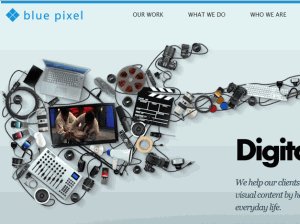
But the technique of using gradients is still visible in today’s web designs, just slightly updated. The current style now seems to favor a much more subtle and complex gradient, involving more than two colors blended together, or such a slight change from one color to another that it’s merely a 3-D look rather than an official “gradient.” Some examples, below:


PlayInTraffik

Features:

  • More than two colors blended together (orange, gold, red, gray)
  • Not just a one-directional gradient–it’s an overall effect
  • Gradient includes soft shapes in the background
  • Gradient effect extends onto logo of site (top left)

Features:

  • Very, very soft and subtle gradient–hardly there at all
  • Acts as background shading for the content, rather than a huge, obvious color shift
  • Works with shades of the same color rather than two different colors

BluePixel

Newism

Features:

  • Not just a plain, smooth gradient–has streaks in it
  • More than two shades of color (range of purples)
  • Background streaks mirror logo’s angles
  • Radial gradient (bottom center) as well as linear (top left to bottom right)

Making Gradients New Again

Though the days of making simple and smooth gradients may be behind us, you can still use them for newer effects. Here are some tips for modernizing your own gradient look:

Use more than two colors, or strange two-color combinations. You might find a surprisingly lovely emerald-green shade hidden between a deep gold and muted teal shade, like this example at left.
Try subtle background patterns along with a soft gradient to give even the background of your page a little more visual interest, like this miniature sample at right.
Mess with the texture of your gradient; don’t be afraid to have sharper transitions of color, like the modern “streaked” design example at left.

What’s Your Angle on Gradients?

What do you think of using gradients in webdesign? Is it a past fad, a graphic design necessity, or a design style that hasn’t been thoroughly explored yet? Let me know in the comments!

Query: What is jQuery?

[/shameless parody of Lt. Commander Data in blog title]

Most web designers are familiar with HTML, CSS, and Javascript–they are the most basic web languages out there, forming the foundations of what the rest of the Internet is built on. Javascript in particular can make very pretty Web sites, in the sleek Web 2.0 style with subtle animations (like tidy menus you can pull out or put away with just a click).

Alas, Javascript is generally implemented through clunky individually-written or copy-pasted scripts, some outdated and some not. Poorly-written and bloated Javascript is one of the top Web features that can slow a page’s load time, as I well know from trying to load Javascript over dialup.

But what if I told you that Javascript isn’t just a random assortment of scripts and functions anymore? What if I told you that someone was bored awesome enough to gather all that Javascript can do into a single resource that developers can draw from?

It’s called jQuery…and it rocks.

What IS jQuery, Anyway?

Basically, whatever page element you’d like to animate, manipulate, or just plain select, jQuery can do that for you, just with the addition of one file to your site directory.

Think I’m kidding? Look at the detailed list of stuff jQuery can do, according to w3schools.com:

  • HTML element selections
  • HTML element manipulation
  • CSS manipulation
  • HTML event functions
  • JavaScript Effects and animations
  • HTML DOM traversal and modification
  • AJAX
  • Utilities

What this means is that you can now do page animations without images, slide various menu “panels” in and out of place temporarily, give blocks of text or images new formatting…practically all the other stuff you’re used to JavaScript being able to do. And, you can access all of those functions through code as short and simple as this:

<head>
<script type=”text/javascript” src=”jquery.js”></script>
</head>

You no longer have to copy-paste multiple iterations of <script type=”javascript”> into the <head> section of your webpages; all those functions are right there, waiting for you to ask for them (one reason it’s called “jQuery”).

jQuery’s Syntax

To include functions, you still have to put the script reference in thesection of your document, like you’re used to doing with individual JavaScripts. However, the syntax (how you write the script itself) is a little bit different.

Code Example

<html>
<head>
<script type=”text/javascript” src=”jquery.js”></script>
<script type=”text/javascript”>
$(document).ready(function(){
$(“button”).click(function(){
$(“p”).hide();
});
});
</script>
</head><body>
<h2>This is a heading</h2>
<p>This is a paragraph.</p>
<p>This is another paragraph.</p>
<button>Click me</button>
</body>
</html>

This example from w3schools.com, shown here for easy reference within this article.

Explaining This Code, Step by Step

First, you call for the jQuery library (the first <script> tag); that alerts the browser that “hey, we’re going to be doing something with this, so have your jQuery book open to the right page!”

Next, you start the individual script you’d like to run. In this case, the script’s function is to hide paragraphs when a button is clicked.

(Note: Before you have the script do anything else, it’s good practice to add in the “document ready” line before calling any other function in jQuery, because it gives the page time to load before the script starts running.)

After the “document ready” line, the actual script starts. This particular script selects all button elements on the page, and designates that when every button on this page is clicked, all elements will be hidden.

Changing This Script: Hiding One Paragraph

If, however, you wanted only one button on your page to do this effect, and only one paragraph to be hidden, you would change the script to the following:

$(“#click”).click(function(){
$(“#hideme”).hide();

And you would change the HTML code to the following:


<body>
<h2>This is a heading</h2>
<p id=”hideme”>This is a paragraph.</p>
<p>This is another paragraph.</p>
<button id=”click”>Click me</button>
</body>
</html>

In this modified example, you can see that adding an ID to both elements you want the script to use will make a difference in how the script runs. Instead of all buttons hiding all <p> elements, now only the button with the ID of “click” will affect the paragraph with the ID of “hideme”. Simple, but page-changing!

Changing This Script: Hiding One Class of Paragraphs

Say you wanted one button on your page to hide all <p> elements of a specific class? You can do that, too! Just make a tiny adjustment to the “hideme” ID, changing it to a class instead:

$(“#click”).click(function(){
$(“.hideme”).hide();

Make the corresponding change to your HTML code, like so (an additional <p> element has been added so you can test how it only hides the specific class):

<body>
<h2>This is a heading</h2>
<p>This is a paragraph.</p>
<p>This is another paragraph.</p>
<p>This is more stuff you’d like hidden.</p>
<button id=”click”>Click me</button>
</body>
</html>

More Examples of jQuery’s Abilities

You can see a couple of other examples through the w3schools website’s Try It! pages. For instance:

Fade out an element
Slide an element out of the way and back
Change the CSS of a particular element

Going Further with jQuery

If you want to learn more about the host of wonderful things jQuery can do for your webpage, the w3schools page on jQuery is a great place to start. (I’m personally going to be exploring jQuery for possible use in my domain’s next layout… :D)

Puzzling through PHP, Part 2: Making a Searchable Database

One of my longest-held dreams, as a fledgling Web designer and developer, was to make a fully searchable database of some sort. I used to dream about building a link database or directory, but as I became a collector of M:TG cards, I discovered I wanted to create a database of all the cards I wanted to trade instead.

But I didn’t dream about it being possible, especially not with any Web language I knew. Little did I know, PHP and MySQL working together could make my dream come true. And the best part is, you can make a database like this too! See how I managed it, with the steps below.

#1: Create the Database to Search

On your host’s control panel somewhere, you should have a way to create MySQL databases. This short tutorial shows you the generic way to create databases from your web host’s control panel, while this longer tutorial has a little bit more tech knowledge needed, but shows you how to manually set up MySQL username, password, etc.

For any database setup, you have to give the database a name, then make yourself an “admin user” account so you can access it. Lastly, you have to make a table within the database to hold the data you want to put into it. While you’re doing this, do not forget to write all this information down–you will need the database name, your admin username, and your admin password to do anything with your data afterwards.

Sample information:
Database name: mydata
Admin username: helloitsme
Admin password: epicsuperlongpassword
Database table: mydatatable

#2: Upload Your Data

To have a searchable database, you first need to have data. You could go through and manually create a MySQL database and plug data into it using a ton of MySQL commands. Buuuuut there’s a much easier way.

Microsoft Excel pages, or any other spreadsheet program pages, for that matter, can be converted over to .CSV (Comma Separated Value) format. These, when uploaded to your server through phpMyAdmin or another MySQL handling program, help populate an existing database table.

Example: For my Magic: the Gathering trades database, I had several pages’ worth of card data, which I’d spread out into individual worksheets within Excel. To translate all of those into .CSV format, I had to remove the label rows and columns (like “Name of Card,” “Condition,” etc.), and then had to save each sheet as a separate .CSV file. Then and only then could I upload it through phpMyAdmin to populate my created database with data.

#3: Write PHP Code to Search the Database

The following code is an actual example of the code I use for searching my M:TG trades database; of course, the username, password, and database name are not given here, for security reasons, but everything else remains the same. You’ll want to put this database-searching code in a separate PHP file from your HTML file where your search form is.

(By the way, I do not take the credit for making this code in any way–a dear computer programmer friend of mine used his coding skill and fixed the code so that it does work. AT LAST!! LOL)

<?php if ($searching == “yes”) {
echo “<p class=\”heading\”>Search Results</p>”; }
if ($find == ” “) {
echo “Oops!  No search term entered–try again!”;     exit; }
//Variables
$host = “localhost”;
$user = “helloitsme”;
$pass = “epicsuperlongpassword”;
$db = “mydata”;
$text = $_POST[‘find’];
$con = mysql_connect($host, $user, $pass) or die (“Connection error”);
$sqlDB = mysql_select_db ($db) or die(“Database selection error”);

$find = strip_tags(trim($text));
$find = strtoupper($text);
$query = mysql_query(“SELECT * FROM mydatatable”, $con);
$found = false;

//This loop will select the row and then uppercase the entire entry
while($data = mysql_fetch_array($query, MYSQL_BOTH)){
$updated =  strtoupper($data[‘name’]);
if($updated == $find)    {
echo $data[‘name’].” “.$data[‘rarity’].” “.$data[‘set’].” “.$data[‘condition’].” “.$data[‘amount’].” “.$data[‘color’];
$found = true;
break;    }}
if(!$found)
echo “Could not find this card”; mysql_close(); ?>

What Does This Code Mean?

<?php if ($searching == “yes”) {
echo “<p class=\”heading\”>Search Results</p>”; }
if ($find == ” “) {
echo “Oops!  No search term entered–try again!”;     exit; }

This determines whether the search has been sent to the server for processing, and if anything’s been put into the search form.

If the search form has been passed to the server, the value of the variable $searching will be “yes”; the if statement concerning this variable cues the browser to display the heading “Search Results” in anticipation.

If the user didn’t put anything into the search form, but hit Submit anyway, the variable called $find will be empty; the second if statement returns an “Oops” message if this is the case.

$host = “localhost”;
$user = “helloitsme”;
$pass = “epicsuperlongpassword”;
$db = “mydata”;
$text = $_POST[‘find’];
$con = mysql_connect($host, $user, $pass) or die (“Connection error”);
$sqlDB = mysql_select_db ($db) or die(“Database selection error”);

These are some of the necessary variables we’ve defined for this particular script to run: the host’s name, username, and password for the database ($host, $user, $pass), the database selection ($sqlDB), the connection to said database ($con), and what the search term was ($text).

You may not need all of these, but we found that the script ran better when all of these variables were clearly defined for the browser.

$find = strip_tags(trim($text));
$find = strtoupper($text);
$query = mysql_query(“SELECT * FROM mydatatable”, $con);
$found = false;

These four variables have more to do with refining the search terms and running bits of the script.

The first $find variable strips any code from the search term, so people can’t hijack the database using malicious code. The second $find puts the search term all in uppercase letters. Both help the search script run more quickly (and protect the database from the most basic of hacks).

The $query variable executes the actual script’s purpose: searching the database for anything matching the search term. And to be honest, I don’t know what the $found variable is for at this point in the script…all I know is that it makes the script work. (Pathetic, I know…this is where my PHP knowledge is spelled F-A-I-L.)

//This loop will select the row and then uppercase the entire entry
while($data = mysql_fetch_array($query, MYSQL_BOTH)){
$updated =  strtoupper($data[‘name’]);
if($updated == $find)    {
echo $data[‘name’].” “.$data[‘rarity’].” “.$data[‘set’].” “.$data[‘condition’].” “.$data[‘amount’].” “.$data[‘color’];
$found = true;
break;    }}
if(!$found)
echo “Could not find this card”; mysql_close(); ?>

This is the bit of the code I understand the least, but my friend’s comment in the PHP script helps a lot. The “while” code begins a looping search through the database, row by row, finding everything that matches the search term.

Once it finds a record that matches, it returns everything about that record–in this case, it finds the name of the card, its rarity, what set it came from, etc. Then the variable of $found gets set to “true” because it found something. If it can’t find anything, however, it just echoes back a “can’t find anything” statement and ends the script.

#4: Plug in the Info for Your Database

Once you’ve got your search code ready to go, all you have to do is plug in your information for the username, password, database name, and table name (for within the database). Make sure you’ve got it spelled exactly right and that the letters are uppercase or lowercase as appropriate! Can’t tell you how many times I’ve mistaken a lowercase “L” for an uppercase “I”.

#5: Test the Search

Now, you need to see if this bad boy works. Type up a quick HTML form to take in your search term, like the one below (again, taken directly from my code).

<form name=”search” method=”post” action=”search.php”>Search for:
<input type=”text” name=”find” />
in
<br>
<input type=”checkbox” name=”name” value=”Name” /> Name of Card<br>
<input type=”checkbox” name=”color” value=”Color” /> Color (White, Blue, etc.)<br>
<input type=”checkbox” name=”rarity” value=”Rarity” /> Rarity (Common, Uncommon, etc.)<br>
<input type=”checkbox” name=”type” value=”Type” /> Type (Creature, Instant, etc.)<br>
<input type=”checkbox” name=”set” value=”Set Name” /> Set Name (Zendikar, M10, etc.)<br>
<input type=”checkbox” name=”condition” value=”Condition” /> Condition (Near Mint, Good, Fair, Poor)<br>
<input type=”checkbox” name=”amount” value=”Amount” /> Amount of Copies (1, 2, 3, etc.)<br>
<input type=”hidden” name=”searching” value=”yes” />
<input type=”submit” name=”search” value=”Search” />
</form>

#6: Debug, Debug, Debug, and By the Way—-Debug

This is the most important (and infuriating) part of this database search. My friend and I spent several months (yes, I said MONTHS) debugging this very script because no matter what we did, it just wouldn’t run. The final edits he made to it, which are reflected in this post, finally made it work.

When you’re working on code like this, it’s important to make sure it’s spaced out enough so that you can read it, and that you work on getting each tiny piece of it perfect instead of trying to scan the whole document for errors. For tired eyes, a colon can sure look like a semicolon, and a lowercase “L” can sure look like an uppercase “I”. You have to watch out for the little errors!

Once you’ve caught all the little spelling and mistyping errors, then you need to check to make sure the code’s variables work like they’re supposed to, and that you’re calling functions that actually exist in PHP and MySQL. For this, it’s best to consult the latest Internet references, or forums where experts in coding gather and help all us abject newbs. LOL

If you’ve made sure everything’s spelled right, and all the functions are supposed to run…well, you do like I did and call upon a friend or trusted authority who knows more about how programming languages are supposed to be written and run. Web development involves programming languages just like the rest of computer science, so there’s no shame in asking if you’re like me and frustrated by anything that resembles math. 😛

Summary

The code I’ve demo’ed here does work, at least for searching card names. We’re not sure what was blocking it from working before…oh well, that’s web development for you, LOL. (By the way, searching by color, set name, and all the other stuff still presents an error…it’s definitely still a work in progress. But at least the whole page doesn’t vomit an error every time you hit “Submit!”)

And if you try this code and get even more success out of it, tell me about it in the comments! To quote Robert Stack, “YOU may be able to help solve a mystery…” 😀

HTML5: Basically, “Flash! Ah-Ah!”

[/shameless quote of “Flash” by Queen (see Youtube video here)]

For those of us who still code in the Stone Age of HTML 4.01 (*raises hand* guilty as charged), HTML5 is a vaguely strange new planet on the horizon of web development, and has been for a couple of years now. I have blundered around this topic for a while now, trying to decipher what exactly I need to know about this new standard of web development. What is it like? How is it different? And most of all, what can I make it DO?

I Wasn’t Kidding When I Made the “Flash” Joke

Really. HTML5 does things we HTML 4.01 coders never dreamed the language would be able to do…and if we did dream of it, we knew it could only be done in Flash. (That was what stopped me from doing a lot of “cool interactive stuff” on my page–I didn’t know how to do Flash and found it way too daunting to teach myself.)

With the advent of HTML5, however, there are now common-sense tags for all sorts of interactive and structural things, including:

HTML5 is Seriously Cleaned Up, Y’all

With new standards comes lots of new rules, as we’ve seen, but there are tons of fixes for the “old” rules as well. The developers wanted to fix much of what was wrong with 4.01 and roll it out into 5, as well as provide new features that 4.01 never did, so they did the following (quoted from w3schools.com‘s developer idea list):

  • “New features should be based on HTML, CSS, DOM, and JavaScript”
  • “Reduce the need for external plugins (like Flash)”
  • “Better error handling”
  • “More markup to replace scripting”
  • “HTML5 should be device independent”
  • “The development process should be visible to the public”

(Valleygirl Voice) Ugh, These Tags Are, Like, So 1999

By the way, say goodbye to these old relics–they do not exist in HTML5 at all. (Of these, I think I only ever used “font”, “center” and “frame”…lol, shows how often these were used, huh?)

<acronym>
<applet>
<basefont>
<big>
<center>
<dir>
<font>
<frame>
<frameset>
<noframes>
<strike>
<tt>

What Does All This Mean to Ground-Level Developers?

Basically, we won’t have to learn 10 languages just to make an eye-pleasing, interactive page anymore. Nor will we have to make sure everything is cross-browser compatible concerning plugins and scripts. So much more of HTML5 is based on making everything very understandable for the browser, without a whole bunch of extra code in various other languages.

With HTML5, a lot of the useless bulk of coding has been removed, tightening up and better specifying what remains. Switching your page from HTML 4.01 to 5, then, is akin to me doing Zumba for 10 months–it loses a little of the extra weight, and trims up in several places, finding muscles it didn’t know it had.

The most interesting parts of HTML5, for me, is what the developers mean by “better error-handling” and “visible development process.” Does this mean that one error on an HTML page no longer screws up everything else (like XHTML so famously does)? Does this mean that HTML5 is now an “open-source” project? There are many more bits left to be discovered and explored…and, for those of us who love web development, that’s 3/4 of the fun.

For Further Information

W3Schools.com’s HTML5 Section: Very informative (where I got some of the info for this article)
HTML5Demos: View live demos of some of the coolest features
HTML5 Rocks!: Up-to-date bloglike articles on HTML5
HTML5Doctor.com: Informative and well-sorted (but jargon-laden)…best for advanced coders (which sure ain’t me, LOL)
HTML5.org: Mainly an aggregator of more resources on HTML5

How Social Networks Killed the Personal Blog

I remember when I first began web design, personal blogs were all the rage. Yes, yes, I know, imagine me sitting in a rocker with a blanket over my knees if you wish, but I was kickin’ around the Web in the early 2000s and saw it with my own screen.

Back then, blogs had a more longform, intimate style of writing. They were how you shared your life stories and thoughts with others, mimicking the diaries so many of us likely kept–except that these “diaries” were online, and viewable by many people. Not only that, you could be an anonymous writer if you wished.

But now, the era of the “personal” blog seems to have waned. Blogs are now more for site updates, and maybe a little project tracking–they are more about topics than about lives. My own is a rare multi-topic blog, but not one of those topics is my life (and you’re much better off reading something that isn’t about my life, I assure you 😛 ). Personal blogs just aren’t as important to us anymore.

Why? I believe the answer lies in two words: “social networks.”

How Social Networks = Easier Personal Blogging

Believe it or not, early blog websites, like Diaryland, Blogger, Livejournal, and so many others, were some of the first social network sites. They allowed bloggers to talk to each other in ways that were system-constructed, with comments on blog posts and the like. So the Internet foundations of functioning social networks were already laid when networks that focused on shorter-form writing (such as FriendFeed, Myspace, Facebook, and Twitter) came along.

But these days, each of us likely writes several short textual bursts about our life in one day. We don’t all have to be gifted writers to write about our lives anymore; we don’t have to catalog what we did all day in a single, long blog entry. We can simply write about the interesting stuff that happens to us, as it happens, and not have to work it into a grand thematic short story of our day.

Why I Largely Ditched Personal Blogging for Social Media

As a creative writer who inexplicably hated keeping diaries and writing personal blogs (because my life is just that boring), I gravitated to the social network. Why? Because the social network didn’t make me JUST blog about myself to be considered “active.” I could comment on other people’s life events, like their pictures, play a few games, share a few links–all on one website. Just like big-box stores like Walmart capitalize on having “all you need at one store,” social networks like Facebook capitalize on sharing “all of your life on one site.”

But I realize that with the ease and ubiquitous nature of social networks came the inevitable waning of more “personalized” blogs. I gradually quit writing on my own Livejournal about my life after a while of being on Facebook, with this simple reasoning: “why write about my day on a personal blog, when I’ve already written a status message or two about it on Facebook and shared it with friends?”

I can imagine that many other Internet users have thought the same way, about whatever social network they prefer to visit and post on. Social networking makes it easier to post about your life, and takes less time than a blog.

There’s a Big “But” Here

Not everyone has stopped doing personal blogs, though. In fact, the number of small blogs and free blog websites has only risen in response to social networks, even though less people visit or make personal blogs these days. This trend, linked to the sheer number of topic blogs being produced, gives me hope that people aren’t completely getting away from “real” writing and longer article-driven blogs in favor of quick tweets and likes.

Though much of the Internet’s attention has been drawn away from this longform, diary-style life narrative, there still seems to be a call for it among individual users. Perhaps the demise of the personal blog is inevitable and in process, as it appears…or perhaps a new generation of Internet users will gravitate back to it.

Choosing An Awesome Web Host

I wrote last week about choosing a fitting domain name. But that’s not the only thing that potential web designers and developers have to focus on–in fact, equal in importance to a good domain name is a good web host. Without a well-run server, your domain name will point to nowhere.

What is a Web Host?

Simply put, a web host is either:

  • a company who has empty server storage space that they “rent” out to people;
  • a fellow web designer/developer who “rents” out his or her extra server space to other small-time designer/developers

(Whichever method of hosting you prefer, being hosted with a good friend or being hosted by a big company, it’s firstly important to remember that most hosts do not provide domain names. You will likely need to buy your domain name separately.)

What Makes a Web Host Good?

In searching for hosting, it’s important to evaluate each hosting company/person in terms of these qualifications:

  • Storage space
  • Number of domains allowed per hosting account
  • Media restrictions
  • Bandwidth allowances
  • Special features:
  • Current customer satisfaction
  • Average uptime/downtime

Storage Space

How much storage space can you get for your money? You should look for the most space you can find that fits within your hosting budget. Some companies charge a surprising amount for the same amount of space that others are willing to charge less for, so comparison shopping really matters here.

For instance, if you can only afford to pay 5 bucks a month for hosting, find hosts who offer space for 5 bucks or under, and then comparison-shop between them further to look for better deals on other aspects of each hosting plan.

Number of Domains Allowed per Hosting Account

How many domains can you link to your account if you buy from this particular host? For people who like to separate out their web design work into many domains, this makes a difference. Some hosts will only let their cheapest-plan hostees link one domain to their hosting account, whereas others will allow you to link 3 or 4, or even unlimited domains to various folders on your hosting account.

Whatever you choose, be sure you read all the fine print and understand what you’re buying before you click to pay anything!

Media Restrictions

Does the host allow images, Javascripts, audio files, or other special media? Some hosts I’ve known of since I started webdesign placed restrictions on how many images you could have (no image galleries, etc.), and some hosts did not support audio file formats or certain kinds of scripts.

While those types of restrictive hosts may have died off now that the Internet has become so media-driven, you still want to make sure your prospective host allows you to do all you want/need to do with your site. You don’t want to end up breaking a rule you didn’t take time to read or didn’t know was there.

Bandwidth Allowances

How much traffic can this hosting server support per month? Make sure you find out how much bandwidth you’re buying. This is almost more important than getting enough storage space–It’s a drag to have a great content-laden site for half a month, only to have a “Bandwidth Overage” sign up for the rest of the month blocking all that awesome content.

Special Features

Does this host have the capability to run things like MySQL databases, PHP, Ruby on Rails, email accounts, etc.? Check to see what kinds of application support you’ll be getting. Some hosts have MySQL support and some don’t, for instance, and you’ll need that if you want to make a WordPress blog, a fanlisting, or anything that needs a database.

Some hosts have the ability to install scripts like WordPress, forum software, and the like for you, if you’re like me and can’t make head or tail of most web programming languages. (That’s actually how I got this WordPress blog to work–I tried installing it myself and failed miserably, then found that my host’s cPanel had a happy little feature called “Fantastico,” which installed WP for me seamlessly and quickly.)

Whatever special functionality you want in a host, make sure you check through the documentation of each host you’re evaluating to see what they offer.

Average Uptime/Downtime

All the storage space, bandwidth, and special features in the world won’t compensate for your host taking the servers down all the time for maintenance. Before you pay for anything, check the server status of your potential host over the course of a week and see how many times servers are down versus how much time servers are up. This can give you a more accurate perception of the service you can expect with them.

Also, you can get a good read on a host’s server status by talking to real people who are hosted with them. That leads me to my last point…

Current Customer Satisfaction

Before you decide on a host, talk to people who are hosted with them, preferably those who have been with the hosting company/person for a fairly long time. They can give you a more realistic picture of the hosting provider’s service, features, storage space, bandwidth, etc., than any advertisement ever can. From other webdesigners/developers like yourself, you can learn what you need to finally decide on a host for yourself.

Other Pointers for Picking a Host

  • Don’t buy more storage space or features than you need–you can always upgrade later if you want. Do make sure to get as much bandwidth as you can for your money, however; you want to make sure your site will stay up and running constantly!
  • If you’re evaluating a hosting provider company, check their support and community forums. If the support forums have not been updated in a while and have very few people posting on it, then the company might not be doing so well and may provide lackluster service. If, however, the forums are lively and very up-to-date, then the company likely has a large customer base and is working to support them.
  • Be honest with yourself about what services you want, how much storage space you’ll need, etc. I bought about 2 GB of storage space back in 2004 for withinmyworld.org, even though at the time I was only running one site–I knew that I wanted to expand my repertoire later on. However, if I’d only wanted to focus on one site for a while, I might have gone with less storage space.

Where to Find Good Web Hosting

Aside from checking CNet Reviews of Web Hosting Services, here are links to several hosting companies and people who are nice enough to host others:

Highly Recommended by Many Fellow Webdesigners/Developers

Bubble.nu
SurpassHosting (personally hosted here since 2004 and have had a great experience!)
DreamHost
HostGator

Well-Regarded in the Webdesign Community

LunarPages
ASmallOrange
FrozenWebHost
DotEasy
Site5

Awesome Webdesigners/Developers Who Host

Fenali.net
RainAWhile.net
Shinshoku.net
Soul-Savior.org
IceGlow.net

Other Worthwhile Hosts

Jumpline
LaughingSquid.us
Gossimer
1and1
InMotionHosting

Your Site’s First Impression: Its Domain Name

Have a great site, but no one’s visiting? Strangely enough, it might be your domain name itself that’s turning people off.

A great domain name is like a confident smile and a welcoming handshake–it greets visitors for you and gives them an idea of what your site’s about. If yours is lackluster, you might get some visits, but not a whole lot, even if your content is great.

To help you choose a domain name, whether for the first time or the fiftieth time, I have written the following article. Read on for tips and even a few hacks to get just the right domain name for your site!

The Shorter and More Descriptive Your URL, the Better

“www.robinstotallyawesomeonlinebookstore.com” is going to get significantly less visits than, say, “www.robinsbooks.com”, simply because the latter URL is easier to remember and easier to type.

If at all possible, choose the shortest and yet most descriptive domain name available. This way, you’ll get more return visits and word-of-mouth spreading, plus more people will be willing to type in the domain name manually (and be more willing to link to you, too!).

Not convinced you need a shorter domain name? Look at it this way: who would type in Facebook’s URL manually (or even remember it well) if the URL was “www.findallyourfriendsandstalkthem.com”? (No matter how fitting that domain name might be…LOL)

You May Not Need a .Com

Unless you’re selling stuff actively on your site, a .com domain suffix is not entirely necessary. It’s great if you can find a .com you like, but chances are that the .com name you like is probably taken already, given how many people use the Internet these days. Finding a domain suffix that is just as fitting will work well for you if you find yourself in this situation.

In fact, matching your domain suffix to your site’s purpose can be even more informative for your visitors (and can help to make or break your site’s first impression). See the following list for details on popular domain suffixes:

What Domain Suffixes Mean for Visitors

  • “.com”: Possibly a commerce site, can also be a basic informational or interactive internet site
  • “.net”: A little internet hub, likely run by one person or a small group of people
  • “.org”: Either a small personal site, a non-profit organization, or a slightly educational site
  • “.biz”: Possibly a good business site, but more likely to be shadier and more ad-ridden than a “.com” site
  • “.info”: 99% possibility of being A) a virus-laden site; B) a site with fake downloads resulting in a spyware infection; C) full of copied or robot-generated content that makes no sense
  • “.edu”: a genuine school’s website
  • “.mobi”: a site designed mainly for mobile devices, which will look strange on full monitors
  • “.nu”: Like “.net”, but “cooler” and for more experienced personal site owners (also way more expensive)
  • “.tv”: A real TV show’s official website
  • “.me”: Even more personal than a “.net” or “.org,” and even “cooler” than a “.nu”
  • “.xxx”: Eek, I’m on the company computer, I shouldn’t be on this! (kidding)

See a complete list of all domain suffixes here @ ComputerHope.com.

Wordplay Works in Your Favor

If you can, include clever wordplay in your domain name to make it memorable. Silly as it might seem, this can really boost your image in users’ minds, as well as make your site a lot easier to return to. Alliteration, rhyming, puns, word combos, and even domain hacks (you’ll see what I mean) can give your domain just the right amount of oomph.

Alliteration

For instance, you can include some or all words beginning with the same letter (alliteration) in your domain name. This can make your site easier to remember because it includes a lot of the same letter or words beginning with the same letter.

Some examples:

Also, implied alliteration works for sites like ReadWriteWeb (the implied repeated “r” sound).

Assonance and Rhyming

Assonance and rhyming (similar vowel and consonant sounds across a word or phrase) also sound and look nice to website visitors. Domain names like lookbook.nu and desiretoinspire.net are more memorable because they use these tricks. Not only do these sites sound more pleasant to the ear, they also sound more legitimate and well-kept–like someone actually cares about running them.

Puns and Word Combinations

You can also have a little fun with your domain name’s actual words, while still making it descriptive of your site’s content. Puns are awesome for this, as well as combining words together to make a shorter yet still descriptive URL. Including humor or a tongue-in-cheek joke as part of your domain name can work magic–we humans always remember things better with humor. Some examples:

Using the Domain Suffix as Part of the Word

Though Delicious has long since dropped the “del.icio.us” domain name, it was still an awesome way to get a shorter domain name without losing any of the site name. This is called a domain hack, at least according to Wikipedia.

Examples of domain hacks include TheDailyWh.at, Instagr.am, Youtu.be, and Scrumptio.us, among many, many others. Use of country-specific domain suffixes is almost necessary when trying to construct a domain hack; you also want to pick an unusual word that defines your site without being too campy.

These wordplay tricks are all clever ways to both get your audience’s attention and get across the meaning of your site as well. After all, isn’t that what a domain name is about?

P.S. Numbers in your domain name can be too cutesy, but for sites like decor8, it shortens the domain name right up without being too kiddy. All the same, use numbers in your name with caution!

Make Sure Your Desired Name Doesn’t Have Shady Ties in the Past

The best way to check about a particular domain name, once you’ve settled on one that you want, is to run it through Whois.sc‘s lookup. This will get you a good bit of information on what kind of site owned your desired name in the past.

Why is this a good idea? Well, for instance, you want to make sure your desired name doesn’t have ties to pornography and other such activity–domain names like “whitehouse.com” and even “jesuschrist.com” have been tied to porn sites in the past. You don’t want to get hold of your dream domain name only to find out that people are avoiding it because it used to be a VERY different site.

If you have to, pay for a complete history of the domain name before you buy it–paying a little now can save you headaches in the future!

Where to Buy Domain Names?

GoDaddy.com (I’ve been personally registered with them since 2004 and have had good service)
NameCheap.com
Register.com
Domains.org
Name.com
DynoNames.com

Know of any other good domain registrars? Tell me in the comments!

10 Newbie Design Mistakes

We’ve all done it, at one point or another. Out of ignorance or out of a need to hurry up and get a page published, questionable design choices slip out onto the Internet.

Most of what I’m going to reference in this article is stuff I’ve done knowingly and willingly, either because I didn’t know any better or because I thought it “looked cool.” (Animated GIFs…oh, so very cool. *cough cough cough*) In either case, I didn’t research my design choices well enough; I should have been going to other people’s websites to see what they were doing, or at least reading web design articles to find out best practices.

To best show off these problematic design choices, I decided to combine them all in a terrific cacophony of web design. I call it…the “Really Bad Page.”. Click the link, and try not to wail with despair.

The Bad Page’s Features

“Times New Roman” font style

Times New Roman, especially in this web 2.0 age, is very “default” and uninteresting on a webpage, since it is the default font when no font is specified in a CSS style. This makes the website look uncared for and un-updated.

All centered text

Centered text does not always “balance out” how your text looks. In this case and in many others I’ve seen across the internet, centered text is just hard to read and looks awkward on the page.

Thick borders around your tables

I used to love how thick-bordered tables looked on a page…but then again, that was back in 2001. 😛 The bordered table might be okay for true tabular data, but not for random information; it now just looks junky.

Animated GIFs (especially for an “Email Me” link)

Animated anything on a page these days tends to make your page look too young and kiddy. It can really de-professionalize a look. (If that ain’t a word yet, I’m making it one, because it works. 😛 )

No padding/margins in your divs

See how the table runs right up against the links? This is caused by no padding or margins used in the divs. Everything within the div expands out as far as it can go, and when there’s no padding there, it just makes your content look messy and harder to read.

Narrow left-aligned layout

Most users are used to seeing wide center-aligned layouts nowadays–itty-bitty left-aligned layouts are a visual shock, and may not display well on larger-resolution monitors (i.e., they will look too small).

Too much white used in the background

I’ve been guilty of this from time to time, but using white as a background color can look too “empty” if there’s not a lot of content on the page, like my sample page.

Using low-quality images (especially JPGs)

A JPG, or any image, that’s of this low quality looks unprofessional and makes it hard to tell what the picture’s subject even is. See other examples of low-quality JPGs on SixRevisions, Ransen.com, and PanoHelp.com.

Too-wordy link descriptions

Who wants to click on a link that takes several lines to describe? When you have a lot of words in your link text, it makes it look very messy and unkempt.

2-dimensional and square design

A website isn’t printed on paper, but this design looks like it could be printed out very easily. There’s very little visual interest at all, and no deviation from the invisible straight-sided square/rectangle box.

Next Week: Turning the Look from Newbie to Pro

Next week, we’ll be looking at 10 ways to make your page look professional. Never be tormented by centered Times New Roman text again! 😛

Leaving Letter Forms Behind: Symbol Fonts

Sometimes it’s just not feasible to make icons for every single thing you want to link to on your page. Yet, you want something different than just a text link; you want something more creative than just “Click here for [this content]”.

And it’s not just links, either. Often, you end up with a need for a small graphic, but you either don’t want to draw it out or you can’t draw it on the computer (like me controlling a laptop mouse–fail). What does one do when you want a cute little graphic that doesn’t require Photoshop to create?

ANSWER: Use a symbol font!

What IS A Symbol Font, Anyway?

A symbol font is any font that does not display the typical alphabet letters when you use it. The most common (and oldest) of these symbol fonts are the Wingdings series and the Webdings font, often included with many systems’ default fonts.

Well, Why Bother with Fonts that Have No Recognizable Letters?

Precisely for the webdesign opportunities it offers. Not only do you have ready-made, professional-looking icon designs, but you can also include your symbol font as part of your webpage using the @font-face CSS declaration. It saves you from having to create icons; instead, you can just type a letter and stipulate that it has to display in the symbol font. Instant icon!

And, if you want to dress up your icons a little more, you can always use the symbol font in your preferred image-creation program, masking, sizing, turning, and otherwise decorating the font to look like a traditional icon. Either way you go about it, symbol fonts provide icons and small graphics with more professional “pop.”

How Can You Use Symbol Fonts?

I find that symbol fonts used as icons are best at slightly larger font sizes, so that they are more visible and easier to click on. Too-small symbols can be frustrating for users, because it’s hard to tell what the symbol even IS at small sizes.

Also, symbol fonts need to be used with as sharp a color contrast as possible (i.e., white symbol on black background) so that all the symbols are easily visible.

What Kinds of Symbol Fonts Exist?

Literally everything you can imagine…including fonts with symbols and pictures that baffle the mind. (“Why would anybody make a font out of THAT?!”) What follows below is a fairly broad listing of some of the better symbol fonts out there.

The images are merely samples of each font–in each case, I tried to capture much of the range each font covers. Also, some of the symbol fonts in my examples, below, are sized smaller or larger than I like, due to the previews. Clicking on their links, however, will take you to the pages where you can see them in better quality, and see the entire character set.

Useful Icons and Signs


Cursor

FFF Extras

IconBit1

IconBit2

PepGenious10

PixArrows

BTD Cart-O-Grapher

The B.O.M.B. (Best of Magurno Brushes)

Symbolix

DNR Recreation Symbols

Spaider Simbol

CD Icons
(not actually this huge normally)

WMSymbols

Little Faces and Emoticons


Skrewd Up Soulz

Spacy Stuff

SQCon

V5 Pixelpals

Decorative Designs


BitFuul

Rosette110621

Calligraphic Frames Soft Two
(screenshot does not do it justice)

Picture Squares
(screenshot does not do it justice)

Davy’s Dingbats 2

Gembats 2

Detailed Images


Suboel
(Christmas/holiday theme)

Craft
(Minecraft theme)

SL Mythological Silhouettes

Random Dingbats

(Fonts displayed in this section are from DaFont and Fontspace. Additional symbol fonts can be found at 1001Fonts.com.)

Summary

If you’re having trouble finding icons for what you want, try a symbol font–an easy and clean way to get icons without having to manage your own pixel-by-pixel design. For those of us who are not skilled in small designs (like me :P), symbol fonts can be a lovely way to dress up your page, whether used alone or within an image creation program.