Tag Archives: webdesign

PNG-8 Vs. PNG-24: There’s a Difference!

In terms of image file formats, which I’ve written about before, there are marked differences between JPG, GIF, and PNG. But there is also a subtler but still noticeable difference in quality between the two levels of PNG files.

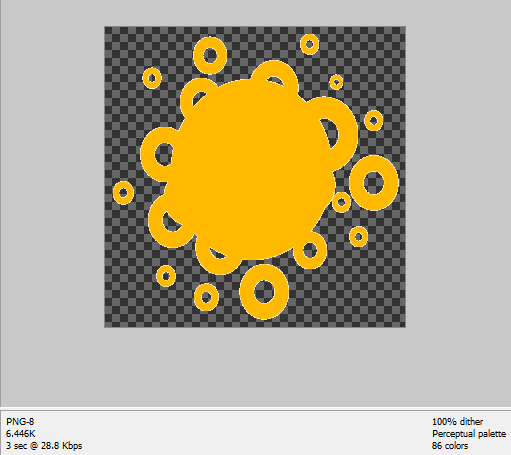
Yes, you read that right–PNG has two different levels of quality (PNG-8 and PNG-24), even though they both are identified as “.png” files. The main difference between these two shows up when you try to save a partially-transparent image…and the proof is below!

PNG-8: Something Looks a Bit Fuzzy Here…

png-8
(Note: In these examples, the orange shape is the part that will be non-transparent–the dark checkerboard pattern in the background is how Photoshop Elements shows you what parts of the image will be transparent when the image is saved.)

Notice that while the orange shape is mostly “cut out” against the background, the outlines of the shape look “fuzzy;” there are little white bits hugging every edge (graphic artists call these white bits “artifacts”). Now, while you could probably get away with using this image on a white background, a dark background will be very unforgiving indeed. It makes the image look a lot sloppier than it actually is.

PNG-24: Fuzzies Begone!

png-24
Look what a change this made, just switching from PNG-8 to PNG-24! Now all the outlines of the orange shape are clean-cut–no fuzzy image artifacts anywhere. The file size is about double the PNG-8’s size (11.71 KB instead of 6.446 KB), but it’s a small price to pay for a much better image result.

But Wait, PNG-8 Isn’t All Bad!

I will say that PNG-8 is a great file format for saving Internet screenshots, and for making web graphics that don’t require transparency. In fact, the two illustrative screenshots shown above are saved as PNG-8. But PNG-24 just does transparency so much better and cleaner. If you’re making a partially-transparent image and you have the option to save it as a PNG-24 file format, why not?

Why Did You Begin Making Websites?

I’d like to pose a question for my webdesigner/developer readers out there: What made you first begin creating websites?

I ask this because we all have a story of what first drew us to webdesign and development. For instance, I got interested in webdesign way back in 2001, when my family first got Internet access and I saw how people were building sites to share ideas and information. (Little did we all know then that the Internet would become SO vitally important to our lives!)

After some thought about this, I came up with three basic reasons why we all likely began designing and building websites–do any of these fit your story?

#1: Sharing Ideas and Information

Whether we built sites to share our love of a TV show to others, to blog about our daily lives, or to disseminate DIY tutorials, I would wager that many of us webdesigners and developers originally wanted to create sites that shared information and ideas. Making a small site as a hobby or as a little service to fellow Internet users may indeed be how a lot of us got started–we cut our coding teeth on those first HTML pages, grew in aesthetic knowledge as we tried (and erred) a lot with our first designs. We were doing all this for the love of the content, trying to create the best “frame” for our words and pictures.

#2: Showing Off Our Creativity

Then again, some of us likely began designing and developing websites just to see what we could do with an online space of our own. We experimented with new code and scripts, tried new color combinations, placed the navigation and content in different places, used all sorts of art as inspiration for the arrangement of elements on screen…all for the mental challenge and creativity of it, as a way to stretch our design wings. With every scrap of layout, every bit of script, we asked ourselves: “What can this thing DO? What are the possibilities?”–and then we came up with answers from our experiences, our trials and errors.

#3: Making Money

But I don’t mean to leave out or devalue those who first began building sites as a money-making tool. Blogging especially has been touted so often as an “easy way” to make online money, a job you can do on your own time without leaving home, that indeed many people have been drawn to webdesign and development through that. And this is not even mentioning other forms of e-commerce like online stores. Once those of us who began webdesign this way started toying around with the creation of the site–setting up our online storefronts, if you will–our curiosity was roused. “How DOES somebody make a layout like this? How DOES this online shopping cart work? …And could I make one myself?”

Which of these three reasons fits you best? Or are you a combination of two, or all three? Let me know in the comments!

The One Webdesign Practice Most of Us Forget

Don’t you hate it when you’re trying to see a picture, watch a video, or listen to a song, only to see a warning that reads “You need [this random browser plugin] to view this content”? It’s an unpleasant shock to any user, even (and maybe especially) for us webdesigners and developers who know the inner workings of such programming.

What compounds the frustration, however, is when a website that needs a special plugin does not tell you anything about how to get the plugin–it just tells you that you need it and leaves you to fend for yourself. At that point, most users simply exit the site and find another one that isn’t so picky about how they view content. And who can blame them? Most Internet users (and that includes us, too) don’t want to have to work that hard for information or entertainment!

It’s easy to point the finger at other websites for inconveniencing their users like this…but we who create websites often forget to provide that exact same service for our own users. We often forget to make our sites as easy and convenient as possible for our users to view.

The Solution: Plugin Links

Whenever we include media content on our websites, such as a photo gallery that requires a script to run, a video, or an audio track, we should always take the following steps:

  1. Check your media content in as many common browsers as possible, to make sure it will appear and run correctly with the right plugins installed. Today, most people use Mozilla Firefox, Internet Explorer, and Google Chrome, but also include Opera and Safari.
  2. Be aware which browser plugins process which content. For instance, Adobe Flash Player is most often used to run Youtube videos, and Quicktime still runs most audio tracks; most photo galleries use jQuery or something Javascript-related.
  3. Include plugin links for these common browsers–for example, if you’re running a Flash video, make sure you have Adobe Flash Player plugin links for Firefox, IE, Chrome, Opera, and Safari located somewhere just below the video in plain view.

This may seem like a lot of work, but it’s important that we do this backend work so that our users don’t have to. It’s all part of providing a more convenient, informative website.

Grammar Matters Online (Really)

Though it may not seem like grammar still matters online, considering how some websites are written, it most certainly does.

I say this not just as a former English teacher, but as someone who communicates with words. We who create content for the Internet are creating websites to communicate our ideas; if our grammar is incomprehensible, our ideas will not be understood. (For instance: how would some ill-constructed English content translate into another language if a user needed it translated? It probably wouldn’t translate well at all.)

Thus, we webdesigners and developers must be concerned, at least partially, about our grammar, especially if we are running an informational website. Above all, we want our users to understand our content!

Recognizing Bad Grammar: A Quick Little Quiz

They is gonna go, down their soon.

There are four grammatical problems with this sentence. Can you find them all? Not only is this a common spoken sentence, but this contains some of the most common Internet grammar slip-ups, too. (Answers at the bottom of this article!)

The Difference Good Grammar Makes

Read the following two samples. Which one seems more professional, more trustworthy, and worth following up?

Example #1

Hey what up Im an web master and I could do your web site. Cause I can program and style it too. I been trained 3 year. Me and my brother been working on web sites together 4 a long time we like it. If you want me 2 design your site just msg me and well work something out.

Example #2

If you’re looking for a webmaster, I would be glad to offer my services. I can do both development and design, and have 3 years’ experience working both with a design team and on my own. Please send me a message if you are interested.

Analysis

While there is something to be said for #1’s easygoing style, #2 takes the cake in terms of professionalism, trustworthiness, and clarity. To understand #1, you need a basic working knowledge of textspeak/chatspeak; additionally, the sentences run on a bit long, yet they don’t really add anything to the “sales pitch,” so to speak. #2 makes its points clearly and quickly, and with more polish.

The only difference between #1 and #2? Grammar. Sentence construction, punctuation, even some basic elements of writing style–all fall under the broad heading of “grammar.” Simply put, grammar can make or break your website’s readability and enjoyability, not to mention its use as a reference.

If you had to choose between these two webdesigners for a project, which one would you trust more to do a better job? Most clients would go with the second designer, simply because the person sounds more capable and professional. We have to remember that our websites will be judged for their professionalism and trustworthiness in the same way.

How to Achieve Good Grammar

  • Read your content aloud. Just like with checking your spelling, reading what you have written out loud will help you catch most of your grammatical errors, because your sentence won’t “sound right.”
  • Consult Internet references–I have a selected list picked out below.
  • If you’re still unsure of your grammar, have someone who is good with grammar and writing read over your content before you post it to your website. Better safe than sorry!

Online Grammar References

GrammarBytes
The Elements of Style
GrammarBook.com
Guide to Grammar and Writing

Final Notes: Answer Key

  1. “They is” is incorrect. It should be “They are,” unless you are purposefully writing in Southern dialect.
  2. “Gonna” is not technically a word–only in casual speech. “Going to” is the proper form.
  3. The comma between “go” and “down” is unnecessary.
  4. “Their” is a word that is spelled right but not used correctly. The right word to use in this sentence is “there,” which references a place, rather than “their,” which references possession of something.

Spellcheck Your Graphics!

It never fails: I come across a website with really beautiful site graphics (like a site header), only to see that the site name or description is misspelled on the graphic. (Either that, or I catch an error in my own graphics. LOL) A couple of examples, below:

amazingnatuer
visitmywebstie

Errors like these pop up all the time across the Internet, usually because we get caught up in the throes of website creation, or we’re in a hurry. Thus, letter reversals (like the above) and other misspellings can slip through the cracks and end up posted for everyone to see.

This IS a Problem!

The Internet these days is chock-full of such errors. But, unfortunately, misspellings (especially in site graphics) make your site look unprofessional, and therefore less likely to be trustworthy. It’s not just English majors and English teachers who have a problem with misspellings, either; many users will be turned off by such errors, because it makes one’s whole site look amateurish or ill-made.

Thus, it’s worth taking a little extra time to spellcheck first–after all, we don’t want to turn visitors away from our sites because of a few little errors!

How to Spellcheck Graphics (Don’t Worry, It’s Easy)

Most image editing programs do not have a spellcheck function built in, so you’ll have to do it yourself. Don’t worry, though, it’s not a hard process!

  1. Before you save your image, read the text on it aloud–this alone will help you catch 90% of your errors, because you’re taking the time to look at each word while you read it.
  2. If you are unsure of a word’s spelling, search for it using a search engine, or look it up through Dictionary.com.

Just these two simple steps can remove most errors–it just takes a little more effort. Additionally, if you don’t trust your own spelling, have a friend or colleague who is good with spelling check your image before you publish it. A second pair of eyes always helps!

Spelling’s Not the Only Thing that Counts

Next week, I’ll demonstrate another important language point in web design–grammar! (It’s not just for school anymore–it’s for communicating your ideas correctly!)

Webcomics for Webdesigners

Sometimes, we webdesigners need a little humor–but not just any good ol’ laugh will do. Sometimes, we need to hear and see someone tell our stories…to perfectly detail how freelance webdesigners struggle, how irritating it can be to debug a layout, how software updates throw monkey wrenches into your carefully-coded website at random.

The Internet knows our need and has responded! Here is a selection of webcomics about webdesign (and the techie life in general)–for each comic you read, you’ll laugh because it’s true, and you’ll laugh because you’ve been there.

kopozky
Kopozky – A subtle and witty comic, with lots of design and development references only we will get.

pcweenies
PCWeenies.com – Our complete lives as designers, developers, and “tech people,” told with wit and color.

firstworldproblems
The Brads – Tales from a fictional webdesign workplace, Dilbert-esque and hilarious. (This comic creator also did a series of comics for .Net magazine as well 🙂 )

okcancel
OK-Cancel – For techies of all sorts, including webdesigners and developers.

theoatmeal
TheOatmeal.com’s Tech Archive – A small but mighty cache of techie comics, delivered with TheOatmeal’s generous dollops of penetrating observations and hilarious phrasing. (Warning, language)

freelancefreedom
Freelance Freedom – For those of us who are freelancers (which is most of us web designers and developers these days), this comic is us. Period.

1stwebdesigner
1stWebDesigner’s Life Webcomic – Interesting concept–a comic as much made by the readers as its creator. Lots of reader input went into each webdesign strip!

bugbash
BugBash.net – A tech-based comic for all of us who’ve battled the digital bugs in our programs and websites.

thesystem
The System: Web Design Archives – Within this larger comic, these little humor gems about web design appear.

Center Alignment: NOT for Body Text

Today, we’ll look at a common yet very flawed design strategy employed by beginning webdesigners–center-aligning EVERYTHING on the page. Why do I call it “very flawed?” Read on to find out!

What’s So Bad About Center-Aligning Text?

If you’re just coming into webdesign from working with text documents or word-processing programs, it can be very tempting to center-align everything on your page. After all, the center of the page is where everyone’s going to look first on a webpage, right?

Unfortunately, webpages render center alignment very differently than regular text documents, as I’ll demonstrate below.

Center Aligning in Word Processing Documents

It’s true that center aligning can make narrower blocks of text look tidy and professional in word processing programs. See the examples below:

Left Aligned Text in a Word Processing Document
left-aligned-text

Center Aligned Text in a Word Processing Document
center-aligned-text

Center alignment, in this circumstance, makes the text look neater and more presentable.

Center Aligning in Web Documents

Unfortunately, this does not translate to the Web at all, unless you have designed narrow columns for text to flow in (more like a newspaper format). Invariably, if you center-align text in a very wide divided layer (more than 800 pixels wide) this is what it ends up looking like:

mega-center-aligned
(click picture to see it full-size in new window)

Center-aligned content, when stretched across large widths of layout space, has uneven line ends on both sides of the paragraph, so it looks sloppy and unprofessional on the page. Additionally, sentences are much harder to follow because the reader doesn’t know exactly where the next line will begin and has to spend a couple of extra seconds visually searching for the first word on the next line.

This might seem nitpicky, but it has a tremendous impact on our readers’ experience of our sites. If our sites are too hard to read and follow, they’ll leave and find another site with the same information but better formatting. We don’t want that!

What Are Some Text-Formatting Alternatives?

If you really like the look of center-aligning text, you might consider putting your text in much narrower divided layers (only about 300-400 pixels wide), and having several columns of text. Be warned, however, that this can make your page super-long if you’ve got a lot of text, and these days, we don’t want our users having to scroll a lot to find the information they want.

Alternatively, you can choose to make your content div about 500-600 pixels wide, and only center-align your titles or headings. This is the look I go with most often on my personal sites or fansites, and I find it gives the tidy look I want without having to center-align EVERYTHING.

Also, you can try center-aligning your navigation in a horizontal “bar” above your content, especially if you’ve got only a few links in your navigation. This can draw user attention better than letting it be left-aligned and lost in the visual shuffle.

Summary

Center-aligning can be a very tempting text-formatting strategy, but it’s best used sparingly–otherwise, our pages will be very difficult to read and enjoy. Using center alignment carefully is one of the ways you can make your site look more professional!

“Sleek” Design Doesn’t Mean “Bland”

As a design challenge to myself, this past week I’ve been working on a new layout for my main domain, withinmyworld.org. My keyword for this design was “sleek”–I wanted to make something rather minimalist but still pretty, easily readable but still styled.

My first attempt came out like this:
newversion_screenshot
(click the picture for a larger screenshot in new window)

I’ve never tried designing with this vibrant purple before, so this was a fun new challenge. Plus, I really liked the “sticky nav bar” I came up with for a recent blog post, so I incorporated that as well.

The only problem? As lovely and minimalist as this design is, it’s also fairly text-heavy…and kind of blah, somehow. I hated even to admit it to myself, but I had done it again–I had gone overboard with all the text and other elements, and forgotten about how the layout would look all together. Even with the RSS feeds and affiliate buttons I planned to add later, it would still be lacking a certain something.

So I brainstormed. I didn’t want anything too splashy or crazy for this layout, so what could I do to maintain a simple, minimal but “wow” layout?

The Idea: Just a LITTLE Something to Add

What I discovered, after thinking about it and studying it for a couple of days, was that the layout was just a little bit too “same-y” across the page. There was nothing really to draw the eye in, no real graphic elements besides the social network buttons. It needed a little visual interest, as graphic designers say…but it didn’t need a huge image to take away from the “sleekness” of the page design, either.

To that end, I came up with a couple of simple little graphic tricks that could add a little “wow” to my page…and the same principles can work for your page, too! The best part: you only need symbol fonts to do this. (Symbol fonts are just like regular fonts for text, except that every time you hit a key on your keyboard, you make a symbol instead of a letter from the alphabet.)

Trick #1: A Subtle, Simple Background Tile

You don’t have to be skilled at pixel graphics to create a background tile for subtle pattern on your page. Take the following screenshot, in which I added a tiny 15×24 background tile for a little interest:

backgroundtile_example
With just a tiny bit of color variation, plus the use of the Wingdings 2 font and the letter “g”, I crafted this very subtle tile pattern which repeats on either side of the content. (It also repeats behind all the text, too, but I made my container div have a background color so the pattern wouldn’t distract from the text.)

This background tile adds just a little touch of variegated color without looking “busy.” And it’s a curving, soft shape on this page full of hinted squares, rectangles, and other sharp angles–a pleasing juxtaposition!

To Make Your Own:

  • Explore symbol fonts to find a cool symbol you’d like to use on your site. Something fairly simple in shape works really well. (See the “Free Font Sites” list at the bottom of this article to start your search.)
  • Make a small graphic (no bigger than 50×50) and dye it your background color.
  • Choose a second color that is only a few shades different from your background color.
  • Type your selected font symbol in the second color, and resize as necessary so that it fits within the graphic without having any overlap. (Any overlap means your tiling will look obvious and even misaligned…sad!)
  • Save your image, and try putting it as your background tile image (“background-repeat: tile;” in CSS code).
  • Tweak this process as necessary till you get just the right look. (This tiled example was my fourth attempt–I had to tone down the color contrast quite a bit to get this look!)

Trick #2: Add a Little Graphic Twist Anywhere on Your Page

Little graphics don’t have to be just on your background or header–they can appear anywhere you need a divider for your text, or anywhere you want just a little pizzazz. See the following screenshot:

tilinggraphic_example
(click the picture for a larger screenshot in new window)

Here, I’ve added a little semi-border to the top of the page, right underneath the navigation bar and centered above the content div. It’s the same symbol as before (Wingdings 2, lowercase “g”), just in a lighter-colored font and in multiples, strung repeatedly across the top.

This could be placed between the content and the footer, or between sections on my sidebar, just as easily as it is placed above the content. Anywhere I place it, though, it gives the page a little feminine flair while still being minimalist.

To Make Your Own:

  • Select a font symbol you like, as before.
  • Make an image that is wide but not tall (mine here is 300×20, but size yours according to your specific layout needs).
  • Dye your image with your background color.
  • Choose another color that is either much lighter or much darker than your background color.
  • Type your chosen symbol in that second color in a straight line across the image, making sure the symbols fit neatly within the image’s borders so there’s no overlap.
  • Save it, and place it anywhere on your page, in multiples or just one at a time, wherever you need a little visual pep.

(Alternatively, you could achieve this same look by uploading the symbol font file to your site’s folder, typing in a long string of the corresponding letter, and then styling it with CSS, but the above process gives a smoother, anti-aliased look to the result.)

Summary

Adding a little visual interest does not always involve lots of big splashy images, especially if you’re trying to be “sleek” or “minimal” in your design. You may only need a couple of touches to transform your site from “blah” to “wow”!

Free Font Sites

Dafont.com
FontsBytes.com
1001FreeFonts.com
FontSquirrel.com

The 5 Web Languages You Need to Know

Much like learning a language is for communicating with other humans, creating websites from scratch is all about communicating your design and function intentions to a browser or Web server. And to be a good web developer in this day and age, you need to be multi-lingual–speaking several different programming languages to be able to design better, sleeker and more functional websites.

But just Googling “web programming languages” or something similar brings up a whole host of options to learn, and it can be overwhelming for the beginning user. Where do you begin? Do you start learning MySQL, or Ruby on Rails? Should you take a course in HTML, or is Python the next big thing?

Thankfully, it doesn’t have to be this confusing. In this post I have culled the 5 most important Web programming languages to know–the ones which make up about 90% of most modern websites. If you’re just beginning to learn how to build websites, this article will serve as a road map.

HTML: The Skeleton of the Web

HTML is the strong, silent (and mostly invisible) foundational structure which provides you a page to look at (such as the one you’re reading from right now). It provides line breaks, breaks text up into paragraph structures, formats tables, divides page content into layers…pretty much anything that makes up your page’s most basic structure is what HTML handles best.

This should be your first Web language to learn, since so many of the other programming languages depend on it to function. Here are some excellent resources to start learning:

HTML Tutorial @ W3Schools.com
HTMLGoodies.com
QuackIt.com’s HTML Resources

CSS: The Magic Styling Wand of the Web

Perfectly complementing HTML’s invisible strength, CSS takes HTML’s structure and gives it style. From giving your text just the right font choice and color to aligning each of your divided layers pixel-perfect on the screen, CSS can transform any boring old text and images into a lovely yet still functional page. There are plenty of simple CSS tricks that translate into downright amazing page effects–things you would never expect to accomplish with just a few lines of code!

CSS should be your second language to learn, as it builds on HTML knowledge while extending HTML’s capabilities of displaying Web content properly. Here are some resources to study CSS (both how it works and what it looks like when done right):

CSS Tutorial @ W3Schools.com
CSSZenGarden.com
Sitepoint.com’s CSS Reference

Javascript/jQuery: The Swiss Army Knife of the Web

Whatever special function you want your site to perform, whether it’s something to make your site display differently, something to change how your navigation menus open, etc., there’s likely a snippet of Javascript that can make it happen. Just putting a bit of carefully-chosen or carefully-crafted Javascript code into the head part of your HTML document can make a big difference! (By the way, the only real difference between Javascript and jQuery is that you don’t have to have a big library of Javascript code installed on your site for jQuery to work–all you need is a link to the library of code that’s already established on the Internet.)

Javascript should be your third language to learn, as it bridges the gap between Web languages that more about site display (“front-end development”) and Web languages that are more about site function (“back-end development”). Here are a few good websites to start studying Javascript:

Javascript Tutorial @ W3Schools.com
Codecademy’s Javascript Lessons
JavascriptKit.com

PHP: The Workhorse of the Web

Many of the websites you see today, like this one, are made possible with PHP–it’s literally everywhere, even though none of its code appears when you click “View Source.” The reason its code does not appear is because PHP is a server-side language, meaning that everything it does is tied to having a conversation with the server (that’s the thing that holds all your web pages, images, etc.).

PHP acts as a go-between for your browser (Internet Explorer, Mozilla Firefox, Google Chrome, or similar programs) and the server, asking questions of the server and delivering appropriate responses back to the browser in the form of a displayed page. (Ever searched for anything using a site’s search box? PHP was likely powering the search!)

PHP should be your fourth language to learn, since it is the most widely used of all the server-side languages, yet still deals with outputting data in HTML/CSS forms. Here are some excellent resources to help you learn PHP:

PHP Tutorial @ W3Schools.com
Tizag.com’s PHP Tutorial
PHP @ HomeAndLearn

MySQL: The Librarian of the Web

If you’ve got data to store, search through, and access, MySQL can handle it quite ably–it’s a programming language built to make, search, and access online databases on a server. The only trouble is, it doesn’t actually display the data on its own. So, quite often you’ll see PHP and MySQL being taught side-by-side; PHP code can “talk” to the MySQL database and retrieve results.

Still, you need to know how MySQL works in order to build a PHP script that can communicate with it. (Believe me, if you don’t know how MySQL works, you’re going to be VERY frustrated trying to build a successful PHP code to work with a MySQL database!) Here are a few sites to start your MySQL learning:

SQL Tutorial @ W3Schools.com
Tizag.com’s MySQL Tutorial
MySQLTutorial.org

(Fun fact: Most formally-trained programmers pronounce MySQL as “my sequel.” I, however, being relatively untrained, mentally pronounce it “my skwul” despite trying to train myself otherwise. LOL!)

Summary

These five Web programming languages may look scary, but if you take them one language at a time, mastering each before you move on, you will find that things become much easier to understand. And, once you understand these five, you will have a great basis of knowledge on which to build even further programming know-how. I hope this little “road map” serves you well!
What to Do When You Run Out of Blog Content

No matter how long you’ve been running your blog, sometimes it happens: you end up at a loss for what to write about. I call it the “Blog Doldrums,” where any good topic you come up with is one you’ve already done, and any other topic seems not worth writing about. The Blog Doldrums kill off many good blogs before they really get started, and can cause a great blogger to suddenly go silent.

So, how do we as content creators combat this? First, by not letting these doldrums get hold of us for too long, and second, by getting a little creative with our blog topic ideas.

Approach #1: Search for Similar Books and Websites, and Present Them to Your Audience as Resources

Whatever you’ve made a blog about, likely there’s been a book (or several) written about it, and likely there are other websites which cover similar ground. Check out books at your local library (or through an e-library), and do fairly involved searches for websites (i.e., not just the first page of Google results).

Once you find books and websites that are on your particular topic, browse through them, making notes of which ones are most useful and relevant to your blog’s audience. Compile a short list of the best of the best, and write a short description of each book or website, along with relevant links (website link, place to buy the book, official book website, etc.) and any appropriate pictures (screenshots and book covers).

Example: For my Monday web design and development posts, I could do a post about some great webdesign guidebooks as well as helpful development websites, linking to each and showing my readers resources they’ve potentially never heard of.

The resulting blog post will be basically an online report about what other people are doing in your content area. Visitors will still be enriched by this post, and you can start to build a little community with other website owners and bloggers who are interested in your same topic, too!

Approach #2: Just Write Your Perspective on an Issue

Rather than trying to do a really in-depth post with TONS of information and LOTS of “expert advice,” how about just doing a blog post about your own perspective? Write about what this topic means to you, or how you interact with it on a daily basis, or even what you think about particular trends going on in your chosen topic right now.

Why bother doing this? Because you, as a blogger, have a very interesting point of view that others would like to read about, so why NOT share your opinions? This gets you writing from the most primal level–your own mindset. You can explore your own thoughts and reasoning as you choose, and can then tie it all together in an understandable way.

Example: For my Saturday creativity posts, I could write about what music has meant to me over the course of my life. Or, for my Thursday gaming posts, I could write about the current HeroClix team trends appearing in local gaming stores versus team trends at conventions.

This blog post will be virtually guaranteed to be original, new content–it came out of your head, after all! Plus, visitors will likely be intrigued by your words, and may be inspired to think differently about your topic because of your post.

Approach #3: Research Your Topic and Bring Something Obscure to Light

No matter what your topic, there are likely several unexplored corners within it, several small things most people gloss over, assuming everyone knows about it. Take time to research your chosen topic in depth, and research anything that surprises you about your topic or anything you personally have never known much about before.

Once you’ve done that, take time in a blog post to expand on one or more of these hidden gems, really digging into it and exploring it. (Don’t forget to do a lot of linking in this post to show where you found this information, and where people can go to find out more!)

Example: For my Wednesday Bible posts, I could take a Bible verse that is either not often talked about or very often misunderstood, and really delve into it, comparing and contrasting the meaning most folks take from it and the Biblical scholars’ interpretation(s).

When you publish this post, you will be bringing something very new and interesting to your audience’s attention, and your post will likely spur readers to learn even more. You might even draw attention from other bloggers and website owners who write about your same topic!

Summary

When you find yourself in the Blog Doldrums, don’t despair–there are plenty of ways to get yourself out of them AND produce a useful, worthwhile blog post at the same time!