Tag Archives: layout

Top 10 Web Design Pet Peeves

As a designer of web pages, I admit that I sometimes lose track of HOW a page should work in the pursuit of design innovation, and I’ve spoken before about how web design affects the user on a more abstract level. But as a user of pages, I find myself very sensitive to those page details that just drive me nuts when I have to work with them.

If we as designers want to make great pages, we first have to be aware of our own design pet peeves when we visit sites. The more aware we are, the more likely we are to fix them whenever they pop up (and the more likely we’ll have repeat visitors!).

Here is my list of top 10 web design pet peeves–and yes, I have offended some of my own rules over the years. (Don’t forget to read the addendum at the bottom; there’s a blog post idea for fellow web designers!)

Garish, Overly-Bright Colors

I don’t mind a little shot of bright teal or light yellow to showcase a new addition or featured content. But when the whole page is bright orange and electric purple, eye-searing green and migraine-inducing yellow, my eyes go boggly trying to even look at the page, much less try to read and understand it. When designing our pages, well-thought-out color schemes and page styles are very, very important.

Have I Ever Broken This Rule? – Yes, sadly, with one of my first gaming sites back in 2004. Bright red background got a lot of complaints from visitors… :/

Background Color and Text Color Too Similar

Dark blue background + very slightly lighter blue text = I don’t come back to your site because I can’t see the content. Yes, I know, CSS and hexadecimal codes are fun to play with, but text contrast is REALLY important, otherwise no one will visit your site because it looks empty or too hard to read. You don’t need complete “black and white,” but make sure your colors are fairly opposite each other on the brightness scale.

Have I Ever Broken This Rule? – Not to my knowledge; I usually use a wide background/text color contrast, like the white background and deep teal text on this blog.

Misaligned or Overflowing Text

Drives me nuts to see a divided layer not doing its job, letting a line of text flow unbounded across the screen (and even way off to the side, making me scroll horizontally). Not only does it make it 10x harder to concentrate on the meaning of the text, it usually pushes other page elements out of the way, making the page look disorganized and amateurish.

Have I Ever Broken This Rule? – Yes, because I was a newb in 2003 and didn’t know any better…note to self: huge divs without ending tags do not equal awesome layout automatically.

Button or Text that LOOKS Clickable, But Isn’t

Underlined text? Yep. Decorations on a sidebar that look suspiciously like navigation buttons or submit buttons? Yep. If you want to thoroughly confuse your users, this is the tactic you want to adopt, making ordinary body text look like links or buttons look like menus waiting to be opened. Of course, if you want to keep visitors, you’ll stay away from these oopsies, otherwise your users will not return.

Have I Ever Broken This Rule? – Yes, on one of my early, early self-run blogs–I used underlines as purely an emphasis mark rather than just for links. People kept wondering why all my links in my posts were broken. Sad. XD

Menus that Completely Cover Up Content/Won’t Go Away

Several news sites do this with drop-down menus–either the menus are so huge that they cover up a whole lot of content, or they won’t fade away after you’ve clicked on a page title/category. The worst offenders are the ones who both cover up content and won’t be put away. I spend much of my time on the page wrestling with the designer’s conviction that menus are to be SEEN and the content is much less important.

Have I Ever Broken This Rule? – Nope, ’cause I don’t use menus that go across the top of the page if I can help it. (That’s how much I hate this design trend. LOL)

Popup Surveys that Keep Coming Up with Every Page Load

“For the last time, I’m not interested in leaving my [expletive] comments! Dang, take a hint!” –This is what I usually end up thinking when a popup survey (or any popup, really) keeps loading no matter how many times I close it. Every time I navigate to a new page on a site that uses this survey style, the whole page is grayed out except for the annoying little box which I’ve seen many times over. We can really, really irritate our users with these kind of tactics; no user’s comments are worth driving them away from the site!

Have I Ever Broken This Rule? – Nope, because I don’t use popup feedback surveys.

Info Overload

Whether it’s tons of little content boxes or multiple sidebars, when there is simply too much information on a page, my mind scatters and dashes itself against the wall of info on the screen. I just can’t concentrate on any one object without being distracted by other content, and I’m sure I’m not the only user who has felt that way. (Many news and entertainment sites use this kind of layout design, and it bugs me, not to mention makes me feel like I’ve got a sudden onset of adult A.D.D.)

Have I Ever Broken This Rule? – Yes, with one of my first CSS layouts–I did three columns, but I filled the two side columns with a WHOLE BUNCH of text, which kinda overflowed into the middle column because there wasn’t enough padding and margin space.

Flashing Graphics/Animations, Including Ads

When a graphic on the sidebar is flashing rapidly between several different colors, I’m more likely to ignore it as a spammy ad. And I know I’m not alone in that. Animated ads are not usually controllable by those who use them on their pages, but we can do something to make them a little less obtrusive into the design, like not putting them directly beside our content where they will distract users. But we can control what types of web animations we use, if any at all.

Also, more importantly, flashing graphics of any sort can trigger those who are Photo-Sensitive Epileptic, or PSE, to have a seizure. I didn’t know about this until I began dating my wonderful boyfriend, who has epilepsy easily triggered by stuff like strobe lights, and he mentioned how sometimes even flashing web graphics mess with his eyes.

Have I Ever Broken This Rule? – …*hides in shame from all the flashing animated web graphics I did in my newbie days*

Itty Bitty Body Text

Size 8 font is never appropriate for main body text, mmkay? We as web designers should not be holding contests to see which user’s eyes are better than everyone else’s. If we want people to read the content we have so lovingly crafted, we have to make it readable. I’ve spoken about this issue before in context with site bugs, but it’s worth repeating here, since text size is a major bone of contention with me.

Have I Ever Broken This Rule? – Nope, because I like not straining my eyes when I’m proofreading my content.

Sneaky Layout and Navigation Changes that Change the Way Users Access the Site

How many times have I heard my boyfriend’s mother express frustration over paying bills online, mainly because the webmaster of a site thought it would be cool to move the “Customer Login” page to a completely new navigation area, or completely eliminate it altogether? (Seriously, I spent 45 minutes trying to find the “Pay Bills” page on one of the websites she was needing help with, and to this day, I have no idea where they moved the page. I’m guessing they ended up with a lot of late payments!)

When we make big layout changes to our website, especially if we’ve got a large customer or user base, we need to make sure of one of the following things:

  • We keep to the same basic content organization and presentation, so that things are generally where users remember them being;
  • We tell the users explicitly WHAT has changed, WHERE new pages and content have moved, etc.

Doing one of the above will help users dramatically when we decide to change our site’s look and feel!

Have I Ever Broken This Rule? – YEP :C Forgot to tell my users where I moved one of the basic tutorials on my City of Heroes site, which led to some user frustration.

Addendum for Fellow Web Designers

Make your own list of your top 10 web design peeves, and see if your designs offend your own list…you might be surprised like I was!

Using Music to Inspire Your Web Designs

musicinspirewebdesign
As an avid musician and composer, I find that music, like writing, permeates the other areas of my life, and that definitely includes web designing. I often use music as a background when I am in full “Photoshop mode,” sometimes assembling a full playlist of particular moods and flavors of songs, and sometimes just letting iTunes Shuffle dictate what mood I’ll hear next.

Some of the more memorable designs I’ve churned out over the years have begun with music. For example:


deeppurplelayout
The clock-like notes and soaring guitars of “Alone” by Heart inspired this deep, space-like violet image, studded with faint stars. This became the background for one of my early personal sites’ splash pages.


softbluelayout
Wispy vocals and an ethereal music box sound in Britney Spears’ song “Everytime” helped me create this handmade gradient of soft blues and sunny white. I eventually used the image as the fixed background for a contact page.


darkoceanlayout
“Saltwater” by Chicane had such fathomless depth and rain-like rhythms that I was inspired to create this energetic swirl of blue-green and black. Later, this became part of a header image for an early fansite.

Where These Images/Color Selections Come From

Since I listen to the songs while I’m creating the images, I believe a lot of it has to do with my sound-color synesthesia, which I’ve referenced in other blog posts. The choices of colors and shapes often have absolutely nothing to do with the music videos, album artworks, or the artists themselves–it seems instinctual for me.

From doing this process over a number of years, I’ve discovered that hard rock, metal, or generally angry songs usually lead to harder lines, violent streaks of bright or vivid color, and harsh delineations of visual space in the resulting layout. By contrast, Celtic, New Age, or generally peaceful songs leads to soft gradients, less delineation of space on the layout, and more pastel/muted colors. Love songs of any type have almost invariably led to monochromatic designs with soft lines and yet defined content/sidebar/menu spaces on the layouts.

This is likely a result of the emotional content of each song as I experience it. But what about your own experience?

Try It For Yourself!

  1. Pick a song, any song, from your music library, and start playing it. You’ll likely want to set it on repeat for this exercise.
  2. Open your favorite graphics creation program (mine is Photoshop).
  3. Immerse yourself in the music. What colors and shapes would you associate with what you’re hearing? Does that funky guitar riff sound like a series of stretched-out triangles looks? What about that lovely glissando on the harp? Does it remind you of ripples in a pond? Let your imagination stretch out on this, and go with whatever comes to mind–don’t try to control the result too much at this stage.
  4. Whenever you’re ready, choose some colors and start creating. Anything goes at this point–remember, if you don’t like it or it doesn’t fit your vision, there’s always an Undo button!
  5. Once you’re satisfied with it or finished with it, whichever comes first, save your work.

Can’t Use It Yet? Don’t Worry!

You may never use this created image for anything–but on the other hand, it might become the basis for your next web design, or it might inspire you to create a totally new image a few months from now. If you can’t use your created image for your current project, save it for inspiration later!

The Lowly Transparent Shim

transparentshim
You probably read this post title and thought, “Shim? What’s that? And why is it transparent?” Well, in the days before CSS padding and margins, transparent shims were a godsend to webdesigners…but they can still help out our modern pages! Read on to find out how!

A Little Shim History

Transparent shims borrow their name from their wooden companions in the carpentry and construction businesses. These thin wooden pieces, often made from scrap wood or plywood, can be used to fill awkward gaps or spaces, help separate a couple of pieces of material, or make something fit more snugly and more level.

In webdesign circa the mid-2000s, a “transparent shim” image was about the only way to precisely position elements on your page. For instance, need an extra 30 pixels of horizontal space between your HTML form’s label and its text entry box? Then you’d just put in a little image tag linking to your shim image between the form label and text entry box, like so:

<img src=”shim.gif” width=”30″ height=”1″>

Or, if you needed more vertical space between your header image and your content, you’d put a little image tag like this between header and content:

<img src=”shim.gif” width=”1″ height=”50″>

Because this image was transparent, it could be stretched to any dimensions using the width and height measurements without the layout looking strangely colored. And, because it started out as a 1px-by-1px GIF file, it loaded quickly and didn’t clutter up slower connections.

These Days: Less Shim, More Padding

With the advent of easier-to-code CSS padding and margins, however, transparent shims have been less and less needed. No more need to call for that shim 50 or 60 times in a page when a couple of well-coded properties in a stylesheet can handle it all, right?

…Well, MOSTLY. There are a couple of instances where transparent shims can still help out:

Shim Situation #1: CSS Padding Rendering Differently Between Browsers

Sometimes Internet Explorer, Firefox, and Chrome will disagree on how to interpret CSS style rules such as “margin: 3px;” or “padding: 1px 10px 1px 10px;”. (CSS box model problems with IE, specifically, have been widely documented for several years.)

Shim Situation #2: Disobedient Layout Elements

Sometimes, an element on the page just will NOT position itself where you want it, and no amount of finagling, debugging, pleading, or shaking your fist at the screen will fix it. Whether text isn’t wrapping like it should, or whether some floated element is somehow “un-floating” itself, display bugs can ruin your webdesign day.

Enter the transparent shim; they act as little peacemakers, going across platforms, being equally accessible and understandable. All you have to do is put in that little image tag wherever you need it, and work with the pixel measurements to your heart’s content.

How to Make a Transparent Shim

  1. First, open an image program that can make images as well as edit them, and that can make images transparent. Adobe Photoshop Elements is the program I use; Microsoft Paint won’t do it, and neither will most really basic photo editors. Free applications that can make transparent images include GIMP and Pixlr.
  2. Choose to create a new image rather than edit an existing one, and make sure its width and height are both 1 pixel. Also, choose the “Transparent Background” option (could be in a dropdown list or a checkbox).
  3. Once you’ve created the image, save it as a transparent GIF or PNG-24 file. (JPEG format doesn’t recognize transparency.) Make sure you click the option to save it as a transparent file, otherwise it will just render as white. (For instance, Photoshop Elements has the “Save for Web…” option, in which you click a little checkbox reading “Transparency” underneath the file format option box. Your image program may be different–check every option before you click “Save!”)
  4. You should be done! To test transparency, load your new image, sized at 50 pixels by 50 pixels, on a basic black-background web page. If no 50×50 white block shows up at the top left corner, your image is indeed transparent!

Summary

Transparent shims are relatively easy to make and work with. If you have an awkward form width, an odd spacing, or even a fairly okay layout that needs just a little adjustment, try placing a shim, and see how heroic 1px by 1px images can be!

The Renaissance of Web Animations

renaissance_webanimations
Moving images on the Web have now come full-circle–first fashionable in the early 2000s, becoming passé in the mid- to late 2000s, and now back in style thanks to sites like Tumblr and BuzzFeed. Not only that, but a new format has arisen to possibly challenge the GIF format for its animation crown. The WebM Project describes a new compressed video format, much smaller than typical videos and yet still delivering higher-quality picture than GIFs, with audio to boot.

Because of this, the temptation to overuse animated image formats is again going to soar. But let’s not throw ourselves back into the “bad ole days” of pages so crowded with Flash movies and GIFs that they load slower than molasses. Here are some ideas for (carefully) using animations in your web design:

Feature Just a Few Large Animations Per Page

Since GIFs especially can be large files, don’t clump them all on one page; even super-fast connections will balk trying to load these heavy pages. Instead, have only a few animations load at a time, using separate pages.

If Animations Are Your Main Content, Let Them Shine Alone

When you’re working with animations as your main attraction, make sure the rest of your site doesn’t distract from them. Too many animations (even lots of small ones) equals a busy page!

Subtler Ways to Use Animations

Link Rollovers

Links with subtle movement when the user hovers over them, like a gradient of color washing from left to right behind the text, can give your site a little boost. It’s also fairly easy to incorporate using GIFs and CSS–here’s the W3Schools post on :hover, and a tutorial on hover animations for image links.

New Content Alert

When you have new content, a little animated graphic pointing your users to the updated content can be a cute way to draw their attention without having to write out “Hey, I updated this and this, go check it out.” A simple arrow moving back and forth beside your updated content can be all it takes, for example.

A Site Brand

Since you want to make sure your site sticks out in users’ minds (so they return), you could have a little bit of animation in your site’s symbol, like an animated avatar that you use for all your social media sites connected to your website. That way, when users see that animation, they know they’re on a page that’s associated with your site, and they’ll remember it. Just don’t make it too gaudy or overpowering!

Summary

Web animations are back, but we still have to look out for common pitfalls. Try a few of these tips and see what works for your site!

Get a Fix on Position: Fixed

getafixonpositionfixed
With the modern Web and its hyper-fluid, mobile-friendly designs, you might think there isn’t much use for a piece of CSS code that makes a page element stay in the same place, like “position: fixed”.

But never fear, there are still uses for fixed element styles in your CSS! Read on to discover 2 ways that fixed elements actually help the style AND function of your page!

Use #1: Fixed Sidebar

Some websites have a little sidebar on some of their pages that scrolls with you in the same place on the screen, no matter how far down the page you go. That behavior is all because of “position: fixed;”.

For instance: a typical sidebar’s CSS, below.


#sidebar {
float: left;
color: #FFFFFF;
background-color: #000000;
border: 1px solid #FF0000;
font-size: 11px;
font-family: “Verdana”, “Arial”, sans-serif;
width: 180px;
height: 200px;
}

This would be a cute, basic little sidebar, but when the user scrolls up or down, the sidebar would vanish with the rest of the scrolled content.

However, if you wanted that little sidebar to stay with the user, you could simply add a couple of lines to the the CSS:


#sidebar {
float: left;
color: #FFFFFF;
background-color: #000000;
border: 1px solid #FF0000;
font-size: 11px;
font-family: “Verdana”, “Arial”, sans-serif;
width: 180px;
height: 200px;
position: fixed;
margin-top: 30%;
margin-left: 10%;

}

This fixes the sidebar in place, 300px from the top of the page, and 100px from the left side of the page. Now, if the window size changes, this measurement system would be a bit off, but for most desktop users, that should hold it in place sufficiently close to the main content without overlapping.

This technique would be useful for navigation sidebars as well as social media sidebars–it keeps a list of handy links nearby for users to easily navigate the page.

Use #2: Background Images

Large background images are great–that is, until you scroll down and you realize it’s not repeating down the page, or it’s repeating but the tiling effect is not smooth at all. If you’ve ever been in this position (as I have, many times), it’s very frustrating! But a fixed styling on your background image can save you a lot of hassle.

Say you have the body styles section of your CSS done like so:


body {
color: #000000;
background-color: #FFFFFF;
background-image: url(‘YOUR_COOL_IMAGE.GIF’);
background-repeat: no-repeat;
background-position: top center;
}

This would just place your background image at the top of the page, centered, and it would not tile, but it also wouldn’t affect anything but the top part of the page. Once your user scrolls down, that background image disappears.

However, if you added just one line to your body styles CSS, you could change that, like so:


body {
color: #000000;
background-color: #FFFFFF;
background-image: url(‘YOUR_COOL_IMAGE.GIF’);
background-repeat: no-repeat;
background-position: top center;
background-attachment: fixed;
}

“background-attachment: fixed;”, in this case, works like “position: fixed;” with any other element. It forces the background to stay in the same place on the screen, meaning that your content and everything else scrolls on top of it.

This can be a beautiful look if you design for it properly; you just want to make sure that the text is still readable as your users scroll down the page. Fixed backgrounds are great for sites that don’t need a really detailed background, or that don’t use their background image as a header image.

Summary

Fixed elements still have a place in modern web designs–and these are just a couple of ideas. There are plenty more ways to use this design strategy!

Clothing for Your Website: Color Schemes

clothingforwebsite
Choosing the colors for your site’s layout might seem like an arbitrary decision, but in fact, a layout’s colors can have a remarkable impact on your visitors. Using color strategically and beautifully is one more way we as designers can delight our visitors (and keep them on our site long enough to enjoy our content!).

But how do we choose just the right colors, and how do we implement them? Here are a few tips:

Image-Heavy Sites: Simple Blocks of Low-Key Color

imageheavysites

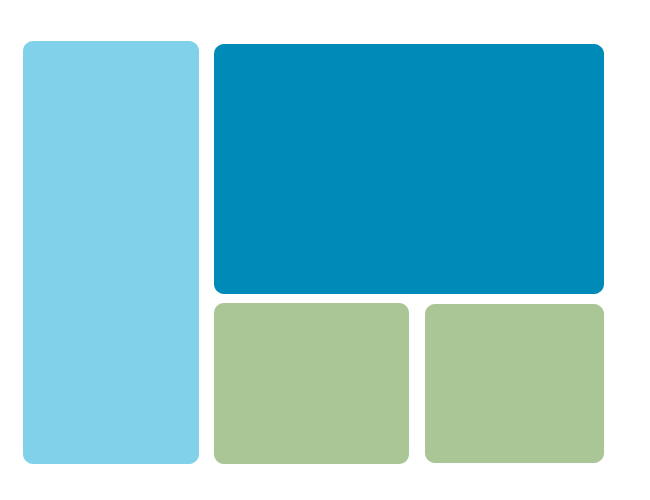
Sites with a lot of images, such as photoblogs, Tumblrs, or craft sites, just need color to visually delineate the site, since the images themselves will be attractive enough to viewers’ eyes. In the illustration above, the “navigation/sidebar” is a different color blue from the “content,” and the lower panels are done in light green, enough to draw attention when the user gets to the bottom of the page. This separates out the site’s content.

Image-heavy sites don’t need a lot of dramatic color; choosing softer shades of any color will work best, especially colors with lots of white, gray, or black mixed in (such as pastels, slate blue, and jewel tones). Try working within the “warm” colors (red, orange, yellow) or “cool” colors (green, blue, violet).

For Text-Heavy Sites: High-Contrast Text and Background Colors

textheavysites

The number-one concern for sites with a lot of text content is readability, and for that, you’ll want a color scheme with a high contrast between its text and background colors. The example above uses a light blue for the background color and a dark blue for the text, which helps the text stand out. (An even better contrast would be white background and dark blue text, but you can still use lighter colors for your background.) You can arguably use a dark background and light text, but your older visitors will have a harder time seeing the text.

As for which colors to choose, it’s best to stay within the same color family on a text-heavy site. Shades of the same color make the site both easy to read and attractive. (Just don’t use a red background color!)

For Feed-Heavy Sites: Small Shots of Color

feedheavysite

When you have a feed-heavy site (or a site with a lot of little sections you want to draw attention to), you can get away with little pops of different colors. Above, I have used colors from Facebook, Youtube, RSS feeds, and Twitter, with a couple of random colors mixed in, to show how this can work. Tiny bits of different colors helps your visitors see right away that your site has lots of different content–just don’t go overboard! Use unifying neutral colors (I used gray) on the rest of the site.

As for choosing which colors to use, you can just about use any shade of any color you want, since you’ll be using each color in such a small dose. Just try not to use the entire rainbow in your site–limit your color usage, perhaps, to 5 or 6 different brighter colors for the “color shots,” and use neutrals everywhere else.

Get More Color Scheme Inspiration

Be sure to look around you wherever you go for color scheme inspiration. In my hometown, for instance, there’s a beautiful old hotel that was once painted in cream and light pink, with a lot of black wrought-iron details. The colors have all faded somewhat over the years, so that the wrought-iron is now dark gray, the pink is just barely there, and the cream is almost white, but you can still see parts of the building that haven’t faded so much. I took that unexpected color scheme, modified it a bit, and used it for my novel update page. Literally anything can be color inspiration!

Color Scheme Websites

ColourLovers
Adobe Kuler
Paletton
ColorCombos.com

Icons Are Like Candy

iconslikecandy
Due largely to the advent of apps, many webdesigners are choosing to do more of their site’s navigation with the help of icons rather than text. After all, doesn’t it look so much cleaner just to use an icon in place for an RSS feed, or for a Twitter account, than to spell out “RSS Feed” or “Twitter” in text?

Well, yes and no. Icons can look clean and tidy–that is, until you have tons of them on the page. Too many icons can make your site look more like somebody’s cluttered desktop. Plus, if every single navigation link on your page is an icon, users can get easily confused about what to click or tap to navigate your site.

Just like candy, small doses of icons are best, so that your design looks sleek and doesn’t suffer from icon overload. But how many icons is too many? It really depends on how you organize them on the page. See below!

Think carefully about where you place and arrange your icons.

Considering your layout, how and where would your icons be best placed? For some layouts, a small table of icons might work best if you only have a tiny bit of space on your sidebar, in your header, or in your footer in which to display them–see an example below:

But if you have a small strip of space across the top or along the side of your content, you can place icons there, as seen below:


Horizontally-aligned icons can look cool as part of a navigation bar…

…and vertically-aligned icons can look neat on a sidebar.

Give at least 10px of space between your icons.


Visual spacing around your icons is hugely important. Whether you choose to arrange them in a table, like the example above, or whether you choose a vertical or horizontal strip, leave a bit of space around them. This will prevent them looking all crowded together and unreadable. The icons in my example above are spaced 10px apart, giving each one enough space to be clicked on and understood as separate entities.

Be ready to reduce the number of icons.

Take a hard look at all your icons–if they’re collectively taking up at least 200px of vertical/horizontal space, you might have too many. One way I get around this design issue is to design my icons’ display, leave it alone on my hard drive for a few days, and then come back to it with fresh eyes. With time away from it, I can better tell if there are too many even to my eyes. In that case, I pick out the most important ones (the ones I really want my visitors to click on) and put the rest on another page, well-spaced. Try this–your users’ eyes will thank you!

Make use of alt and title text.

For some layouts, you may not want the added clutter of text displaying every time you hover over an icon. For that, you can use alt text in the <img> tag and title text in the <a> tag to stand in for the text hover labels I showed how to do earlier. See how the alt and title text works in the icon table, below:

(Optional) Make a text “hover label” for each icon.

Whether you choose to do a mouse cursor hover effect for desktop users, or a “tap-to-reveal-text” effect for mobile users, it’s important to make it clear exactly what the icon represents before your visitor clicks on it.

There are plenty of dynamic script-heavy ways to do this (like using Foundation), but if you want to label your icons the old-fashioned way, here’s my hack:

1. Put link text below each icon; make the a:link and a:visited text color the same as the background color, and make the a:hover text color a strongly-contrasted color, like the examples below:


For this, I put each icon into its own table cell, and then put a line break between image and text within the link, like so:

<td valign=”top”><a href=”http://www.facebook.com/”><img src=”facebook.png” border=”0″>

<br>facebook</a></td>


For this example, I gave each icon its own table cell and row, and just put a few non-breaking spaces between linked image and linked text, like this:

<tr><td valign=”top”><a href=”http://www.facebook.com/”>

<img src=”facebook.png” border=”0″>&nbsp;&nbsp;facebook</a></td></tr>

Remember that you can have multiple lines of text displaying underneath or to the side of your icons in this format (just using HTML line breaks), as shown below:

The size of your icons is your choice–but think it through!

Icon size is a personal choice, but it also depends on the grandness of the layout you’re designing. If you have a very simple layout, small icons might look sufficiently different enough for users to notice them; if you have a very detailed, graphics-intensive layout, you’ll likely want bigger icons so that they stand out more.

(Also, for responsive layouts meant for mobile designs, big icons are easier for fingers to tap. This message brought to you by a girl with big fingertips. :D)

Summary

Adding icons as part of your site’s navigation is up to you–just remember that a few pieces of icon “candy” go very far on a web design!

Liquid Layouts vs. Ice Layouts

liquidvsice

Even though most of the Web today has gone to using liquid layouts (also known as “responsive design”), the fixed width “ice” layout style is still quite popular. Today, I’ll demonstrate both layout styles, as well as give advice on which style is best for your website.

Liquid Layout/Responsive Design

Click for Liquid Layout Interactive Example in New Window

Pro: Expands and contracts to fit browser width

Whatever size your user’s screen is, whether it’s a smartphone, tablet, or laptop/desktop, the liquid layout style will stretch or compress to fit it. You don’t end up with acres of space to either side of the layout, and you don’t end up having to scroll side to side to see all the content on a tiny screen.

Con: Distributes content unevenly and haphazardly

If your reader has a really wide screen, they’ll be jerking your head back and forth to read the long, extended one line of content going clear across the layout. You also might have large blocks of white space between layout elements, giving the design a chaotic look.

Ice Layout

Click for Ice Layout Interactive Example in New Window

Pro: Allows for perfectly-spaced designs

No need to worry about whether your content will be interrupted by huge blocks of uncontrollable white space! Ice layouts give you the ability to perfectly control where things will be placed, whether it’s images, lists, forms, content boxes, or anything else.

Con: Requires side-scrolling or zooming for smaller screens

If your user is viewing your site with a tablet, for instance, and you’ve created a beautiful desktop design, an ice layout will require a lot of zooming in and out to read the content. It’s annoying and time-consuming, and most users simply won’t bother.

Which Kind Should I Use?

Use Liquid Layout If Your Site Is…

  • Based on visual media
  • Meant for mobile users primarily
  • Not dependent on big layout graphics

Use Ice Layout If Your Site Is…

  • Based on text
  • Meant for laptop/desktop users primarily
  • Dependent on big layout graphics

Summary

Though liquid layouts seem to have won the day for now, you can most certainly still use ice layouts in this age of responsive design. You just have to know when to use fixed-width and when to use a variable-width style!

The (Necessary?) Evil: the Pop-Up

thenecessaryevilpopup
Most of us think of pop-ups the same way we think of bugs–annoying or dangerous little pests, the vehicles for drive-by downloads of spyware or viruses, or the tools of the most callous ad-using web designers. Pop-ups, above all, block a user’s experience of an individual website, and thus they can be unnecessary and irritating interruptions.

But pop-ups, as bad a reputation as they have, CAN be used for good purposes. While the fad of using pop-ups as a layout option may be passe, there is still a legitimate call for the miniaturized window in web design, as we’ll talk about below.

Bad Pop-Ups

The usual breed of pop-ups are used in web design for ads, inconvenient surveys, or even unscrupulous downloads (whether you’re aware of them or not). These pop-ups:

  • Look like cheap ads (various bright colors, huge, primary-colored text, animated GIFs, etc)
  • Appear at inconvenient browsing times
  • Appear without warning when a link is clicked

Good Pop-Ups

What I term “good pop-ups” can contain content that doesn’t necessitate a full webpage, such as a feedback or contact form, a listing of affiliates or joined sites, comment or guestbook forms, etc. Good pop-ups:

  • Contain small amounts of easy-to-scan text or photo content
  • Match your site’s layout style and color scheme, if possible
  • Appear after sufficient warning (i.e., “link opens in new window” or “pop-up will appear”)

Other Important Notes about Pop-Ups

Firstly, you don’t want to overuse pop-ups in your layout. A good rule of thumb, I’ve found, is to use no more than two instances of pop-ups in an entire site, maybe using one as an announcement platform and one as a form for contacting or subscribing.

Secondly, pop-ups should not cover the whole screen. Since you can direct the size and positioning of pop-ups, make sure you are placing an appropriately-sized pop-up where it will not be obtrusive to the rest of your design and content. You want your user to see it, of course, but there’s nothing a user hates worse than having to deal with an unexpected stumbling block in reading a site’s content.

Thirdly, do not make your design hinge on your pop-up. Since many users now have pop-up blockers and ad blockers in their browsers, make your content available both as a pop-up and as a regular page, so nobody misses out on your content.

Summary

Pop-ups have long been vilified on the Internet, but by using them smartly and carefully (and not depending on them too heavily), you can include them without annoying your users. Happy readers are returning readers!

Designing for Mobile Devices

designingformobiledevices
Are you stuck on how to create a good-looking and functional mobile device layout for your site? Then you’re not alone–when you’re trying to design for a much smaller screen than you ever thought possible, it can feel as though you’re trying to cram your entire website into 480 pixels of space!

However, we independent designers can take cues from social media sites; Facebook, Twitter, and other sites manage to maintain their site’s “look,” while still making their design appropriate for a mobile device. How do they do that? Read on to find out!

Think small for site logo and content

Instead of doing a huge background image or a great big header image with your site name, a simple icon and text declaring your site name should be enough for a mobile design. Better yet, use CSS to style a text version of your logo so that mobile users don’t have to wait to load a weirdly-sized image.

Also, when designing how your content should display, imagine a space about 300-400 pixels wide, and about the same in height. Your content must fit comfortably within that space, in big enough font that mobile users can read on their small screens.

Choose text and background colors that contrast well

When someone is using a mobile device to view your website, you don’t want them having to squint and turn their phone every which way trying to read your content. Make it easy on your users’ eyes! Using a white background and black text is a classic choice, but feel free to choose any one very light color and one very dark color to use.

Use icons rather than text

Whenever possible, change out text links for icons. Not only is it space-saving on your smaller mobile-friendly designs, but it is also less tiny text to read, which will lower your users’ frustration level drastically. (Also, make the icons big enough to tap!)

Make your page easy to tab through using down arrow key

For those who have touch-screen smartphones, they will be able to scroll down with a swipe of their fingertip down the screen. However, you also want to make sure that your non-touch-screen mobile users can use the down arrow on their phones to “scroll” efficiently. Don’t crowd too many links or pics on one mobile-friendly page–that’s just more for the down arrow key to highlight. (This brought to you by a former non-touch-screen user)

Summary

With these tips, you can make a compact, easy-to-read, functional mobile design for any site. It might look a bit bare-bones on your big screen, but trust me, your small-screen users will thank you!