Tag Archives: layout

Headerless Layouts: The Why and the How

For me, this blog post deals with something I once considered web design anathema: design a page with absolutely no header. “Wait a minute!” my web design instinct cries. “Where will all my nifty page branding and my attractive page image go? What will I do instead?”

Simple: put it all into a sidebar.

Why Bother Going Headerless?

I suggest this layout style because more and more Web browsing is being done with mobile devices, and headerless designs simply load better on such devices. For instance, I’ve been using my iPhone at home for faster web browsing (we have dialup at home :C), and I’ve noticed how header images get distorted or just don’t show up in mobile browsers.

Keeping this in mind, trying a headerless design might just be the way to help our mobile users access the most important bits of our site without losing visual impact. Not to mention that the following design style effectively combines your sidebar into your header for a simpler and yet more elegant layout, leaving you with fewer sections to code and less for your browser to have to arrange. See below:

Sidebar: Your New Header

headerless_fullpage

This is just a quick sample I put together of what a headerless design could look like. See how the page content lies right up at the top of the page, so that the user does not have to scroll down to start reading? The same logic applies for the sidebar–all the pertinent information loads right at the top of the page, for ultimate convenience.

headerless_sidebar Here to the left, we see a close-up view of the sidebar–at the top, loading first, is a quick page summary, for people who don’t know anything about your site and are assessing your site to see if it’s something they want to browse. (Your “About the Author” section is for a similar purpose, especially on a blog.)

Next, we have social media and navigation; your social media links can be formatted to be much more compact with icons. You could also flip the positions of the Navigation and Social Media sections if you want the navigation closer to the top of the page.

You can definitely play with this sidebar style, but this is a pretty bare-bones representation of how to make your sidebar into your “header.” (Additionally, you could put in a few small images to make your sidebar even more visually attractive, such as a picture of yourself beside the “About the Author” blurb.)

How to Make a Headerless Layout

The way I put together my example uses a 2-column layout design, with the sidebar div set at a fixed width and the content div set to a percentage of the page width. (Unfortunately, mine doesn’t exactly do everything that I wanted, such as scaling correctly when the page resizes, so I’m not showing my [shameful] code here. LOL!) This style seems to be the best way to make a headerless design at the moment, however.

However, this concept has been tackled and solved by several webdesign whizzes–check out their tutorials to learn how to incorporate the headerless look for yourself!

Fluid Width with a Fixed Sidebar Demo @ StuGreenham.com
Fixed-Width Sidebar in Responsive Design: Discussion @ CSS-Tricks.com
Make a Layout with Fluid and Fixed-Size Columns @ RadiatingStar.com

Center Alignment: NOT for Body Text

Today, we’ll look at a common yet very flawed design strategy employed by beginning webdesigners–center-aligning EVERYTHING on the page. Why do I call it “very flawed?” Read on to find out!

What’s So Bad About Center-Aligning Text?

If you’re just coming into webdesign from working with text documents or word-processing programs, it can be very tempting to center-align everything on your page. After all, the center of the page is where everyone’s going to look first on a webpage, right?

Unfortunately, webpages render center alignment very differently than regular text documents, as I’ll demonstrate below.

Center Aligning in Word Processing Documents

It’s true that center aligning can make narrower blocks of text look tidy and professional in word processing programs. See the examples below:

Left Aligned Text in a Word Processing Document
left-aligned-text

Center Aligned Text in a Word Processing Document
center-aligned-text

Center alignment, in this circumstance, makes the text look neater and more presentable.

Center Aligning in Web Documents

Unfortunately, this does not translate to the Web at all, unless you have designed narrow columns for text to flow in (more like a newspaper format). Invariably, if you center-align text in a very wide divided layer (more than 800 pixels wide) this is what it ends up looking like:

mega-center-aligned
(click picture to see it full-size in new window)

Center-aligned content, when stretched across large widths of layout space, has uneven line ends on both sides of the paragraph, so it looks sloppy and unprofessional on the page. Additionally, sentences are much harder to follow because the reader doesn’t know exactly where the next line will begin and has to spend a couple of extra seconds visually searching for the first word on the next line.

This might seem nitpicky, but it has a tremendous impact on our readers’ experience of our sites. If our sites are too hard to read and follow, they’ll leave and find another site with the same information but better formatting. We don’t want that!

What Are Some Text-Formatting Alternatives?

If you really like the look of center-aligning text, you might consider putting your text in much narrower divided layers (only about 300-400 pixels wide), and having several columns of text. Be warned, however, that this can make your page super-long if you’ve got a lot of text, and these days, we don’t want our users having to scroll a lot to find the information they want.

Alternatively, you can choose to make your content div about 500-600 pixels wide, and only center-align your titles or headings. This is the look I go with most often on my personal sites or fansites, and I find it gives the tidy look I want without having to center-align EVERYTHING.

Also, you can try center-aligning your navigation in a horizontal “bar” above your content, especially if you’ve got only a few links in your navigation. This can draw user attention better than letting it be left-aligned and lost in the visual shuffle.

Summary

Center-aligning can be a very tempting text-formatting strategy, but it’s best used sparingly–otherwise, our pages will be very difficult to read and enjoy. Using center alignment carefully is one of the ways you can make your site look more professional!

“Sleek” Design Doesn’t Mean “Bland”

As a design challenge to myself, this past week I’ve been working on a new layout for my main domain, withinmyworld.org. My keyword for this design was “sleek”–I wanted to make something rather minimalist but still pretty, easily readable but still styled.

My first attempt came out like this:
newversion_screenshot
(click the picture for a larger screenshot in new window)

I’ve never tried designing with this vibrant purple before, so this was a fun new challenge. Plus, I really liked the “sticky nav bar” I came up with for a recent blog post, so I incorporated that as well.

The only problem? As lovely and minimalist as this design is, it’s also fairly text-heavy…and kind of blah, somehow. I hated even to admit it to myself, but I had done it again–I had gone overboard with all the text and other elements, and forgotten about how the layout would look all together. Even with the RSS feeds and affiliate buttons I planned to add later, it would still be lacking a certain something.

So I brainstormed. I didn’t want anything too splashy or crazy for this layout, so what could I do to maintain a simple, minimal but “wow” layout?

The Idea: Just a LITTLE Something to Add

What I discovered, after thinking about it and studying it for a couple of days, was that the layout was just a little bit too “same-y” across the page. There was nothing really to draw the eye in, no real graphic elements besides the social network buttons. It needed a little visual interest, as graphic designers say…but it didn’t need a huge image to take away from the “sleekness” of the page design, either.

To that end, I came up with a couple of simple little graphic tricks that could add a little “wow” to my page…and the same principles can work for your page, too! The best part: you only need symbol fonts to do this. (Symbol fonts are just like regular fonts for text, except that every time you hit a key on your keyboard, you make a symbol instead of a letter from the alphabet.)

Trick #1: A Subtle, Simple Background Tile

You don’t have to be skilled at pixel graphics to create a background tile for subtle pattern on your page. Take the following screenshot, in which I added a tiny 15×24 background tile for a little interest:

backgroundtile_example
With just a tiny bit of color variation, plus the use of the Wingdings 2 font and the letter “g”, I crafted this very subtle tile pattern which repeats on either side of the content. (It also repeats behind all the text, too, but I made my container div have a background color so the pattern wouldn’t distract from the text.)

This background tile adds just a little touch of variegated color without looking “busy.” And it’s a curving, soft shape on this page full of hinted squares, rectangles, and other sharp angles–a pleasing juxtaposition!

To Make Your Own:

  • Explore symbol fonts to find a cool symbol you’d like to use on your site. Something fairly simple in shape works really well. (See the “Free Font Sites” list at the bottom of this article to start your search.)
  • Make a small graphic (no bigger than 50×50) and dye it your background color.
  • Choose a second color that is only a few shades different from your background color.
  • Type your selected font symbol in the second color, and resize as necessary so that it fits within the graphic without having any overlap. (Any overlap means your tiling will look obvious and even misaligned…sad!)
  • Save your image, and try putting it as your background tile image (“background-repeat: tile;” in CSS code).
  • Tweak this process as necessary till you get just the right look. (This tiled example was my fourth attempt–I had to tone down the color contrast quite a bit to get this look!)

Trick #2: Add a Little Graphic Twist Anywhere on Your Page

Little graphics don’t have to be just on your background or header–they can appear anywhere you need a divider for your text, or anywhere you want just a little pizzazz. See the following screenshot:

tilinggraphic_example
(click the picture for a larger screenshot in new window)

Here, I’ve added a little semi-border to the top of the page, right underneath the navigation bar and centered above the content div. It’s the same symbol as before (Wingdings 2, lowercase “g”), just in a lighter-colored font and in multiples, strung repeatedly across the top.

This could be placed between the content and the footer, or between sections on my sidebar, just as easily as it is placed above the content. Anywhere I place it, though, it gives the page a little feminine flair while still being minimalist.

To Make Your Own:

  • Select a font symbol you like, as before.
  • Make an image that is wide but not tall (mine here is 300×20, but size yours according to your specific layout needs).
  • Dye your image with your background color.
  • Choose another color that is either much lighter or much darker than your background color.
  • Type your chosen symbol in that second color in a straight line across the image, making sure the symbols fit neatly within the image’s borders so there’s no overlap.
  • Save it, and place it anywhere on your page, in multiples or just one at a time, wherever you need a little visual pep.

(Alternatively, you could achieve this same look by uploading the symbol font file to your site’s folder, typing in a long string of the corresponding letter, and then styling it with CSS, but the above process gives a smoother, anti-aliased look to the result.)

Summary

Adding a little visual interest does not always involve lots of big splashy images, especially if you’re trying to be “sleek” or “minimal” in your design. You may only need a couple of touches to transform your site from “blah” to “wow”!

Free Font Sites

Dafont.com
FontsBytes.com
1001FreeFonts.com
FontSquirrel.com

Easy-to-Code Navigation that Scrolls With You: It’s Possible!

These days, navigation that follows a user down the page is a very attractive and user-friendly design. When a user doesn’t have to scroll all the way back to the top of the page to get to the navigation, and doesn’t even have to fool with clicking a “back to top” link, it’s a wonderful thing.

But it’s a little challenging for us web designers to get it done, as I discovered while researching for this blog post; there are plenty of designers looking for ways to make this happen in their own layouts, and there are just as many solutions in various programming languages.

Eventually, I just opened my trusty Notepad++ and started knocking together some code myself–and I accidentally found a very, very simple CSS solution.

Robin’s Sticky Nav Bar: The (Code) Recipe

stickynavbar

Click to see my simple “sticky nav bar” demo! (opens in new window)

To make the above page navigation work, it took about an hour of experimenting with HTML and CSS, creating a dummy layout and the like. But finally, on a whim, I stuck the following bits of code into my navbar div:

#navbar {width: 900px; height: 40px; padding: 0px; position: fixed; top: 0px; background-color: #0f00a1; box-shadow: 2px 5px #000555;}

The code in bold above is the important bit to see here; this was the magic wand that transformed my plain ol’ horizontal navbar. Once you style your own navbar the way you want it, all it takes is two code bits–“position: fixed;” and “top: 0px;”–to make it stick to the top of the page.

And, to make it centered like the rest of my layout, I made sure to put my navbar div within a container div called “wrap,” styled like so:

#wrap {width: 900px; margin: 0px auto; padding: 0px;}

The following HTML code is what I mean by “putting the ‘navbar’ div within the ‘wrap’ div:”

<div id=”wrap”>
<div id=”navbar”>
<span id=”sitename”>my dummy site name</span> <a href=”#”>about</a><a href=”#”>faq</a><a href=”#”>products</a><a href=”#”>services</a><a href=”#”>support</a><a href=”#”>home</a>
</div>
<div id=”sidebar”>
more code here, etc…
</div> (this ends the “wrap” div)

That’s really all the magic there is to it! (This design works in Firefox, IE, and Chrome; I have not tested it in any other browsers, but it seems that these three handle it identically, so I have hope that it works with all browsers similarly. If you find that this code doesn’t work in a browser I haven’t tested, let me know!)

One Small Caveat:

Fixing your navbar to the top of the page with “position: fixed” works great–but only if you don’t mind your navbar being the very topmost thing to display on your layout. If your ideal navbar is located beneath your header image to begin with, but then sticks to the top of the page when your user scrolls down, then just using “position: fixed” with a different pixel value in “top:” won’t make that happen. (Believe me, I tried–it was fail. I ended up with a navbar just stuck randomly in the middle of the page blocking the content. :/)

So, what to do if you want a navbar that will stick to the top of the page, even if it’s not at the tip-top of the layout to begin with? Well, from what I found in my research, you’re likely going to have to use Javascript/jQuery to make this more complex navbar. Here are two forum/discussion sites which explain these methods much better than I ever could.

jQuery and Javascript Methods for Sticky Nav Bars

Summary

“Sticky” nav bars are sleek, clean, user-friendly–and fairly easy to achieve with these three methods presented here. I hope at least one of these helps you with your next layout!

Stop Coding This Right Now, part 3: Horizontal Scrolling

We all want to design unique and memorable websites; it’s a worthy aspiration for any web developer/designer. But you don’t need to stoop to horizontal page scrolling to make your website stand out from the rest. In fact, it’s much better for your visitors if you stay as far away from horizontal scrolling as possible!

Horizontal Scrolling, Defined

When the scrollbar that should be on the right side of the browser window appears at the bottom of the window instead, that is horizontal scrolling. The content expands out to the right or left instead of flowing down the page like most webpages do today. See the following examples I made:


Looks like a normal webpage…except that the scrollbar is below the content!


The content scrolls to the right, rather awkwardly; it’s almost like the site didn’t display correctly. Very confusing for information reading, too!

Why This is So Annoying to Users

The reason horizontal scrolling is a designing no-no: it’s not how most websites operate. Most content runs vertically down the page. Thus, your users are momentarily confused about how to navigate your site, and if they get fed up enough, they’ll most likely leave. It’s simply not worth it, from a user’s standpoint, to try navigating around a weird site that doesn’t even have its scrollbar in the “right” place.

This is Tempting, but Don’t Do It

I know we all want our content to be easily seen “above the fold,” where the user doesn’t have to scroll at all. But trust me, having a little vertical scrolling is infinitely better than trying to implement strange horizontal scrolling. Not only does it look weird, it’s more work for the designer to code, and it’s more confusion for the user to try to adapt their browsing style.

Bottom line: We as designers should not force the user to work harder just because we want to be “different” and “trendy!”

Try This Instead: Content Modules

Instead of having your content stretch horizontally forever and ever, try a 2- or 3-column content design with several boxes of content arranged in a grid pattern, like the following samples:


This is an example of a two-column grid layout…

…and this is an example of a three-column grid layout.

You don’t have to go completely Pinterest-esque, but at least this would get more of your content up above the “fold.” Just make sure to keep that page free of horizontal scrollbars!

Design Around Your Content

We’ve likely all seen examples of websites that could hang in a museum, as visually appealing as they are. Such feats of graphic strength amaze both users and other webdesigners, who may wish to imitate or pay homage to what they see.

But, at least in my experience as a designer, it IS possible to go overboard with the “visual art” part of the design, and forget all about what those graphics are supposed to do–frame the website’s content. In a way, we webdesigners are creating usable art, with heavy emphasis on the “usable.”

Today’s post focuses primarily on designing around text, images, and social connectivity, as these are the three major types of content on the Web these days. Each type of content must be handled differently, as you’ll see below!

Designing for a Text-Heavy Site

For a site with lots of text (ahem, this blog and others like it), you want to make sure your header, footer, and sidebar are as unobtrusive as possible, while still making your site easy to navigate. Having a fairly thin header, possibly with across-the-top navigation included, and well-organized but uncrowded sidebar and footer is a good idea–it keeps the rest of the site simple while letting the text content shine.


Larger pic of GeekyPosh.com

This design on GeekyPosh does a great job of combining the header and navigation into one seamless whole, making the latest post visible without the user having to scroll down at all. The blue ribbon running across the page neatly divides “content” from navigation, without making it look blocky. Additionally, the background texture is also subtle enough to lie behind the text without any visual confusion.


Larger pic of Jenn.nu

While the header image on Jenn.nu is larger, the thin strip of navigation below the header makes up for it–combining not only navigation but social media links into one easy-to-read, accessible “bar” below the image. In this case, the large header image does not detract from the site’s purpose, as it’s still easy to scroll down a little and begin reading.

When designing for text-heavy sites, you also want to make sure your text and background colors contrast strongly (like white and black) so that your text is easy to read. (Nothing’s worse, for instance, than having to squint at the text or highlight it just because the designer thought taupe text on a tan background looked good.) Both GeekyPosh and Jenn.nu do a great job of making their text colors highly readable against their background colors.

Designing for an Image-Heavy Site

A site with mainly images as its content needs plenty of visual space around each image–maybe not a full page of space, but a good amount of space so that separate images don’t run together.


Larger pic of Hark! A Vagrant

Hark! A Vagrant, with its emphasis on visual webcomics, uses both plenty of white space in its layout, and a few samples of the artist’s embellishment on its navigation links. The white space makes it easy to take in each individual comic; the navigation images give the site its own personal, memorable stamp.


Larger pic of Pinterest

Alternatively, image-heavy sites can make the sidebar and footer utterly unnecessary, and combine header and navigation into one bar, a la Pinterest. This kind of site also benefits most from neutral site colors that don’t take attention away from the images themselves–hence, Pinterest’s beige/gray/occasional pinkish-red color scheme.

Designing for Social Connections/Conversations

Since social connections and conversations are part of many sites these days, we all want to make it easy for our users to connect with us and our sites.

The best thing we can do? Make our comment forms, tagboards, social media links, guestbooks, etc. very easy to find. We need to feature any important conversation links or social media buttons at the top of the page or as close to the top as possible. (Alternatively, we can put such links on a scrolling sidebar/header bar that makes it clear how to connect and converse with the site owner and other users.)


Larger pic of Whimsical.nu

Whimsical.nu’s comment form gets it very right–a big, easy-to-read form that doesn’t force all the text to be 8pt tall and squished together. (A personal pet peeve of mine is too-tiny text in a form space–you end up unable to read what you’ve typed in!) Plus, the visual space is used well, and the form is actually designed to blend in with the site instead of looking like a cookie-cutter afterthought.


Larger pic of PopURLs.com

Upon hovering over links on PopURLs, not only does a content preview show up, but you also get a little box out to the left or right of each link that reads “Share | Clip.” You can then choose either of those options easily with just a move of your mouse (or a tap of your finger). This makes it so much easier to spread the site’s content across the Web, and interact with other users who have shared or clipped the particular item of content as well.

Summary

Beautiful, visually attractive designs are wonderful–but what’s even more beautiful to the user is a well-designed and usable site. Taking into account readability, page organization, and convenience for the user is perhaps the most important part of designing a page; our designs should frame the content rather than overpower it.

Break Out of Web Design Cliches

We’ve all fallen victim to them, as web designers. After a while, a certain style or structure of site layout becomes second nature, and you just begin to design every site the same way regardless of content. Either because it’s easier or because it’s familiar, we can all fall into the “web design cliche” trap…but we don’t have to be trapped by it forever!

Common Webdesign Cliches, Illustrated


Full-size screenshot

While the above image I’ve made is rather tongue-in-cheek, this fairly well describes several of the design cliches I’ve seen in the last few years. (Sadly, some of these are the same ones I find myself relying on, so I’m kind of preaching to myself today, too. :P)

For instance:

900-Pixel Two-Column Layout with Floated Divided Layers

As you see in the above screenshot, the old faithful 900px two-column layout looks sharp and clean, but somehow…a little bland and overly confined, too. In this age of mobile screens and bigger screen resolutions, should we be confined by this limited-width design anymore?

I will admit it’s an easy design to make and it’s very familiar…I almost want to say “if it ain’t broke, don’t fix it.” But then again, it might BE a little broken for our tablet and smartphone age, when it can’t shrink and grow with our various screen sizes.

Blue, Gray, or Black Layout Colors…but Mostly Blue

Don’t get me wrong, I absolutely love blue, and I love using it in layout designs. It’s just that about 70 million other designers apparently love blue, too, and think that it’s a great color for their websites as well.

Along with gray and black, blue is generally overused on the Internet because it’s a “safe” color, a “sleek”-looking color. There are definitely instances where blue, gray, or black may be called for in design, but these days a “safe” color choice can make an otherwise awesomely-structured layout look less than original.

Huge Header Image


I’m as guilty of this as anybody–making a wide, occasionally awesome header image for the top of many of my layouts. I got used to doing this in webdesign about six years ago, and it’s been just plain hard for me to imagine a site which doesn’t use a header image of some sort.

But when you have this much visual space at the top of a layout, even if you’ve got a fairly eye-catching image, you’re not really drawing any attention to your content. Nor is it giving your site a good first impression, graphically speaking. (This has been a very hard lesson to learn for me, but it’s a necessary one from a user’s standpoint.)

Huge, Empty Footer


Footers are great little page-enders. They give your users ways to navigate your page without scrolling all the way back up to the top, as well as including extra links and info that don’t need to be front and center on your page.

Yet many of us web designers have gone a wee bit overboard when it comes to footers, trying to make everything BIG and important-looking, and usually ending up with the above result: a very spacey, empty-looking end to a page. If you’ve got a small site and don’t really have a lot of info that needs to be in a footer, it can even look like an unintended space at the bottom.

Gradient Background Image

Ah, gradients! I love them, so much…and yet they, too, can look generic. We designers have often used gradients to give a slightly dimensional effect to our websites, but they can very easily become a design crutch, too. We can begin to depend on them for backgrounds, when perhaps another kind of background effect might look better.

Simpler is better, most of the time, but in this case, it’s almost too simple–it doesn’t brand your site or add much visual interest. And, in the case of mobile browsers, it might never even be seen, not in the way you intended; spacing issues can throw off a gradient background image and make it render strangely behind the text.

Left-Aligned, Spaced Out Navigation

This style of navigation began life, most likely, as an “ease of use” design choice. It still is very easy to use and easy to look at, especially when you have a lot of links in your main navigation, but you still need your navigation area to look organized.

But what about sites that might not have that much navigation, like this example? For smaller sites, the left-aligned navigation adds almost too much white space, and takes away from the space that the content could expand into as well. You end up with a large dead space in the middle of the layout, if you’re not careful.

Moving Away from These Cliches

Making different design choices doesn’t mean you have to completely rethink everything about the cliches I’ve mentioned. Instead, you can make small or medium-sized changes to the cliches themselves, like the ones I describe below:

Instead of A Two-Column Layout…

…Think about a three-column layout (two sidebars, either flanking the content or both out to one side of your content), or even a one-column layout with all your regular sidebar stuff in the footer or across the top. A three-column layout could work well for a big, media/content-driven site; a one-column layout would likely work best for a small personal site.

Instead of Left-Aligned, Spaced-Out Navigation…

…You could try a series of icons for navigation on the right side of the page, or text navigation strung across the top of the page. Maybe even try a navigation bar that scrolls along with the user as they move down the page, especially if you have long pages. You still want to make sure your navigation is very easy to find and use, but making it neater and more tightly-organized can only help the process.

Instead of Blue, Gray, or Black Layout Colors…

…Try other colors, possibly used alongside blue, gray, or black to make it a little less jarring. A dark burgundy could give subtle punch to an otherwise gray layout; a bright splash of pale yellow or green could liven up a black layout.

And if you really want to break out of the color cliche, try “strange” color combinations; recently on my main domain and its subsites, I’ve tried combinations like navy and peach, deep red and bright periwinkle blue, pale green and deep purple, etc., with success. (It all hinges on how much or how little you use each color; using a bright or vibrant color is great for drawing attention to new or featured content, for instance, but it’s not great for dousing the whole layout.)

Instead of a Huge Empty Header or Footer…

…Make your header or footer retractable (with jQuery or a similar language), where the user can “fold” it up out of the way with a click when they don’t need to view it. Or you can use your header as an advertising space for your most accessed/favorited content, and your footer as ad space for other webmasters’ sites. Anything that uses that space as a content holder rather than dead space!

Instead of a Gradient Background Image…

…Check out what kinds of subtle, site-branding patterns you can use instead. You don’t have to have an animated GIF background image (God forbid!); you can try a small tiling symbol that represents your site, done in subtle shades that blend nicely with your overall layout’s colors. (For instance, for my main domain, I could use the stylized sun icon as a small tiling image in a slightly deeper or lighter shade of burgundy than the background color, adding a little design texture but not too much.)

Summary

Safe and familiar designs don’t have to trap us, as designers; sometimes, we just have to be willing to step outside our design “box,” just a little, changing the cliche just enough. Even the tiniest of changes can get our design Muses going again!

The Dumbest Thing I Have EVER Done in Webdesign

I’ve been prone to a few boneheaded design/development decisions since I began teaching myself HTML in the fall of 2003. We all have those moments, as webdesigners and as human beings–we all have huge foul-ups that we look back on later and laugh.

But this one, as you’ll see, takes the cake for “dumbest design ever;” it was July 2005, a scant year and a half after I had begun webdesign, and I attempted something I’d never done before (and haven’t done since).

The Infamous “Pink Layout”


This was my fourth layout for my domain, WithinMyWorld.org. Yes, yes, I know, you’re probably recoiling from your screen in horror right now. xD

Why might I consider this the “dumbest” design choice I’ve ever made? There are actually a few reasons:

  1. This layout used a color I absolutely abhor. I have hated pink, especially this Barbie shade, since I was a little girl, and I think my hatred for the color bled into the layout.
  2. I put in several images on this layout, but they were used in strange places (even underneath the content), which ultimately distracted user attention from the important bits of the site and made content difficult to read.
  3. I flung the navigation far to the left in this layout, as if it was in “Time-Out” or something. Users ended up having to hunt for the navigation instead of easily being able to click around my site.
  4. The largest text on the screen (specifically, “Within My World” and “Navigation”) used Scriptina, which is a gorgeous font. Unfortunately, I made it very difficult to read, especially the way I have it formatted with drop shadows and the like. Combined with the images and eye-searing color choices, the layout became just too “much.”

Basically, I went overboard with this layout in every way–I tried to stretch my designing wings and ended up about knocking the nest out of the tree, it seems. xD

How Can We Learn from This?

Acknowledging a foul-up is the first step to learning from it. Now that I’ve used this as a negative example, how can we learn better design from this?

Choose colors carefully.

When trying to choose a thematic color for your site, make sure the color fits your site and doesn’t detract from your content. In my case, the pink of this layout was not only an unfavorite color, but was also an overpowering color, taking away the attention that my content deserved.

It also didn’t fit the purpose of my site–this color belongs more on a fashion and beauty site/blog, or a breast-cancer awareness site. Color does more than just sit on a page; it symbolizes your content in ways you may not even be aware of. Making the most of those color associations can help your users categorize and enjoy your site more.

Use layout images to highlight content.

In this layout, I put images everywhere but where they needed to be. Nothing draws the user’s eye to the content–instead, your eye roams all over the place, not finding anywhere to really settle.

Instead, place detailed, eye-catching images within your content to further explain it, or place a few symbolic images in your header to make your site’s purpose clear without being distracting.

Put navigation in a highly-visible spot.

Don’t do what I did and push your site navigation out to the middle of nowhere. Navigation, like content, needs to be readily available so that users can actually USE your site. I kinda forgot about that when I was designing this page, and my site suffered as a result.

Ensure that your fonts are readable (even the decorative ones).

Beautiful fonts are awesome, but only when wisely used and formatted. Like I described earlier, Scriptina looks lovely, but I didn’t format it and use it to the best of its potential. What could have been graceful and light ended up chunky and almost illegible in parts.

When you’re choosing fonts for your site, whether it’s part of a decorative header or part of your page’s font selection, make sure your users can read them and that they won’t detract from the words those fonts are printing on screen. Those fonts are meant to communicate, not just look pretty!

Cleaning Up Layout Clutter

Just as I seem to be a severe pack rat in real life, I’m also a hoarder online…but I’m not the only one out there. There are many examples of cluttered layouts floating about on the internet these days (mine are likely prime examples).

What do I mean by “cluttered” layouts? Any site design that makes it hard for users to find what they need could be classified as cluttered. After all, in a cluttered room it’s difficult to find the items you need (as I know from laughable personal experience).

Today, I’ll share with you the four major ways we webdesigners and developers accidentally clutter up our layouts, and how to declutter them.

Extremely Busy Background Images

Background images are just that–they are meant to create a fitting backdrop for the main attraction, our websites’ content. But it’s very easy to overdo a background image and make it a dizzying sight. For example:


This doesn’t look too busy when it’s on a page by itself…


…but when it’s tiled and used as a page background, it looks more like one of those 3D images than a webpage background.

This kind of background image can make browsing your site difficult to do–your text-based content can be hard to read, or even impossible to read, and any images you’ve posted won’t attract the same kind of positive attention.

How to Fix This

You don’t have to sacrifice interesting design to make your backgrounds easier to take. These design strategies can help:

  • Use colors that are closer together in shade so patterns are subtler.
  • Try a soft gradient just along the top or sides of the page.
  • Use a larger, low-contrast pattern instead of a small, high-contrast pattern (sounds counter-intuitive, but works!).

Content, Content, Everywhere!

I’ll admit it–I cram my pages full of content. *cough* sidebar *cough* I’m a content hoarder, and I almost need an intervention. 😛

Content is wonderful; it’s the reason we all make webpages in the first place. But when we overload our users with tons of content crowded onto one page, whether it’s images, links, text, or anything else, we make our pages about ten times more cluttered.

Just like a cluttered room with too many items to look at, a page cluttered with content makes it hard for users to know where to focus first. If there are sidebar links, footer paragraphs, dozens of images, etc., all on one page, how can a user easily find what he or she is specifically searching for?

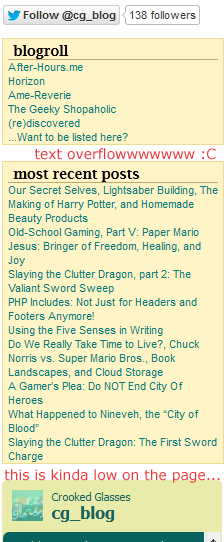
You could argue that this shot of my own sidebar on this blog is a bit cluttered–and I would agree with you.

For one thing, the text of each content box is really small; for another, the small headings don’t attract the eye as well as they might. Thirdly, the one social media link looks a bit lost, even at the top of the page.

Though at first I thought this design looked very tidy, now I see that the text looks a little haphazard and it’s hard to determine what to look at. And, as I’ve noted on the image itself, the Twitter feed is very low on the page, and the “most recent posts” box is overflowing with the titles of each blog entry. My inner pack rat strikes again! LOL

How to Fix This

Thankfully, you don’t need to take all the content off your page to declutter it. These tips can help:

  • If your sidebar is overflowing with content, try moving a section or two to its own page, and simply link to the new page on your sidebar.
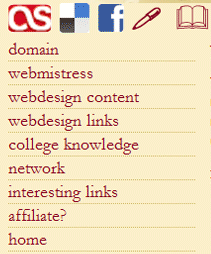
  • Use icons instead of text links (where possible) on your header, sidebar, and footer.
  • Shorten text link descriptions to as few words as possible.
  • Halve the number of content items displayed per page (i.e., if you have 20 content items per page now, try 10 and see how that changes the page look).
  • Enlarge the font size of your remaining content items/sections. (Again, sounds counter-intuitive, but larger text will command more attention and not look quite so messy.)

Unnecessary Information On Your Main Page

On your index page, do your users need to have the full-text version of your site’s history in the sidebar? Or do they need to see every single image you have in your site’s archives? It’s important to think about the purpose of your site, and what information the users are visiting your site for.

I’ve made the “unnecessary information” mistake dozens of times over, especially when I’m first crafting a site. I always start thinking, “But wait, I’ve got to put [this random piece of information] over here, and what about [this other bit of randomness]? I’ve got to find places for them all on the main page!”

To snap myself out of this mindset, I had to think about what was most important to my users–and this self-check could work for you, too. Think about what your user really needs to see when he or she first hits your page. What is most important to them? What do they need to click on or view first?

These items, whether they’re welcome/mission statements, Twitter updates, your most recent post, etc., need to be the only things to view on your landing page. Anything else needs to be put on a separate page, or hidden in some way unless the user clicks on it to open a section up.

How to Fix This

Your landing page doesn’t have to be bare, but a little information goes a long way–try these changes:

  • Determine the 3 most important things your user needs to see/interact with when they first come to your site. These 3 things need to be showcased; other information can be put on other pages or relegated to less prominent locations on your landing page.
  • Use clear text headings on your landing page so it’s easier for users to find information they need.
  • Divide up the information visually (images or CSS formatting) to make visual searching of your page easier.

Scattered Social Media Icons

It is important, if you’re making any kind of website, to make sure your users can interact with you and your site on social networks–you don’t want to skimp on that. But it’s equally as important to make sure those social network links don’t take over the rest of your page.

I found this out when I designed my 11th layout for WithinMyWorld.org–I carried over some social media icons from Version 10 and put them on the main page. Little did I know that unlike Version 10, Version 11 did not really have a good place to display icons. What looked crisp and clean on Version 10 looked like misplaced clutter on Version 11; it looked so bad, in fact, that I took the icons down within hours of changing over the layout.


This screenshot from Version 10 shows a nice, neat place for icons to live, right above the navigation.

Version 11, however, has no real place for icons to live on the page, because it creates a bad contrast with the background image.

How to Fix This

These all-important icons don’t have to be banished from your page altogether; some of these hints may help you figure out where they belong.

  • Think about where you’d like your social media icons to be BEFORE you design your layout. Design around them rather than sticking them on as an afterthought. (This really helps–trust me!)
  • Make the icons larger rather than smaller. This helps them stand out more on your page, so they’ll look less like clutter and more like a vital part of your site (which they are).
  • If the original icons’ colors clash with your layout, you can always make icons to match your layout, with a font like Socialico. Either include it as a custom font in your CSS, or make them into images–both ways work!

Summary

Making the extra effort to declutter our pages can make a huge difference to our users–it can positively affect the way your user views your content, and could even ensure return visits or new visitors via word-of-mouth. Thus, a tidier site can make for happier viewers and a happier webmaster, too! 🙂

Making a “Good” Layout Better

Web design is not always a simple matter of knocking something together in Notepad, putting pretty pics with it, and uploading it. Sometimes, as we well know, layouts just end up looking…blah on the page.

Take the following layout, which I was trying to craft for my upcoming webdesign tutorials page.


(click for larger size image)

This, in terms of a layout’s pure functionality, works. It displays what it’s supposed to; nothing’s out of place, misspelled, or obviously buggy. And yet it just looks…blah. The icons look too small, being dwarfed by the text and the header image. Not to mention there’s a lot of open, unfilled green space. It’s just…empty.


(click for larger size image)

This was my first attempt at fixing the emptiness and too-small icons of the first layout. I resized the icons and tried to reposition them where they wouldn’t just be hanging out in the middle of nowhere…and yet, again, I ended up with a problem. This time, the issue is that the layout looks cluttered–there is nowhere for the visitor’s eye to rest, because the icons stick out like sore thumbs and the header image looks off-center. And again, the layout has a bunch of empty space, especially on the left side. Sigh…


(click for larger size image)

Third time is the charm, I believe! This time, I centered the header image over the two-column layout below, leading to a more symmetrical look. I also included the navigation icons WITHIN the image div itself, and, After much tussling with HTML and CSS, got them to be positioned where I wanted them. (Who would have thought margins and padding would kick up such a fuss?) But the result is a much cleaner and more understandable look. It might not be “the BEST LAYOUT EVAR OMG,” but it’s much better than the one I had when I started out!

Sprucing Up a “Blah” Layout

If you’re having similar difficulties with a layout of yours, you might not need to go back to the drawing board completely. Instead, you might benefit from just reworking a section or two, as I did with my troublesome layout. Here are some general tips:

Change the Positioning of Graphic Elements

If the visual balance of your layout looks off, or it feels cluttered with graphics, try moving some of your images/icons around a bit. Try them positioned in a completely different place on the page, or even going a different direction (like vertically instead of horizontally, or vice-versa). You’d be surprised how much a little strip of icons can affect a page, as I found out!

Take Away Text, Add Icons

If, however, your layout feels heavy with text, you may be able to transform some of those words (especially textual navigation) into iconic navigation. (In my example layout, I challenged myself not to use text links in my navigation unless it was absolutely necessary, so that it wouldn’t detract from my content.) It may not seem like text is overwhelming your page, but it can easily swamp your visitor with information overload. An icon, by contrast, looks simple and neat.

Experiment with Content Positioning

Does that old left-aligned sidebar look dated and tired? Then maybe all it needs to do is flip over to the right side! Placing content in slightly-unexpected areas can change the look of the whole layout; moving smaller blocks of content around within your layout can also affect your users’ experience. Keep this thought in mind every time you design: “What do I want my users to see/click first?” This should be closest to the top of the page, and your header should “point” toward it, drawing their eyes to it.

Work With Your Fonts

Sometimes, a layout can seem too crowded simply with a too-small font, or a font that isn’t very clear. If you’re having difficulty displaying content attractively, as I was, a font change may be in order. Trying a bigger point size, a clearer font, or even a different class of font altogether may help clear away the “text-cluttered” look.

Summary

You may feel like scrapping a layout that you feel is too ugly to save, but don’t be so hasty! Experimenting and reworking just bits and pieces may just save you a lot of time and hassle designing a totally new look. I was about to give up on that example layout of mine, till I experimented around and found a clean, simple new way to put the same elements together.