All posts by Robin

I'm a woman in my early thirties living in North Carolina, USA, and I have a lot of varied interests; I love creative writing, music composition, web design, surfing the Internet, thinking out loud, and gaming. And yes, my glasses are crooked. :)

The Shadowy Side of CSS

For years, when webdesigners wanted to do shadowed effects with text or content boxes, they had to do so through the use of images. Either the text had to be saved in an image format, having been edited with an image program to make the text shadowed, or the content box had to be created with several slices of images to create the illusion of a whole box with a shadow slightly behind it. There were usually a good number of invisible tables behind the scenes setting up all these images so that the text and/or content boxes looked “natural” on the page, too. It was all a very convoluted process.

But thanks to the advent of CSS3 (and its wider browser support), we webdesigners can now add a little bit of shadow to our text and to our content boxes, with the box-shadow and text-shadow properties!

Shading Content Boxes with Box-Shadow

Any divided layer ID or class you create can have a box-shadow property added to it. Say, if I wanted to give a little pop of slightly-blurred gray shadow to my sidebar boxes, I could add something like this to the CSS class:

.sidebar {box-shadow: 5px 5px 5px #CCCCCC;}

What this means to the browser is: “I want a shadow that is positioned 5px to the right and 5px below this sidebar class, wherever it appears. I want that shadow to be blurred just around the edges (about 5 pixels around the edge). And I want the color to be #CCCCCC, or medium gray.”

Now, shadows don’t have to be gray or black, or even neutral colors. You can edit them to be any color, positioned as far away or as close to your content box as possible, and blurred/spread out as far as you like.

.sidebar {box-shadow: 30px 30px 5px 5px #0000FF;}

This shadow is positioned 30px to the right and 30px below the box it’s shading; it’s also bright, bright default-web-color blue. Another measurement is the “spread” of the shadow, how far it seems to be blended out into the background color of the website. The spread is the fourth pixel measurement (the second “5px” item). In this case, the shadow is blurred within itself 5px, and is blurred outward 5 more pixels.

You can choose any color shading and any size of shadow–experiment with this and see what you’d like to try with it. I’d also suggest visiting W3Schools’ Box-Shadow sandbox, where you can see different values and properties played out before your eyes. It’s a great way to see what you’d like for your design without having to hand-code it all first.

A Word about Browser Compatibility: Other Methods of Box-Shadow

For most new browsers, the above method (box-shadow) should work. However, if you want to completely cover your bases when it comes to browser compatibility, you’ll want to add the following lines of code to your shadowed box’s CSS id or class:

-webkit-box-shadow: (horizontal measurement) (vertical measurement) COLOR CODE;
-moz-box-shadow: (horizontal measurement) (vertical measurement) COLOR CODE;
filter: progid:DXImageTransform.Microsoft.dropShadow(color=Hexadecimal Code Of Your Choice, offX=Horizontal measurement, offY=Vertical Measurement, positive=true);

Many thanks to DynamicDrive.com for explaining this!

These three items are coded in very similar ways to the box-shadow property, but they are understandable to browsers requiring these specialized CSS codes. You’ll just need to make sure that you’re adding in the same pixel measurements and color codes as your box-shadow property, and you’ll be all set.

Making Text Pretty with Text-Shadow

At last, at last! I found a way to make my text shadowed without having to open Photoshop. My webdesigning soul is content. 🙂

Adding this property to any CSS (whether you’re stipulating body text, classes or ids of text) will make your text shadowed. For instance, I could make headings on my blog stand out a bit by doing the following code, making them shadowed with light gray just a bit below and to the right:

.heading {text-shadow: 1px 1px #EEEEEE;}

This would give me a very sharp light gray shadow, just to the right and just below my text. If, instead, I wanted a more diffuse text shadow, I could add the “blur” pixel measurement to my text-shadow property:

.heading {text-shadow: 1px 1px 10px #EEEEEE;}

The “10px” measurement in this example is how much the shadow is blurred beneath the text, and in this case 10px creates a very vague, misty appearance of any color underneath the text.

If you want to see more examples of text-shadow’s basic abilities, I like the W3Schools.com’s Text-Shadow Sandbox. Also, if you want to see some really crazy, funky effects that just a little finagling with text-shadow can create, I would suggest Zachstronaut’s article on text-shadow–you can do some awesome architectural, animation-like looks with just a few lines of code!

Alert: Internet Explorer Thinks Text-Shadow Has Cooties

As of this writing, Internet Explorer does not support text-shadow at all. Party poopers. (Just because Firefox got invited to the prom and IE didn’t… LOL). If you want text shadows to show up in IE, there are several fixes available across the web–these are some of the best and most understandable:

Full CSS3 Text Shadows–Even in IE (detailed, image- and example-filled, and BEAUTIFUL–requires a downloaded script, though)
Text-Shadow @ HowToCreate (simple tutorial taking you through several different steps of adding text-shadow)
CSS3 Text Shadow in IE @ ImpressiveWebs (how browsers compare in displaying shadows; using filter: glow for IE-only shadows)
IE Text Shadows @ WhatTheHeadSaid (CSS-heavy explanation of how to hack in text shadows for IE)

When Should I Even USE Shadows in CSS?

Shadows on a webpage are like makeup on a woman: just enough enhances natural beauty, but too much detracts from natural beauty.

To avoid your page looking like it’s been attacked and left bruised, only put shadows on special parts of your page. A lovely text-shadow on the main logo of your page, for instance, can look classy; adding a shadow underneath your “Latest Updates” box can help it “pop out” from the page enough to be noticed. You can also add shadows underneath every big heading on your page, or beneath featured images to help them look a little more 3-D.

Also, do not depend on text-shadows and box-shadows to make your page intelligible. White text on a light-gray background, no matter how shadowed you make the text, is still going to be illegible to most readers. By the same token, don’t make shadows and glow effects so bright behind the text that readers can’t focus on the text. Both of these mistakes will send your readers running for the hills. (And don’t let box shadows trail down on top of text below them…very annoying to try to read through!)

Use shadows as a lightly-placed accent, in other words, and your site will look great.

Summary

Shadows, when used as accents on your webpage, can provide some wonderful image-like effects without ever having to set foot in Photoshop or any other image-editing program. Try them out for your site, experiment with how they look, and see what elements on your page you’d like to shadow!


Papercrafting Post #5: Origami

Without Reading Rainbow back in the 80s and 90s, I would have never learned anything about this beautiful, sculptural Japanese paper art. Thanks to the Reading Rainbow episode The Paper Crane, I was intrigued, and since then I’ve tried my hand at it several times.

Starting Out with Origami

Trying some simpler origami crafts, even the ones meant for kids, may help you start with this papercraft if you’ve never tried anything like this before.

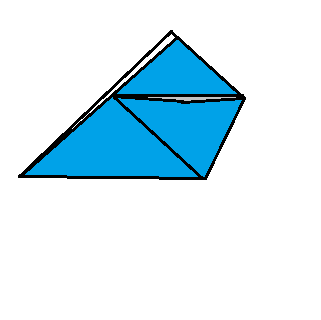
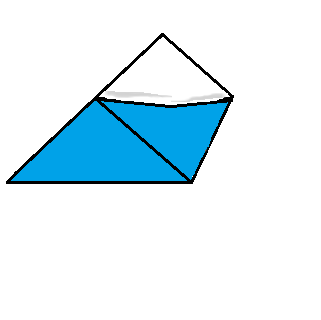
First, I’ll share with you my favorite simple origami form: the paper cup. I do this a lot at restaurants when I’m bored, using square paper napkins or whatever vaguely square paper is lying around. It’s also fun to do with wax paper–you get a cup you can actually use for a bit of water! (Forgive rudimentary images–this is what happens when your hard drive fails and you have no sophisticated image or photo software to work with. Microsoft Paint to the rescue, LOL!)

Origami Cup Instructions

1. Start with a square piece of paper. This is important, otherwise your cup will look deformed at the end! (speaking from experience… -_-)
2. Fold the paper diagonally in half. You’ll end up with an isosceles triangle like the one to the left.
3. Take one of the narrow corners and fold it across the triangle so that the tip of it touches the other side of the triangle. It should lay straight across, not pointing down or up at an angle.
4. Take the top point of the triangle (only one of the sides, not both) and fold it down across the folded corner. Then tuck the newly folded flap into the little “pocket” formed by the folded corner.


Flip your half-formed cup over and repeat steps 4, 5, and 6 on the other side, folding the other corner over, then folding the remaining top point down and tucking it into the second little “pocket”. (see following images on left)
You should have a finished little origami cup!

Other Instructions from Origami-Instructions.com

For More Advanced Learners: The Star Box

This festive, four-pointed folded box form is a form I have yet to master again–I used to make them all the time, but have lost my touch over the years. It’s a really fun craft (and useful for storing small trinkets, bobby pins, or anything else light and easily lost). Try it out if you’d like a more challenging origami form!

Instructions from EHow
Instructions from Origami-Make.com

Resources to Learn More about Origami

Origami @ Wikipedia
Origami-Resource-Center for all levels of crafters–easy and kids’ origami, novelty origami (with toilet paper!), and even Star Wars/Star Trek-themed projects!
Origami.com Diagrams for the more advanced paper-folders–detailed, almost scientific step-by-steps.

Best Teacher Ever, Someone’s “I Want” List, What Comic Sans Means, and Schoolr

Best Teacher I Ever Had
Hilarious anecdote about an inventive science teacher, who used the cattywampus to illustrate a great point about education.

More Random Stuff I Don’t Need but Kinda Want
What do a completely transparent-plastic chair, a set of ice trays that make the alphabet, and a Tetris mirror have in common? This blog post, of things the author wants but doesn’t need. Don’t we all have one of these lists lying about? 🙂

Fonts’ True Meanings
Keep in mind, the fonts you use in your communications really DO have another, hidden meaning, as detailed in this handy (and funny) chart.

Schoolr
Search all kinds of academic databases at once on this Internet-circa-1999-designed site. Don’t let the design fool you–it’s still quite current. Great for speeding up research time for papers!

Bride Hair Dresser Game

As one of the only good, true hairdressing games I’ve ever played, Bride Hair Dresser stands out. I was so distressed when the site I had been playing it on apparently closed down, taking this game with it–so I was very happy to find a mirror copy on another site.

Let me take you through it and show you all the imaginative fun you can have with this great Flash game. (Also, it doubles as a way to plan and play with your own wedding hairstyle without having to set foot in a salon first. Woot!)

Basic Gameplay

You start out with a virtual model with long hair, which you can style in thousands of different ways.

Off to the right is your hairstyling stand, with all the tools of the trade at your disposal.

The scissors cut one lock at a time at predetermined lengths; the curlers create spiraled ringlet curls on each lock. The pink bobby pins create a neat topknot-style bun (click multiple times to get more of the hair included into the bun), while the multicolored clips create a messier bun look (again, click multiple times to include more hair in the bun).

The sparkle spray gives a swirling array of glitter all around the model’s head; the dryer blasts the sparkle spray away if you don’t like it. The brush is a complete “Undo” button, taking you back to the default look, and the flatiron gets rid of curls, pins, and clips (but not sparkles, or the cuts you made to the hair).

Lastly, the bottles of color at the bottom of your hairstyling stand lend your model totally different looks–from vampy dark to cotton-candy pink! (By the way, the orange bottle on far right is the default color.)

Simple Styling


You can curl all her hair (including the bangs) with the curlers…

Or you can put it all up into a topknot bun with the bobby pins…

…or even style it all into a messy bun with the clips.

And yes, you can even cut most of her hair off into this pixie-ish ‘do if you like!

Combining Two or More Styling Tools


You can put the four outermost locks into a bun, cut the two remaining locks shorter, and then curl them, for a tidy and perfect look…

…or you can go crazy and curl that short pixie style into this mess of curls…(this look is so much fun!)

…and even combine clips and curls for this more organic look.

Examples of Color


Deep brown, a little shorter, curled and darkly sparkly! (The sparkles come out as different colors depending on the color of the hair.)

Bright green with teal sparkles sets off a neat bobby-pin bun and tiny ringlets curled just behind the ears.

Cutesy purple (sparkly) hair and messy bun, with long curls at the front added for an extra touch of glam.

And Don’t Forget Accessories!


This white/yellow flower veil works well for most “down” hairstyles, but not topknots or messy buns ’cause it gets in the way.

This veil doesn’t get in the way of the higher hairstyles, and it seems to work well for just about every type of style you can create (though it won’t go with every hair color…)

Truly an accessory that works with all the various heights and colors of hair you can get.

This works best with “down” styles as well…and something that isn’t bright green or neon yellow. LOL!

Pretty silverish pearls… ^_^

Silver drop-style jewelry…very delicate!

And to echo the bouquet, flower earrings and a necklace. 🙂

A Mini-Lookbook


Pretty in cotton-candy pink ringlet curls and matching pink veil.


Multi-level teal curls with a tidy bun and white-flowered veil.

Messy red bun with short choppy layers below, and only a bit of flowery jewelry.

Play the Game:

Bride Hair Dresser

(P.S. Happy birthday to me! ^_^)

Don’t Worry So Much about Worldly Things!

Luke 10:38-42
38 As Jesus and his disciples were on their way, he came to a village where a woman named Martha opened her home to him. 39 She had a sister called Mary, who sat at the Lord’s feet listening to what he said. 40 But Martha was distracted by all the preparations that had to be made. She came to him and asked, “Lord, don’t you care that my sister has left me to do the work by myself? Tell her to help me!”

41 “Martha, Martha,” the Lord answered, “you are worried and upset about many things, 42 but only one thing is needed. Mary has chosen what is better, and it will not be taken away from her.”

In the village of Bethany, 2 miles from Jerusalem, Jesus and the disciples stopped, and Martha offered him hospitality. But while Martha’s bustling about the house, getting things ready (probably airing out rooms, beating out rugs and bedding), Mary is just sitting with Jesus and listening to Him talk.

Can you imagine what Martha feels like? All this preparation for all these houseguests to do, and her sister’s just off in another world, acting like she doesn’t need to help! That’s why she’s prompted to ask Jesus Himself in verse 40 to TELL Mary to get up and help.

But Jesus answers, in His serene fashion, that all Martha’s worries are needless. Yes, things like getting the house ready for guests and preparing food needs taking care of, but she shouldn’t agonize about it. What she should worry about is faith, and maintaining it, which is what Mary is doing. Mary’s absorbing all the spiritual lessons Jesus is giving, and becoming stronger as a result.

This is a lesson that is quite appropriate going into holiday season. So often we get tied up buying gifts, decorating, and cleaning house for guests, and we end up so stressed out, just like Martha. But when we’re overly focused on these more worldly concerns, we forget the REASON for the decorating, for the guests, for the celebration.

When we celebrate this season, especially as Christians, we are celebrating the day our Lord and Savior, Jesus Christ, came into this world as an infant, fully God and fully Man. We are celebrating His birth because of Who He is and what He represents: God and salvation, and a closer relationship with our God than we could have ever hoped for otherwise. This is how we build our faith up–by gathering together and worshipping as a family, and as a community.

Let’s take Mary’s example this Christmas, and just spend some time with God instead of with Walmart; after all, Walmart will take care of itself, but our faith won’t.

I Heart Typos

Typos are just funny. When you know what the person meant to say, and yet it came out so differently…it’s hilarious. That’s probably one reason I love sites like Lamebook and WTF AutoCorrects–the funniest moments come from those inadvertent mistakes in a status message or a comment, and it renders the whole sentence as nonsense. Both sites, as well as thousands of others across the Internet, are brimming with typo examples that make me giggle.

But it’s not just online that typos appear for a quick laugh. Signage, especially handwritten signs or movable-letter signs, can be just as full of errors and lead to a snort or snicker while driving down the road. (I actually had to pull off the road into a parking lot one time because I had driven by a prom dress shop whose sign read “BUY YOUR WHOLE PRON LOOK HERE.” I was laughing so hard at the unintentional Internet porn reference, I was crying and couldn’t drive. XD)

As a former English teacher, I’ve seen my share of typos and their written counterparts in student work, and I see a lot of them online. I know I really shouldn’t laugh at typos, but should madly correct them with a grumble and a swipe of my red pen. …but I DO laugh. Often. And without holding back. Each typo I see is a little unexpected jolt of “LOL” in the middle of a day of “BLAH” or a session of “OMGIHAVETOREADTHIS???REALLY?!”.

I think typos and autocorrects give us all a little mental break, even if we have to go back and fix them. It’s fun to realize everyone’s still human!

Examples of Typos that Make Me Laugh

For each of these, click the image for a larger picture.


I love it when people confuse hungry with Hungary. Then I can come back at them with a joke about heading to Turkey if you’re Hungary. XD


Typo + irony. Guaranteed to make a Robin laugh.


“Carpet the day,” hmm? LOL


Both the typo and the commenter’s response give me fits of the snickers.


Homophones are hard to tell apart, aren’t they? (I should know, I had to teach and reteach about how to spell different words that sound alike while I taught school…)


The graffiti itself is merely laughable. The reply is delightfully snark. XD


Hilarious (and somewhat accurate, considering the state of Myspace?) autocorrect.

Autocorrect + lots of win in reply. XD

So…much…fail…can’t breathe from laughing at the multiple autocorrects!

Credits to Lamebook and WTF AutoCorrects for the pictures and the hundreds of hours of LOLs. 😀

X Marks the Sitemap

We’ve probably all visited a site that was hard to navigate. You got down into the categories and mini-categories and couldn’t find your way back up to other categories…quite frustrating.

As site designers, we may think our site does not need any sort of overarching structure, but that’s where our intimate knowledge of our creation does us no good. We have to remember that our site must be navigable to those who do not know its ins and outs, all its nuanced pages. An easily-navigable site is a user-friendly site.

What’s one way we can make users’ lives a lot easier? By building a sitemap–one page that lists all the site’s individual pages, organized by whatever system makes the most sense for your site (monthly archives, categorical archives, etc.).

Why Make a Sitemap?

Sitemaps are beautiful things–they make it easier for users to:

  • Browse your site
  • Find single pages without having to click through navigation every time
  • Know at a glance all the pages you have on your site (this can be very helpful for you, too!)

To Make a Sitemap:

  1. Go to your site’s directory, OR visit your live website.
  2. Write down all the filenames for your content files, OR copy and paste each address from the address bar as you visit each page of your site.
  3. Associate each page’s title with its filename.

    Example: If you have a page called “aboutme.html,” but it’s called “Learn More about the Webmaster”, then you’d title it “Learn More about the Webmaster” instead of “aboutme.html”.

  4. Make all these addresses and titles into working links, and link to them all in one big list, organized by content type, category, month it was posted, or however else you choose. Just make sure it’s sorted!
  5. Format this sitemap into a table (yes, a table–this is tabular data, after all), with headings and subheadings to show users clearly which sections are which in your sitemap. See examples of formatting a sitemap in the next section.

And you’re done! All you’ll need to do at this point is upload it, and every time you add a page, delete a page, or edit a title, edit the sitemap as necessary.

Some Examples of Sitemaps

The following pictures show some of the sitemaps I’ve created for my sites:


This is for Skies over Atlas, my City of Heroes site–as such, it is sorted by content category rather than by post date or by length of article, so that people can navigate to what they want to learn about quickly and easily.


This one is for The Gamer’s Repose, my gaming site, and it is sorted by game name and content type.


For my main site, WithinMyWorld.org, I didn’t need to sort it by content category so much since I had a lot of single pages that stood alone. So I just divided it up into “single pages” and “sections,” and then further delineated from there.

Automatic Sitemap Creators

Since my sites are small, making sitemaps manually is not much of a problem for me. But if you’ve got too large or too dynamic a site to do the manual sitemap (or you don’t want to be bothered with keeping it updated all the time), you can also use some of the following automatic sitemap generators, listed below:

XML-Sitemaps.com (need Google Webmaster account)
Codeplex.com’s Sitemap Generator (is software that needs to be uploaded to your server)
Doing an Automatic Sitemap in WordPress: Tutorial
BuildASiteBookmarks.com’s Sitemap Generator

Summary

To keep users of our websites happy, a sitemap can be just the thing to pull all of our content together in one place, where it’s easy to find that one page they’re looking for. It’s one way we can make browsing our sites easier, which means repeat visitors for us and a positive browsing experience for users. A true win-win!

Choir Saved My Life

This is not a melodramatic title. This is truth. I sincerely believe that if I had not joined choir in 7th grade, I would not be here today.

My (Pitiful) School Life Before Choir

Before I joined the middle school choir in 7th grade, I was a complete nobody in school. I was generally ignored or teased–treated with either indifference or malice–by the people I went to school with. I had no place in my grade’s social structure, not even the dubious grace of a “label” to slap on myself. If anybody called me anything, it was all based on negatives–there was nothing that I positively contributed to my grade level’s society, nothing I did that was particular to me.

As a result, I felt completely alienated from the rest of my classmates, and life was emotionally very stressful. When school mornings came, sometimes I would lay in bed worrying about the horrible school day I was going to face, and end up making myself sick, ending up in the bathroom all day. (Now, I know I was likely having anxiety attacks, but back then I thought I was just sick with stomach flu all the time.)

This behavior, both on my part and the part of my classmates, peaked in 6th grade, and by the time I turned 12 I had had it with my life; I thought about death every day, because death seemed like a blissful nothing in comparison to the shouted insults and often physically painful teasing. Not only that, I didn’t think I was DOING anything good with my life–it seemed like I didn’t mean anything to anybody anymore, not even myself. Depression had me fast in its grip, and in that dimness I saw nothing of the people who indeed did love me during that time.

A (Supposedly) Throwaway Decision

When it came time to sign up for 7th grade classes, I didn’t much care what I did–I was gunning more for the end of the year and a well-deserved summer away from all the mean kids I went to school with. But the musical category of classes caught my eye, and in particular 7th-grade Chorus. Both my older cousins had been in Band most of their school years and had enjoyed it, but I wanted to try out Chorus–“just for a year,” I explained to my parents. “Then, if I don’t like it, I can always switch to Band.”

My other motivation for choosing Chorus was that I had been in my elementary school’s choir for a year, and I had enjoyed singing, though I didn’t think I had much of an instrument to work with. My voice always came out kind of breathy and soft, though everyone who listened to me said the pitch was true. I figured I had nothing to lose by joining Chorus, and if it turned out I didn’t have anything to work with after all, I could switch to something else musical instead. I already played the piano, and thought that if my voice wasn’t enough, I could potentially learn another instrument.

So, after discussing it with my parents, both of whom encouraged me to join the chorus, I signed up to start in the fall of my 7th-grade year.

The Turnaround

This one decision changed my entire life within months of joining the chorus. As I’ve noted in my blog post Joining My Voice with Others, I discovered the strength of my voice, and began to thoroughly enjoy singing in choirs. Not only that, it is a creative outlet I have continued even into the present.

But WHY did it affect me this way, at 13?

Part of it lies in the psychological effect of being part of a big group doing something larger than any individual could do. I had a social place in my school, at last–I had a reason to go to school, a positive label to put on myself. I could point to the choir and say “I’m part of that;” I was no longer just “the ugly girl” or the “fat girl,” but “the girl who sings.” And my voice was no longer breathy and soft, but strong and powerful. I had a gift which was finally being recognized by the kids I went to school with. 7th grade was still stressful for me in places, but it was a watershed year; I could bloom, at last.

The other part of why choir saved my life was how it interacted with my personality. I like to be able to help other people, to do things that other people find valuable. (This blog is an example–I write six posts every week, hoping that someone else finds as much value in them as I do.) 7th-grade chorus allowed me, for the first time, to do something others considered valuable without them running away from me in horror. (When I’d tried to be nice to my classmates before, that was their typical reaction…I still have no idea why.) Now, the kindnesses I could do for others were appreciated and returned to me, not discarded, and I felt a lot more positive about my life as a result.

Death suddenly had very little attraction for me; I had something to go to school for, something to live for. Other people began to talk to me in more positive tones, about my music and my voice, and I could finally hear them, after years of having to shut them out because they were making fun of me. Chorus changed the social topography of my life, utterly, and most definitely for the better.

How Does This Link to Creativity?

This is a story not just of coming back from depression and suicidal thoughts, but of creativity, too. Not only did I feel more comfortable living my life, but I felt more comfortable doing creative things in my life, as well. My works were beginning to be valued, and at 13, it was exactly the kind of boost I needed for my self-esteem. Working with other singers, all striving for a great performance, gave me purpose, and gave me fuel for my own works–my writing and my music.

This is why I’m such a proponent of music education, and indeed all fine arts education, in schools. If fine arts had been taken out of my school before I had a chance to be in it, there is a very good chance I would not have seen my 14th birthday; my life would have had no hope in it, and I would have likely turned my thoughts of death into a reality. If fine arts and creativity can soothe the savage beast of depression and anxiety, which our modern schoolchildren are indeed suffering from in droves, then more of it, not less of it, should be incorporated.

I know, I know, we should be training our future workforce in “useful skills,” which is why fine arts education has been cut or eliminated in many schools. Many people who have never experienced the power of art on their lives may wonder, “Why waste money on teaching them skills that won’t help them in the real world?” But here is the flip side: we do want our future workforce to actually reach adulthood, don’t we?

As I well know from my teaching days, a life without creativity, without beauty and devoid of passion, is a life nearly not worth living. A life with creativity, on the other hand, with the capacity for beauty and passion, is a life that sings with our souls.

Creative Truths, Snowflake Toy, Universal Wrapping Paper, and DuckDuckGo

Creative Truths
Great truths presented by some of the greatest thinkers we know.

Snowflake
Make your own snowflake in this pretty little web-toy. Not only can you look at it as a still-life, but you can also turn it around and around, both in 2D and 3D!

Universal Wrapping Paper
Wrapping paper that doubles as a crossword puzzle? OKAY! (Laziest and yet most creative gift-wrap idea ever?)

DuckDuckGo
A more private search engine that doesn’t track your usage.

Forming a Collection Catalog: The Organized Gamer

Buying the pieces of your gaming collection is the easy part of starting to play a game. It’s much harder to keep track of everything you’ve got (and everything you want that you don’t have yet)…especially if you’re like me and have a habit of leaving your room in a mess of sizable magnitude. XD

I’m likely the last person anyone would suspect to be organized when it comes to gaming, given the usual state of my room and my purse. XD But indeed, I keep my gaming collections all divided up and even indexed in a few files on my computer. This article will show you how to build a collection database of your own, using spreadsheet software.

Step 1: Sort Your Collection into Sections

Are you collecting Magic: the Gathering cards? Sort them first by color (White, Red, Artifacts, Hybrid, etc.), or by type (Creature, Enchantment, Instant, etc.). Got a heap of HeroClix cards and figures? Sort them by comic universe (Marvel, DC, Indy), by point values (below 50 points, 50-100 points, etc.), or even by combat values, like range (0 range figures over here, 6 range over here, etc.). Whatever system works for you is best.

Sorting your collection is key–it gets you physically interacting with all of the stuff you have, so that you’ll remember it better when you begin to catalog it all. Through sorting my Magic collection one afternoon, I discovered no less than 20 cards that I had bought and then promptly forgotten about–they were cards I still had on my “want list,” even though I had already bought them months ago!

Now, once you have everything sorted out, don’t just cram it all back together in one box or shelf when you need to put it away for the night. Have several different boxes or dividers for your collection, no matter how big or small it is, so that you don’t ever have to sort it completely out again. Trust me, this saves a lot of time and relieves a lot of frustration when you have to add to, delete from, or edit your collection.

Step 2: Figure Out Which Section is Your Smallest, and Start There

Once you’ve got everything sorted, it’s time to catalog. But you need to determine which section of your collection is the smallest, so you can work with it first.

Why do I say to start with the smallest section? So you don’t get discouraged about the size of the task in front of you–for instance, I started cataloging my section of HeroClix figures over 100 points first because I had so few of them (around 20 at the time). This was a very manageable number to start out with and helped me feel better about trying to tackle it.

Starting with a smaller section also ensures that you can iron out any problems with your cataloging before you get too deep into it to turn back. When I started cataloging my Magic collection, I started with my Black section (the smallest), and quickly discovered that if I was to have a complete catalog, I had to list all the sets that my cards were from, as well as the number of each card I had, the condition it was in, etc. Because I’d started with a small section, I didn’t have much to go back through and add. If I’d started with the White section of my Magic collection, and had to go back and edit it all over again…I probably would have just sat in front of my computer and cried. LOL

Step 3: Begin the Cataloging Process

With your smallest section spread out in front of you (whether it’s miniature figures, cards, etc.), start noting all the important details about each item. Ask yourself: “What do I really need to know about each item?”

This process can take many different forms (and have very different timetables), so I have included three examples of cataloging from my real-life gaming databases.

Exhibit A: Robin’s Magic: the Gathering Trades Collection
With a good bit of my massive collection of M:TG cards sitting useless in boxes at home, I decided to make up a comprehensive database for them so I could remember what cards I had. That way, if anybody asked me if I had certain cards, I could tell them right away without having to search through endless boxes at home.

For my M:TG collection, I noted the following pieces of information about each card I owned:

  • Color
  • Name of card
  • Rarity (Common, Uncommon, etc.)
  • Type of card (Creature, Enchantment, etc.)
  • What expansion set(s) it came from
  • What condition my copies of the card are in
  • How many I have of this particular card

These are the things that I most needed to know, because when people trade for cards, they are usually after a certain expansion set’s printing of the card, and they want it as Near Mint in condition as possible.

The following screenshot shows part of the White section of my M:TG Trades Database:


(click for larger picture) I went with very simple formatting for my Trades Database so far, since I don’t want to flood it with colors and styles it doesn’t need. This would be a good style for a table you will often search with the “Find” function rather than visual search.

Time It Took to Complete: 6 months (because of collection size and health)

Exhibit B: Robin’s Magic: the Gathering Decks
Once I created my Trades Database, I realized that I also needed a way to digitally keep up with the changes I was making to my active M:TG decks. So I turned to Excel once again to create a database for all my active decks’ decklists.

For this project, I needed to know the following:

  • What types of cards were in my deck
  • How many of each named card I was running

Because I only needed to know a few details about the items I was trying to catalog, my decklist spreadsheets are much simpler than my M:TG trades database or my HeroClix database (later in this article). Below are a couple of examples of decklists:


(click for larger picture)This decklist is for my Elvish Piper deck, which has mainly Creatures in it; thus, the Creatures section (closest to top) is the largest.

The four main columns represent how many of each card I’m running. For instance, Elvish Piper herself is in the rightmost column because I’m running 4 of her in the deck, while Silvos, Rogue Elemental is in the leftmost column because I’m only running one of it. This visual arrangement made the most sense to me while cataloging, and it makes it easy to see where I can increase or decrease the number of a certain card I’m running in the deck.


(click for larger picture) This deck has mostly artifacts and creatures, being an Artifact-heavy Life-Gain deck, so the Enchantments, Instants, and Sorceries categories are nonexistent. Here again, I make use of four columns to show how many of each card I’m running.

Time It Took to Complete: 2 days of consistent work

Exhibit C: Robin’s HeroClix Database
My HeroClix collection used to be all jammed together in a fold-out makeup box, which worked okay, but didn’t let me see all the figures I had at one shot. I ended up playing certain pieces over and over again because they were the ones I could most readily find. That left me frustrated–I KNEW I had more figures than just the 30 or 40 I was playing every week! I needed some way to sift through them faster. Thus, the idea for my HeroClix Database came into being.

With my HeroClix collection, I needed to know the following data about each figure I owned:

  • Name
  • Experience Level (Rookie, Experienced, etc.)
  • Point Cost
  • Range Value
  • Targets (# of opponents the figure can target with one attack)Team Symbol
  • Whether they are Flying or Grounded characters
  • Keywords
  • Which of my five HeroClix trays it’s stored in
  • When it was last played
  • Complete dial, with power colors, special powers, and stats

Looks pretty involved, right? Well, when I’m building a team, I don’t always feel like hauling out the whole collection and methodically clicking through each piece I own to find the ones I want to play. This very detailed list helps me know as much about the figure as if I was holding it in my hand!

And if all this detail looks scary, don’t worry. Actually, once you get the hang of it and you’ve done several individual items, it’s not all that bad. Here are two examples of what my HeroClix Database (in Excel) looks like:


(click for a larger picture) This shows a small selection of the figures in my collection ranging from 20 to 34 points. Here, each of the Rookies is denoted with the yellow color behind its info; each of the Experienced figures has blue, etc.

(By the way, the reason Scarab (the only red one) doesn’t have any Keywords listed is because I haven’t gotten off my proverbial posterior to find out what they are yet. XD )


(click for a larger picture) This is a selection from the largest-point-value Clix figures I have (73 points and up). Lot more red (Veteran) and even a silver (Unique) figure listed in this section, because more of the higher-point-cost figures are Veterans or Unique figures.

Time It Took to Complete: 5 months (because of collection size and detail)

In a Nutshell: Cataloging
Determine what you need to know about each item you want to catalog. Is it just a few points, like my M:TG decklists, or are you going for a super-detailed database like my HeroClix one? This will determine how long cataloging takes (it took me 5 months to finish my HeroClix database, versus 2 days for my M:TG decklist), as well as the usefulness of your catalog once you’re done.

Step 4 (optional): Format Your Data

If you want your data to be easily read visually instead of just searched by the “Find…” option, it’s important to format what you have just cataloged. Using color, bold, and italics to good effect, as well as a big enough font size, will ensure that you won’t be cursing yourself months later when you refer back to your database.

With my HeroClix database, I formatted it so that entries could be read left to right along rows. However, when I got to the “dial and stats” portion, I was stymied: how could I combine one row of data on each figure’s basics with four rows of data on its stats?

After a while, I figured it out–the Merge and Center command in Excel is my best friend. Basically, for each character, I took four normal rows and merged them together everywhere that I just needed one row for data, like character name, keywords, etc. Then I left the other part alone so that I could fill in the HeroClix dial stats. Result: a pretty sweet-looking database, if I do say so myself.

Similarly, for my M:TG decklist, I wanted it to be visually easy to read and understand (at least for me), so I used both row names and implied column names to help me sort through each deck. The result is neat and clean without looking like an info overload.

Formatting my data was optional for my M:TG trades collection, however, because I mainly just search it digitally rather than visually. I still wanted it to be readable, but I didn’t have to worry so much about info overload per spreadsheet page.

Summary

Cataloging does not have to be a drag–in fact, once you do it, it can make you freer to do more things with your gaming time than fruitlessly search for things that you know you have but can’t find. If you have a gaming collection of any size, it does make a difference.

I will admit, it is a good bit of work at the beginning and does require a bit of upkeep (adding new, deleting old, editing, etc.), but the payoff (building teams without ever handling a figure, and changing decklists on the fly) is amazing to me. (Plus, it makes my all-too-obvious OCD happy. XD )